

Use one of the following workflows to evaluate overlays:
Flash the image and install packages corresponding to a release snapshot
Use this workflow to deploy the image and packages built from the Qualcomm Linux 2.0 release. The images and packages corresponding to the Qualcomm Linux release milestone are posted on CodeLinaro.
The package server hosts all the packages generated from the Qualcomm Linux 2.0 Config #2 build, that is, qcom-multimedia-proprietary-image. These packages are generated from the qli-2.0 release snapshot of the Qualcomm Linux 2.0 release. The scope of this package server is to provide an image snapshot corresponding to Config #1, that is qcom-multimedia-image, and the corresponding packages generated from Config #2 (qcom-multimedia-proprietary-image).
A high-level overview of the steps involved in flashing the image and installing packages from the package server of the release snapshot are as follows. For detailed instructions, see Install packages from the Qualcomm Linux reference package server.
- Download and flash the
qcom-multimedia-image upstream image.
- Install the packages corresponding to the overlays:
- Add the following package feed URL available as part of Qualcomm Linux 2.0 release: https://artifacts.codelinaro.org/qli-yocto-rpm-signed/qli-2.0/rpm
- Install package on the device using package manager.
- To manage the configurations, update
/etc/modprobe.d/blacklist.conf for driver selection.
- Set EFI variables to select the camera driver.
- If required, set the EFI variable for the DTB overlay indication to UEFI.
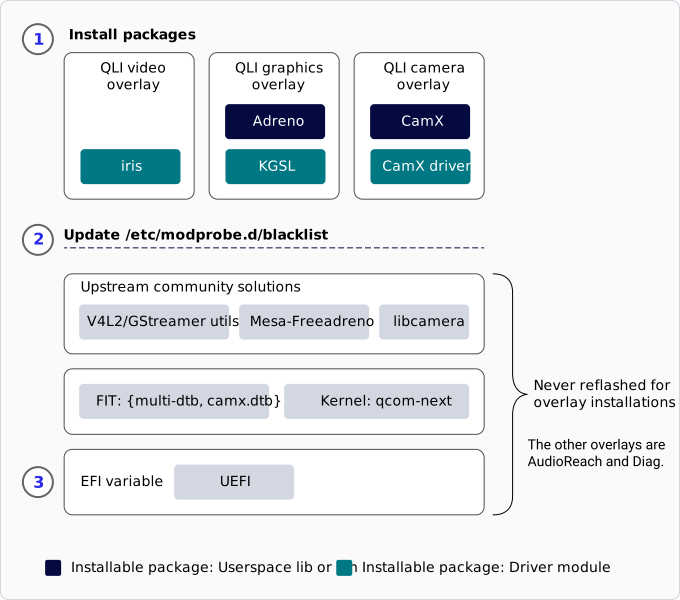
Figure: Qualcomm Linux overlay workflow
Install packages from the Qualcomm Linux reference package server
You can install packages using overlays without software builds. A test server is set up on CodeLinaro with all the images and RPM packages.
To flash images and install RPMs for overlays, do the following:
- To flash
qcom-multimedia-image for RB3Gen2 Core Kit, do the following:
- Download
qcom-multimedia-image-rb3gen2-core-kit.rootfs.qcomflash.tar.gz from the artifactory server.
- Unpack
qcom-multimedia-image-rb3gen2-core-kit.rootfs.qcomflash.tar.gz.
- Flash it using the Qualcomm Device Loader (QDL) tool or Product Configuration Assistant Tool (PCAT).
- Bring up and log in to your device.
- To configure the
yum.repos.d repository on the device, append the following lines to the configuration file:
Note
/etc/yum.repos.d/ is a directory that stores repository configuration files. Ensure this directory exists; if not, create it.
- Inside this directory, ensure the file
overlay.repo exists. If it does not, create it at /etc/yum.repos.d/overlay.repo.
- To configure the
yum.repos.d repository, append the required configuration to /etc/yum.repos.d/overlay.repo.
- The
yum.repos.d repository is protected using GNU Privacy Guard (GPG)-based signing to ensure authenticity and integrity of the repository metadata. These settings in the .repo file enforce the following checks:
gpgkey defines the trusted public GPG key used to verify the repository metadata.
repo_gpgcheck=1 enables mandatory GPG validation of the repository before any package operation.
[overlay-noarch]
name = Qualcomm Overlay Repository (noarch)
baseurl = https://artifacts.codelinaro.org/qli-yocto-rpm-signed/qli-2.0/rpm/noarch/
enabled = 1
gpgcheck = 0
gpgkey=https://artifacts.codelinaro.org/artifactory/api/security/keypair/yocto-qli-rpm-1/public
repo_gpgcheck=1
[overlay-armv8_2a]
name = Qualcomm Overlay Repository (armv8_2a)
baseurl = https://artifacts.codelinaro.org/qli-yocto-rpm-signed/qli-2.0/rpm/armv8_2a/
enabled = 1
gpgcheck = 0
gpgkey=https://artifacts.codelinaro.org/artifactory/api/security/keypair/yocto-qli-rpm-1/public
repo_gpgcheck=1
[overlay-<target_specific>]
name = Qualcomm Overlay Repository (<target_specific>)
baseurl = https://artifacts.codelinaro.org/qli-yocto-rpm-signed/qli-2.0/rpm/<target_specific>/
enabled = 1
gpgcheck = 0
gpgkey=https://artifacts.codelinaro.org/artifactory/api/security/keypair/yocto-qli-rpm-1/public
repo_gpgcheck=1
The third block, [overlay-<target_specific>], determines which feed the DNF uses for your hardware or build target. For example:
[overlay-rb3gen2]
name = Qualcomm Overlay Repository rb3gen2
baseurl = https://artifacts.codelinaro.org/qli-yocto-rpm-signed/qli-2.0/rpm/rb3gen2_core_kit/
enabled = 1
gpgcheck = 0
gpgkey=https://artifacts.codelinaro.org/artifactory/api/security/keypair/yocto-qli-rpm-1/public
repo_gpgcheck=1
[overlay-iq_9075_evk]
name = Qualcomm Overlay Repository IQ-9075 EVK
baseurl = https://artifacts.codelinaro.org/qli-yocto-rpm-signed/qli-2.0/rpm/iq_9075_evk/
enabled = 1
gpgcheck = 0
gpgkey=https://artifacts.codelinaro.org/artifactory/api/security/keypair/yocto-qli-rpm-1/public
repo_gpgcheck=1
[overlay-iq_8275_evk]
name = Qualcomm Overlay Repository IQ-8275 EVK
baseurl = https://artifacts.codelinaro.org/qli-yocto-rpm-signed/qli-2.0/rpm/iq_8275_evk/
enabled = 1
gpgcheck = 0
gpgkey=https://artifacts.codelinaro.org/artifactory/api/security/keypair/yocto-qli-rpm-1/public
repo_gpgcheck=1
Ensure that you append the appropriate target-specific line so that DNF fetches packages from the right directory.
-
To refresh the package index using your custom configuration file, run the following command:
Note
If you experience an SSL certificate validation error during DNF update, ensure that your system time is accurate.
In this step, DNF does the following:
- Downloads the repository metadata (for example,
repomd.xml and related files)
- Retrieves the associated metadata signatures
- Accepts and uses the repository metadata only if the verification is successful
Run DNF installation commands to derive Config #2, Config #3 and Config #4
Note
As Config #1 and Config #2 are images, commands are required to install overlays only for Config #3 and Config #4. You should flash the device with Config #1, that is qcom-multimedia-image.
The following table lists the dnf install commands to install overlay packages and configuration file changes you must make on the device to derive Config #2:
Table: DNF commands and configuration file changes for Config #2
| Config | Overlay | Instructions | | |
|---|
| Config #2 | Graphics | To install RPM packages for the graphics overlay, run: dnf install kgsl-dlkm -y, dnf install qcom-adreno -y. The /etc/modprobe.d/qcom-adreno.conf file is automatically populated with: `install msm /bin/sh -c ”( modprobe —ignore msm skip_gpu=1 && modprobe msm_kgsl ) | | modprobe —ignore-install msm”`. |
| Audio | To install packages for the audio overlay, do the following: 1. To install RPM packages, run the following DNF commands: dnf install tinycompress -y, dnf install audioreach-audio-utils -y, dnf install audioreach-conf -y, dnf install audioreach-graphservices -y, dnf install audioreach-graphmgr -y, dnf install audioreach-pal -y, dnf install audioreach-pipewire-plugin -y, dnf install audioreach-kernel -y, dnf install kernel-module-audioreach-driver -y. 2. Create a file named asoc-blacklist.conf in /etc/modprobe.d/. 3. Add the following blacklist entries: blacklist q6apm_dai, blacklist q6apm_lpass_dais, blacklist q6prm, blacklist q6prm_clocks, blacklist snd-soc-sc8280xp, blacklist snd_q6apm, blacklist snd_q6dsp_common. | | |
| Camera | To install packages for the camera overlay, do the following: 1. Run common DNF commands: dnf install camx-dlkm -y, dnf install camx-nhx -y. Run device-specific command: QCS6490: dnf install camx-kodiak -y; IQ-9075/IQ-8275: dnf install camx-lemans -y; IQ-615: dnf install camx-talos -y. 2. To select the DTB overlay: echo -n "camx" > /tmp/overlay, efivar -n 882f8c2b-9646-435f-8de5-f208ff80c1bd-VendorDtbOverlays -w -f /tmp/overlay. 3. To verify: efivar -n 882f8c2b-9646-435f-8de5-f208ff80c1bd-VendorDtbOverlays -p. 4. To save before reboot: sync. | | |
| Video | To install packages for the video overlay (applicable to QCS6490, IQ-9075, and IQ-8275 only): 1. dnf install kernel-module-iris-vpu -y. 2. Create /etc/modprobe.d/video-blacklist.conf. 3. Add entries: QCS6490: blacklist venus_dec, blacklist venus_enc, blacklist venus_core; IQ-9075/IQ-8275: blacklist qcom_iris. | | |
| Sensors | To install packages for the sensors overlay: 1. dnf install qcom-sensors-binaries -y. 2. Restart the device to apply changes. | | |
| Vision | To install packages for the FastCV overlay: 1. dnf install libfastcvopt1 -y. 2. Device-specific: QCS6490: dnf install libfastcvopt-thundercomm-rb3gen2-dsp -y; IQ-9075: dnf install libfastcvopt-sa8775p-ride-dsp -y; IQ-8275: dnf install libfastcvopt-qcs8300-ride-dsp -y; IQ-615: dnf install libfastcvopt-qcs615-ride-dsp -y. | | |
The following table lists the dnf install commands to install overlay packages and configuration file changes you must make on the device to derive Config #3:
Table: DNF commands and configuration file changes for Config #3
| Config | Overlay | Instructions |
|---|
| Config #3 | Audio | To install packages for the audio overlay, do the following: 1. To install RPM packages, run the following DNF commands: dnf install tinycompress -y, dnf install audioreach-audio-utils -y, dnf install audioreach-conf -y, dnf install audioreach-graphservices -y, dnf install audioreach-graphmgr -y, dnf install audioreach-pal -y, dnf install audioreach-pipewire-plugin -y, dnf install audioreach-kernel -y, dnf install kernel-module-audioreach-driver -y. 2. Create a file named asoc-blacklist.conf in /etc/modprobe.d/. 3. Add the following blacklist entries: blacklist q6apm_dai, blacklist q6apm_lpass_dais, blacklist q6prm, blacklist q6prm_clocks, blacklist snd-soc-sc8280xp, blacklist snd_q6apm, blacklist snd_q6dsp_common. |
| Camera | To install packages for the camera overlay, do the following: 1. Run common DNF commands: dnf install camx-dlkm -y, dnf install camx-nhx -y. Run device-specific command: QCS6490: dnf install camx-kodiak -y; IQ-9075/IQ-8275: dnf install camx-lemans -y; IQ-615: dnf install camx-talos -y. 2. To select the DTB overlay: echo -n "camx" > /tmp/overlay, efivar -n 882f8c2b-9646-435f-8de5-f208ff80c1bd-VendorDtbOverlays -w -f /tmp/overlay. 3. To verify: efivar -n 882f8c2b-9646-435f-8de5-f208ff80c1bd-VendorDtbOverlays -p. 4. To save before restart: sync. |
| Video | To install packages for the video overlay (applicable to QCS6490, IQ-9075, and IQ-8275 only): 1. dnf install kernel-module-iris-vpu -y. 2. Create /etc/modprobe.d/video-blacklist.conf. 3. Add entries: QCS6490: blacklist venus_dec, blacklist venus_enc, blacklist venus_core; IQ-9075/IQ-8275: blacklist qcom_iris. |
| Sensors | To install packages for the sensors overlay: 1. dnf install qcom-sensors-binaries -y. 2. Restart the device to apply changes. |
| Vision | To install packages for the FastCV overlay: 1. dnf install libfastcvopt1 -y. 2. Device-specific: QCS6490: dnf install libfastcvopt-thundercomm-rb3gen2-dsp -y; IQ-9075: dnf install libfastcvopt-sa8775p-ride-dsp -y; IQ-8275: dnf install libfastcvopt-qcs8300-ride-dsp -y; IQ-615: dnf install libfastcvopt-qcs615-ride-dsp -y. |
The following table lists the dnf install commands to install overlay packages and the configuration file changes you must make on the device to derive Config #4:
Table: DNF commands and configuration file changes for Config #4
| Config | Overlay | Instructions | | |
|---|
| Config #4 | Graphics | To install RPM packages for the graphics overlay, run: dnf install kgsl-dlkm -y, dnf install qcom-adreno -y. The /etc/modprobe.d/qcom-adreno.conf file is automatically populated with: `install msm /bin/sh -c ”( modprobe —ignore msm skip_gpu=1 && modprobe msm_kgsl ) | | modprobe —ignore-install msm”`. |
| Camera | To install packages for the camera overlay: 1. Run common DNF commands: dnf install camx-dlkm -y, dnf install camx-nhx -y. Run device-specific command: QCS6490: dnf install camx-kodiak -y; IQ-9075/IQ-8275: dnf install camx-lemans -y; IQ-615: dnf install camx-talos -y. 2. To select DTB overlay: echo -n "camx" > /tmp/overlay, efivar -n 882f8c2b-9646-435f-8de5-f208ff80c1bd-VendorDtbOverlays -w -f /tmp/overlay. 3. To verify: efivar -n 882f8c2b-9646-435f-8de5-f208ff80c1bd-VendorDtbOverlays -p. 4. To save before reboot: sync. | | |
| Sensors | To install packages for the sensors overlay: 1. dnf install qcom-sensors-binaries -y. 2. Restart the device to apply changes. | | |
| Vision | To install packages for the FastCV overlay: 1. dnf install libfastcvopt1 -y. 2. Device-specific: QCS6490: dnf install libfastcvopt-thundercomm-rb3gen2-dsp -y; IQ-9075: dnf install libfastcvopt-sa8775p-ride-dsp -y; IQ-8275: dnf install libfastcvopt-qcs8300-ride-dsp -y; IQ-615: dnf install libfastcvopt-qcs615-ride-dsp -y. | | |
To verify that the RPM and driver packages were installed successfully for each overlay, see Verify the installation of RPM and driver packages.
Note
The package server is based on the Qualcomm Linux 2.0 release snapshot to demonstrate overlays. It’s not intended to meet the needs of a production-class packaging server. When next version of Qualcomm Linux is released, a new feed (package server URL) will provide packages generated from that release. However, package-based upgrades from one version to another are not guaranteed to work.
Verify the installation of RPM and driver packages
The following table lists the dnf and lsmod commands to verify that the RPM and driver packages for overlays were installed successfully:
Table: RPM and driver packages verification commands
| Overlay | Verification commands |
|---|
| Audio | To verify RPM packages: dnf list installed | grep <rpm_name>. To verify driver packages: lsmod | grep audioreach. |
| Camera | To verify RPM packages: dnf list installed | grep <rpm_name>. To verify driver packages: run lsmod | grep cam* and check for: QCS6490: camera_qcm6490; IQ-9075/IQ-8275: camera_qcs9100; IQ-615: camera_qcs615. |
| Video | To verify RPM packages: dnf list installed | grep <rpm_name>. To verify driver packages: lsmod | grep iris_vpu. |
| Graphics | To verify RPM packages: dnf list installed | grep <rpm_name>. To verify driver packages: lsmod | grep msm_kgsl. |
| Sensors | To verify RPM packages: dnf list installed | grep qcom-sensors-binaries. |
| Vision | To verify RPM packages: dnf list installed | grep libfastcv. |
To uninstall overlays, see Uninstall overlay configurations and switch to upstream drivers.
Build locally, flash images, and use packages from the local build
Note
For instructions on how to build from source, see Qualcomm Linux Build Guide.
Use this workflow to build images and packages by cloning meta-qcom. You can also use this workflow if you want to integrate your changes. The images and packages corresponding to a Qualcomm Linux release are built locally. You can flash images and install packages from the local workspace.
Set up a local workspace
-
To clone
meta-qcom, run the following command:
git clone https://github.com/qualcomm-linux/meta-qcom.git
-
To build the image for Config #1
qcom-multimedia-image, run the following command:
QCS6490
IQ-9075
IQ-8275
IQ-615
kas shell meta-qcom/ci/qcs6490-rb3gen2-core-kit.yml:meta-qcom/ci/qcom-distro-multimedia-image.yml:meta-qcom/ci/linux-qcom-6.18.yml
bitbake qcom-multimedia-image
kas shell meta-qcom/ci/iq-9075-evk.yml:meta-qcom/ci/qcom-distro-multimedia-image.yml:meta-qcom/ci/linux-qcom-6.18.yml
bitbake qcom-multimedia-image
kas shell meta-qcom/ci/iq-8275-evk.yml:meta-qcom/ci/qcom-distro-multimedia-image.yml:meta-qcom/ci/linux-qcom-6.18.yml
bitbake qcom-multimedia-image
kas shell meta-qcom/ci/iq-615-evk.yml:meta-qcom/ci/qcom-distro-multimedia-image.yml:meta-qcom/ci/linux-qcom-6.18.yml
bitbake qcom-multimedia-image
-
To build the image for Config #2
qcom-multimedia-proprietary-image and all packages, run the following command:
QCS6490
IQ-9075
IQ-8275
IQ-615
kas shell meta-qcom/ci/qcs6490-rb3gen2-core-kit.yml:meta-qcom/ci/qcom-distro.yml:meta-qcom/ci/linux-qcom-6.18.yml
bitbake qcom-multimedia-proprietary-image
kas shell meta-qcom/ci/iq-9075-evk.yml:meta-qcom/ci/qcom-distro.yml:meta-qcom/ci/linux-qcom-6.18.yml
bitbake qcom-multimedia-proprietary-image
kas shell meta-qcom/ci/iq-8275-evk.yml:meta-qcom/ci/qcom-distro.yml:meta-qcom/ci/linux-qcom-6.18.yml
bitbake qcom-multimedia-proprietary-image
kas shell meta-qcom/ci/iq-615-evk.yml:meta-qcom/ci/qcom-distro.yml:meta-qcom/ci/linux-qcom-6.18.yml
bitbake qcom-multimedia-proprietary-image
Note
qcom-distro.yml sets DISTRO to qcom-distro. qcom-distro enables package management using DNF and allows RPMs to be installed. Other DISTRO configurations available in meta-qcom-distro enable SOTA using OSTree, and disable package management.
- Flash
qcom-multimedia-image using QDL.
- Host all the packages from the
rpm directory of qcom-multimedia-proprietary-image. The rpm directory is located at build/tmp/deploy/rpm.
- To configure the RPM repository on the device, append the following lines to the configuration file:
Note
/etc/yum.repos.d/ is a directory that stores repository configuration files. Ensure this directory exists; if not, create it.
- Inside this directory, ensure the file
overlay.repo exists. If it does not, create it at /etc/yum.repos.d/overlay.repo.
- To configure the RPM repository feeds, append the required configuration to
/etc/yum.repos.d/overlay.repo.
- The
yum.repos.d repository is protected using GNU Privacy Guard (GPG)-based signing to ensure authenticity and integrity of the repository metadata. These settings in the .repo file enforce the following checks:
gpgkey defines the trusted public GPG key used to verify the repository metadata.
repo_gpgcheck=1 enables mandatory GPG validation of the repository before any package operation.
[overlay-noarch]
name = Qualcomm Overlay Repository (noarch)
baseurl = https://<your-local-package-server-IP>/rpm/noarch/
enabled = 1
gpgcheck = 0
gpgkey=https://artifacts.codelinaro.org/artifactory/api/security/keypair/yocto-qli-rpm-1/public
repo_gpgcheck=1
[overlay-armv8_2a]
name = Qualcomm Overlay Repository (armv8_2a)
baseurl = https://<your-local-package-server-IP>/rpm/armv8_2a/
enabled = 1
gpgcheck = 0
gpgkey=https://artifacts.codelinaro.org/artifactory/api/security/keypair/yocto-qli-rpm-1/public
repo_gpgcheck=1
[overlay-<target_specific>]
name = Qualcomm Overlay Repository (<target_specific>)
baseurl = https://<your-local-package-server-IP>/rpm/<target_specific>/
enabled = 1
gpgcheck = 0
gpgkey=https://artifacts.codelinaro.org/artifactory/api/security/keypair/yocto-qli-rpm-1/public
repo_gpgcheck=1
Note
The baseurl must point to the armv8_2a/ directory when building for QCS6490, IQ-9075, IQ-8275, and IQ-615. If you are using qcom-armv8a.yml to build with KAS or setting qcom-armv8a as the MACHINE value, change the directory name to armv8a/.
The third block, [overlay-<target_specific>], determines which feed the DNF uses for your hardware or build target. For example:
[overlay-rb3gen2]
name = Qualcomm Overlay Repository rb3gen2
baseurl = https://<your-local-package-server-IP>/rpm/rb3gen2_core_kit/
enabled = 1
gpgcheck = 0
gpgkey=https://artifacts.codelinaro.org/artifactory/api/security/keypair/yocto-qli-rpm-1/public
repo_gpgcheck=1
[overlay-iq_9075_evk]
name = Qualcomm Overlay Repository iq_9075_evk
baseurl = https://<your-local-package-server-IP>/rpm/iq_9075_evk/
enabled = 1
gpgcheck = 0
gpgkey=https://artifacts.codelinaro.org/artifactory/api/security/keypair/yocto-qli-rpm-1/public
repo_gpgcheck=1
[overlay-iq_8275_evk]
name = Qualcomm Overlay Repository iq_8275_evk
baseurl = https://<your-local-package-server-IP>/rpm/iq_8275_evk/
enabled = 1
gpgcheck = 0
gpgkey=https://artifacts.codelinaro.org/artifactory/api/security/keypair/yocto-qli-rpm-1/public
repo_gpgcheck=1
Ensure that you append the appropriate target-specific line so that DNF fetches packages from the right directory.
-
To refresh the package index using your custom configuration file, run the following command:
In this step, DNF does the following:
- Downloads the repository metadata (for example,
repomd.xml and related files)
- Retrieves the associated metadata signatures
- Accepts and uses the repository metadata only if the verification is successful
To uninstall overlays, see Uninstall overlay configurations and switch to upstream drivers.
Define the image recipe for Config #3 and Config #4
Note
For instructions on how to build from source, see Qualcomm Linux Build Guide.
Use this workflow to define the BitBake image recipe for Config #3 and Config #4, and flash the generated image with the overlays included.
To define and build images, do the following:
-
To clone
meta-qcom, run the following command:
git clone https://github.com/qualcomm-linux/meta-qcom.git
cd meta-qcom
-
To clone all layers including
meta-qcom-distro locally, run the following command:
kas shell meta-qcom/ci/qcs6490-rb3gen2-core-kit.yml:meta-qcom/ci/qcom-distro.yml:meta-qcom/ci/linux-qcom-6.18.yml
Define the image for Config #3
-
To define the image in
meta-qcom-distro for Config #3, run the following command:
vim meta-qcom-distro/recipes-products/images/qcom-config3-image.bb
-
To add contents to the new image recipe, run the following command:
require qcom-multimedia-image.bb
SUMMARY = "An image built on top of multimedia image for proprietary features"
# This image is compatible only with aarch64 (ARMv8)
COMPATIBLE_MACHINE = "^$"
COMPATIBLE_MACHINE:aarch64 = "(.*)"
CORE_IMAGE_BASE_INSTALL += " \
camx-dlkm \
camx-kodiak \
camx-lemans \
camx-talos \
camx-nhx \
iris-video-dlkm \
libdiag-bin \
qcom-sensors-binaries \
"
CORE_IMAGE_BASE_INSTALL:append = " \
${@bb.utils.contains('BBFILE_COLLECTIONS', 'meta-audioreach', ' packagegroup-audioreach', '', d)} \
"
Note
If your target device is a QCS615-based EVK, exclude iris-video-dlkm from qcom-config3-image. iris-video-dlkm doesn’t support the video functionality for QCS615-based EVKs. The QCS615-based EVKs are supported by the upstream video driver.
-
To build a new image recipe, run the following command:
bitbake qcom-config3-image
-
After the build completes, use the QDL tool to flash images.
Define the image for Config #4
-
To define the image in
meta-qcom-distro for Config #4, run the following command:
vim meta-qcom-distro/recipes-products/images/qcom-config4-image.bb
-
To add contents to the new image recipe, run the following command:
require qcom-multimedia-image.bb
SUMMARY = "An image built on top of multimedia image for proprietary features"
# This image is compatible only with aarch64 (ARMv8)
COMPATIBLE_MACHINE = "^$"
COMPATIBLE_MACHINE:aarch64 = "(.*)"
CORE_IMAGE_BASE_INSTALL += " \
camx-dlkm \
camx-kodiak \
camx-lemans \
camx-talos \
camx-nhx \
kgsl-dlkm \
libdiag-bin \
qcom-adreno \
qcom-sensors-binaries"
-
To build a new image recipe, run the following command:
bitbake qcom-config4-image
-
After the build completes, use the QDL tool to flash images.
To uninstall overlays, see Uninstall overlay configurations and switch to upstream drivers.