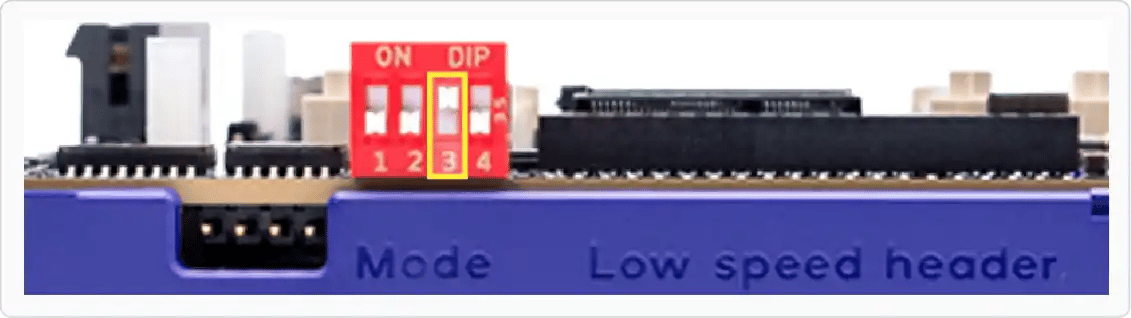
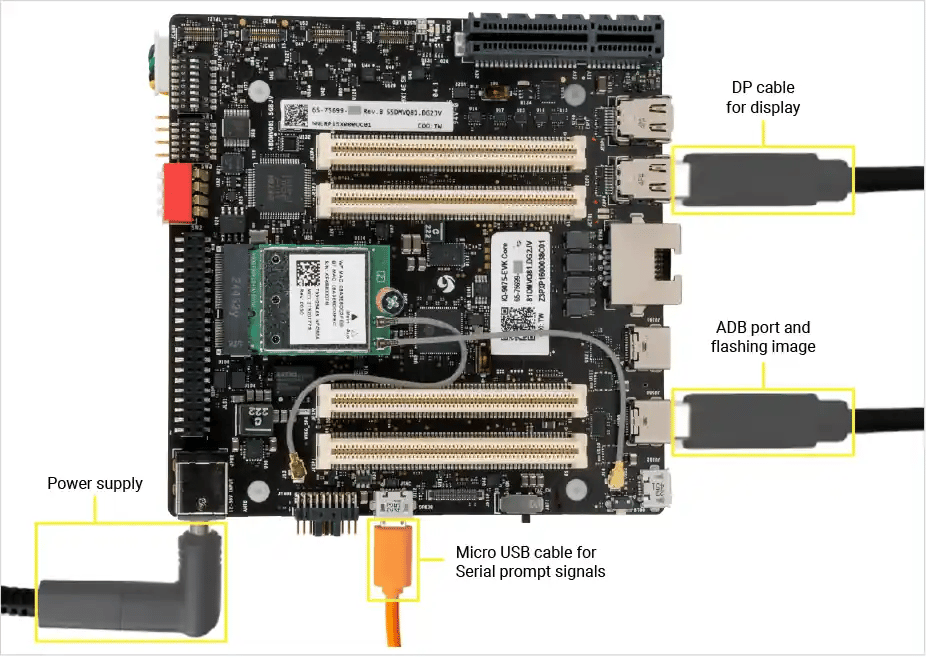
Use the Qualcomm Device Loader (QDL) command-line tool to flash Qualcomm Linux onto the IQ-8275 EVK from Ubuntu, Windows, or macOS hosts.
Qualcomm Device Loader (QDL) is a cross-platform command-line flashing tool for Qualcomm devices. Use this method when you need full control over the flash process, are running in a headless environment, or want to script automated flashing.For a GUI-based alternative, see Flash Qualcomm Linux using Qualcomm Launcher.
Flashing erases all data on the device. Back up anything important before you begin.
We recommend extracting both the image and QDL into the same parent folder. This keeps all paths under one root and simplifies navigation between the provision, SAIL, and image folders.
UFS (Universal Flash Storage) provisioning divides the internal storage into separate logical unit numbers (LUNs), each dedicated to a specific type of data (boot, system, user data, etc.). This improves access efficiency and keeps the partition layout consistent across flashes.Run UFS provisioning if any of the following apply:
This is a brand-new board that has never been flashed.
You are upgrading to a new image version.
You are switching distributions (Qualcomm Linux ↔ Ubuntu).
Provision UFS from the unzipped provision directory:
cd provision<qdl_dir>/qdl --storage ufs prog_firehose_ddr.elf provision_1_3.xml
Expected output:
UFS provisioning succeeded
After UFS provisioning completes, the device disconnects from USB. Toggle the power switch off and on to reboot it back into EDL mode before continuing.
The Safety Island (SAIL) is a separate, isolated processor on the IQ-8275 EVK that handles safety-critical functions independently from the main application processor. Its firmware lives on a dedicated spinor flash partition and must be flashed separately before the main OS image.
Navigate to the sail_nor subfolder inside the extracted image:
cd <path-to-image>/images/iq-8275-evk/qcom-multimedia-proprietary-image-iq-8275-evk/sail_nor
We recommend extracting both the image and QDL into the same parent folder (for example C:\Users\you\Downloads\qualcomm-flash\). This keeps all paths under one root and simplifies navigation between the provision, SAIL, and image folders.
Uninstall any existing Qualcomm USB drivers (QUD) — they conflict with the QDL driver. Open Device Manager, find your device, and uninstall any existing drivers. The device should not appear under COM Ports.
Run install_driver.bat from the unzipped QDL folder to install the WinUSB driver.
UFS (Universal Flash Storage) provisioning divides the internal storage into separate logical unit numbers (LUNs), each dedicated to a specific type of data (boot, system, user data, etc.). This improves access efficiency and keeps the partition layout consistent across flashes.Run UFS provisioning if any of the following apply:
This is a brand-new board that has never been flashed.
You are upgrading to a new image version.
You are switching distributions (Qualcomm Linux ↔ Ubuntu).
After UFS provisioning completes, the device disconnects from USB. Toggle the power switch off and on to reboot it back into EDL mode before continuing.
The Safety Island (SAIL) is a separate, isolated processor on the IQ-8275 EVK that handles safety-critical functions independently from the main application processor. Its firmware lives on a dedicated spinor flash partition and must be flashed separately before the main OS image.
Navigate to the sail_nor subfolder inside the image directory:
cd <path-to-image>\images\iq-8275-evk\qcom-multimedia-proprietary-image-iq-8275-evk\sail_nor
Flash the SAIL firmware (replace <qdl_dir> with your QDL folder path):Command Prompt:
Download the QDL tool for macOS (Apple Silicon) and unzip it. The unzipped folder contains the qdl binary — referred to as <qdl_dir> below. For tool usage details, see the QDL_User_Guide in that folder.
We recommend extracting both the image and QDL into the same parent folder. This keeps all paths under one root and simplifies navigation between the provision, SAIL, and image folders.
Install required libraries via Homebrew (skip if already installed):
brew install libusb libxml2
brew install failed? Install Homebrew utility
Brew (officially called Homebrew) is software package manager that lets you install, update, and remove programs using text commands in the Mac Terminal. Follow the below procedure to install homebrew.1. Install xcode
sudo is needed because some bundled libraries are read-only. If macOS still blocks the tool after this step, allow it under System Settings → Privacy & Security.
Verify QDL is working:
<qdl_dir>/qdl --help
You should see the QDL usage output. If you get an error, check the path.
UFS (Universal Flash Storage) provisioning divides the internal storage into separate logical unit numbers (LUNs), each dedicated to a specific type of data (boot, system, user data, etc.). This improves access efficiency and keeps the partition layout consistent across flashes.Run UFS provisioning if any of the following apply:
This is a brand-new board that has never been flashed.
You are upgrading to a new image version.
You are switching distributions (Qualcomm Linux ↔ Ubuntu).
Move the provision files and the QDL binary into the same folder, then run from there:
On macOS, the qdl binary and its supporting libraries must be in the same directory as the provision files. Copy the provision files into <qdl_dir>, then run the command from there.
After UFS provisioning completes, the device disconnects from USB. Toggle the power switch off and on to reboot it back into EDL mode before continuing.
The Safety Island (SAIL) is a separate, isolated processor on the IQ-8275 EVK that handles safety-critical functions independently from the main application processor. Its firmware lives on a dedicated spinor flash partition and must be flashed separately before the main OS image.
Navigate to the sail_nor subfolder inside the extracted image:
cd <path-to-image>/images/iq-8275-evk/qcom-multimedia-proprietary-image-iq-8275-evk/sail_nor