

Currently, the Qdemo application isn’t supported through the GUI launcher icon. Launch the Qdemo application using the device terminal.
- Multimedia sample applications, which show camera, video, and audio functionalities.
- AI sample applications, which show AI and machine learning (ML) capabilities.
Prerequisites
-
Qualcomm Linux multimedia image: The device must be flashed with the prebuilt Qualcomm Linux multimedia image (
qcom-multimedia-proprietary-image), which includes Qdemo and the Qualcomm IM SDK. - HDMI monitor: Connect to the device to view Qdemo output.
- Mouse and keyboard: Required to interact with the Weston desktop and the Qdemo application.
- Wi-Fi connection: Required for AI sample applications to download models and labels from GitHub. Not required for multimedia applications.
-
USB camera (optional): Required for camera-based sample applications. If connected, select it from the
Sourcelist in Qdemo. To use a camera, enablecamxon the device by running the following commands on the target device:Known issue: The camera basic use case on IQ-8275 isn’t working due to a known issue. To work around this issue, run the following command before running the camera use case:
Run sample applications using Qdemo
To run sample applications using Qdemo, do the following:1
Connect peripherals to the device
Connect the mouse, keyboard, camera, monitor, and power cable to the device.The following figure shows the display ports, USB ports, Ethernet port, power supply port and power on-off switch. Connect the peripheral devices to these ports, including a USB or MIPI camera. For display, connect one end of the Mini DisplayPort cable to DisplayPort0 on the Dragonwing IQ-8275 device, and the other end to your monitor.
To connect the EVK to a display through HDMI, use an HDMI cable and adapter, then connect it to an active DisplayPort on the EVK. The HDMI cable and adapter aren’t included with the EVK.
2
Power on the device
Toggle the power switch to the On position.After the device powers on, the following screen appears on the monitor.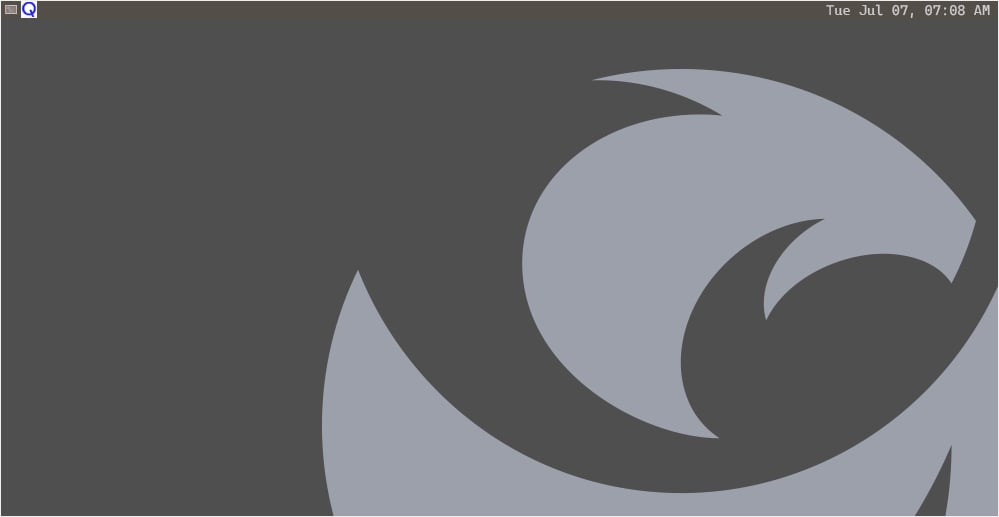
3
Open the device shell
Open the device shell by selecting the weston-terminal icon.The following figure shows the weston-terminal icon on the screen.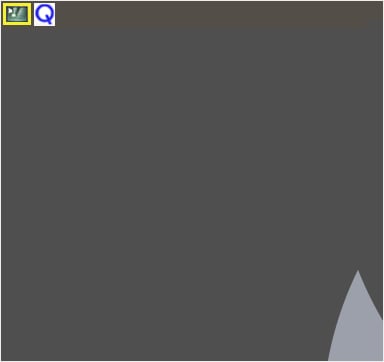
4
Sign in as root user
Sign in as a root user by running the following command:When prompted for a password, enter
oelinux123.5
Launch the Qdemo application
Launch the Qdemo application by running the following command in the weston-terminal:The Experience Application Demo window appears.
6
Run a sample application
Run a sample application from the Experience Application Demo window as follows:
1
Connect to Wi-Fi
Connect to a Wi-Fi network by selecting Wi-Fi.The following figure shows a sample of the Experience Application Demo window: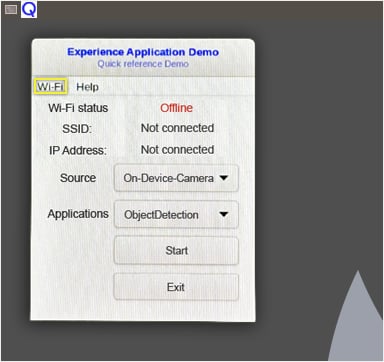
A Wi-Fi connection is required to run AI sample applications only. If you want to run a multimedia application, skip this step.
2
Select the camera source
In the Source dropdown list, select the required camera.The Dragonwing IQ-8275 device doesn’t have a built-in camera, and not all applications require a camera. If you’ve connected an external camera to the device, select it from the Source dropdown list. By default, the On-Device-Camera option is selected.
3
Select and start an application
In the Applications dropdown list, select an application and select Start.The selected application starts running, and a pop-up window displays the output on the screen.When you run a sample application for the first time, it may take a minute or more to run as the device downloads the AI models and labels from GitHub.The following figure shows the sample output of the Object Detection application, identifying two objects including a person and a dog.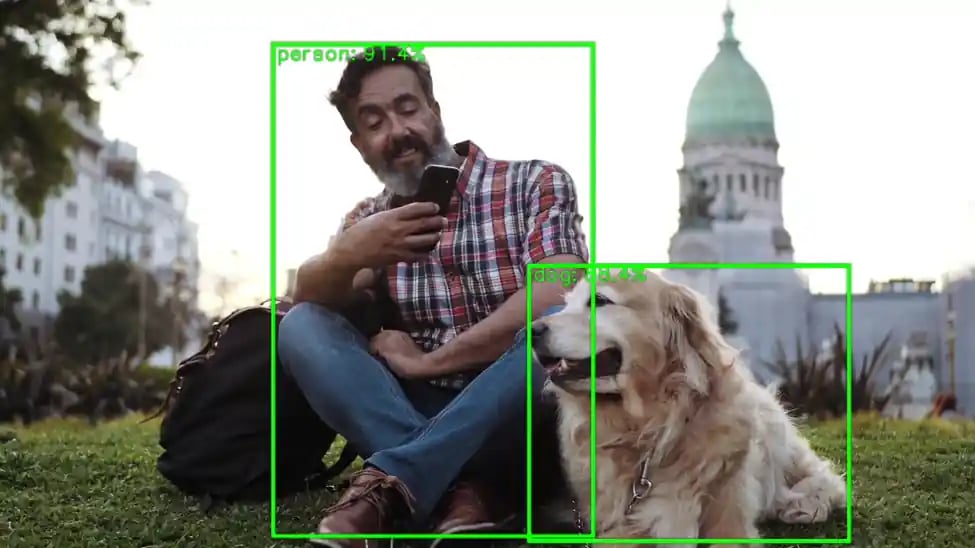
4
Stop the application
Stop the sample application by closing the output window.
7
Close Qdemo
Close the Qdemo application by selecting Exit.