

Overview
waylandsink is a GStreamer sink element used to render raw video frames to a display through a Wayland-based compositor. It supports rendering to the device’s built-in display as well as external displays connected via DisplayPort (DP) or HDMI. The element is based on the Wayland protocol and operates as a client of a Wayland-based compositor.
This plugin is provided and maintained by the GStreamer community(waylandsink)
This document focuses on its usage in conjunction with Qualcomm-specific IM SDK GStreamer plugins, along with relevant use cases and internal architectural considerations.
waylandsink is typically used at the end of pipelines such as:
- video playback
- camera preview
- composed multi-stream display
- AI visualization pipelines
waylandsink.
When required, waylandsink can create its own top-level Wayland window. It can also render into an application-provided Wayland surface through the GstVideoOverlay interface, allowing it to be embedded into a larger application UI.
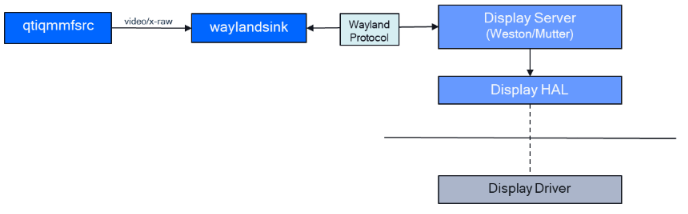
Example Pipeline

1
Download Required Files
2
Copy files to device
3
Connect to device
4
Set environment variables
Run below command on your device
5
Run the pipeline
Hierarchy
GObjectGstObject
GstElement
GstBaseSink
GstVideoSink
waylandsink
Pad templates
sink
Element Properties
Internal Architecture
At a high level, the element receives raw video buffers from the GStreamer pipeline, converts or imports them into Wayland-compatible buffers when needed, attaches them to a Wayland surface, and commits them for display through the compositor. The main internal components are:State Transition behaviour
waylandsink behaviour is closely tied to normal GStreamer state transitions.
Caps Negotiation
During caps negotiation,waylandsink:
- Starts from its sink pad template caps.
- Queries the connected Wayland compositor for supported formats.
- Filters the advertised caps to formats that are both pipeline-compatible and compositor-supported.
- Stores the negotiated
GstVideoInfo. - Determines whether the rendering path will use DMA-Buf or SHM (Shared memory backend).
- Prepares an internal buffer pool If required.
Caps Negotiation
The negotiated output path depends not only on the pipeline caps, but also on compositor capabilities and the memory type of the incoming buffers. When a frame arrives atwaylandsink, the element first checks whether a valid Wayland window or surface is available. If no surface is currently associated with the sink, it prepares to receive one through the GstVideoOverlay interface. If the application does not provide a window handle, waylandsink creates its own Wayland toplevel window.
Next, the element checks whether the incoming GstBuffer already has an associated Wayland buffer for the current display. If it does, the buffer can be rendered directly. If not, waylandsink attempts to create a Wayland-compatible buffer from the incoming memory.
The preferred path is to import the buffer through DMABuf when the input memory and compositor both support it. If DMABuf import is not possible, the element falls back to creating a shared-memory (SHM) Wayland buffer. If the incoming memory cannot be used directly through either path, the video frame is copied into an internal SHM-backed buffer pool.
Once a Wayland-compatible buffer has been prepared, it is attached to the Wayland surface and committed to the compositor for display.
Buffer and Memory Management
waylandsink supports multiple rendering paths depending on negotiated caps, compositor support, and the memory backing the incoming buffers.
Direct Wayland Buffer Reuse
If the incomingGstBuffer already carries a GstWlBuffer associated with the current Wayland display, the sink can render it directly. This is the preferred path because it avoids creating a new Wayland buffer for each frame.
DMA Buffer Import
When peer upstream plugin providesvideo/x-raw(memory:DMABuf) buffers and the compositor supports the negotiated format, waylandsink imports the DMA Buffer into a Wayland buffer. This path reduces copies and is generally the most efficient option for display pipelines built around DMA-backed buffers.
SHM Rendering
If the input memory is suitable for Wayland shared-memory rendering, the sink creates a Wayland SHM buffer and uses that for presentation.Internal Copy Fallback
If the incoming buffer cannot be reused or imported directly,waylandsink falls back to an internal buffer pool and copies the frame into SHM-compatible memory before rendering. This path ensures compatibility, but increases CPU usage and memory bandwidth compared to direct Wayland buffer reuse or DMA Buffer import.
Buffer Lifetime
Once a buffer is attached to the Wayland surface,waylandsink keeps the corresponding GstBuffer alive until the compositor signals that it has finished using the underlying wl_buffer. Only after that release event can the buffer be returned to the pool or freed.
Frame Synchronization
waylandsink uses Wayland frame-callback mechanisms to synchronize presentation with the compositor. This prevents unbounded queuing of frames when the display path is slower than the incoming stream. If a previous frame is still pending presentation, newer frames may be dropped rather than queued indefinitely.
This behavior helps maintain responsive real-time display characteristics, especially in preview and live-rendering pipelines.
GAP Buffer Handling
waylandsink is GAP-aware and correctly handles input buffers marked with GST_BUFFER_FLAG_GAP.
When a GAP buffer is received, the sink skips rendering for that input while preserving normal timing and synchronization behavior. This allows the pipeline to represent the absence of valid frame data for a given timestamp without treating it as an error or stall.
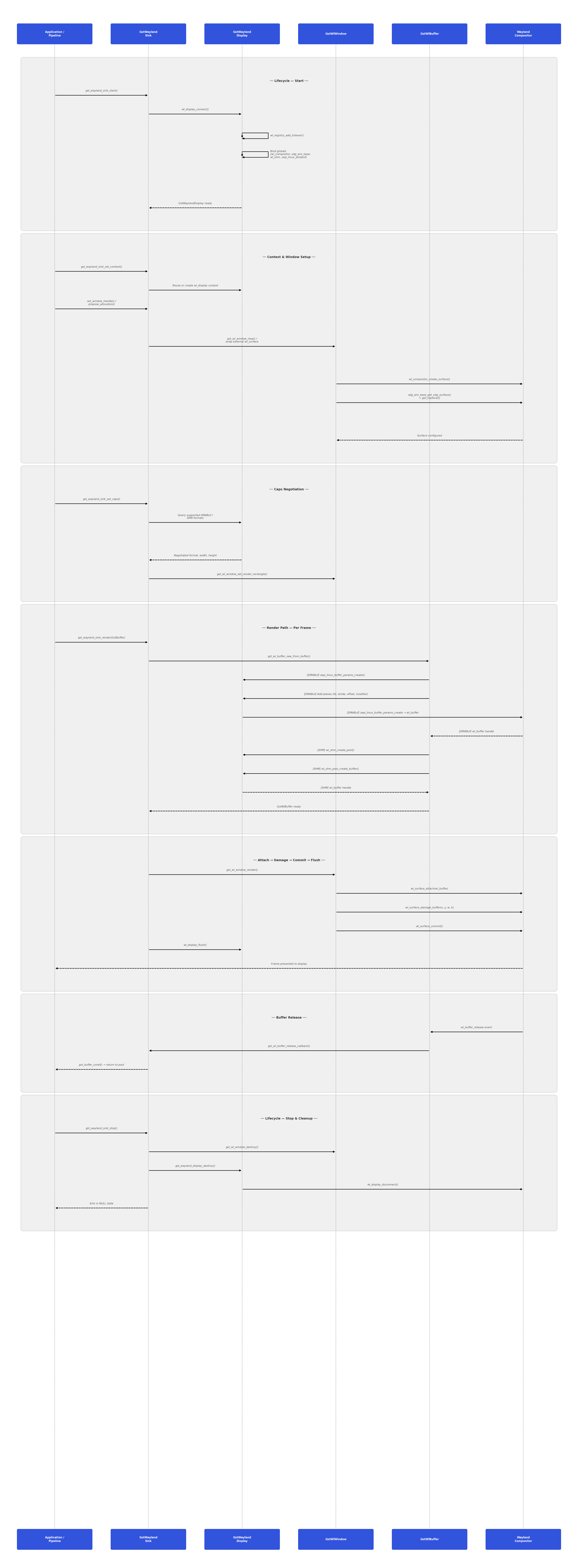
Call Flow
Below is the call flow depicting how waylandsink is setup and a buffer flows through it:
Usage
Ensure you have followed the prerequisites before continuing
Two-stream Picture-in-Picture display
This example demonstrates picture-in-picture composition of two decoded input streams usingqtivcomposer. The two streams are combined into a single composed output, which is then rendered for display using waylandsink.

qtivcomposer performs the Picture-in-Picture layout. waylandsink displays the final composed frame.
Four-stream side-by-side video composition
This pipeline decodes four input streams, arranges them in a 2x2 grid usingqtivcomposer, and displays the composed frame using waylandsink.
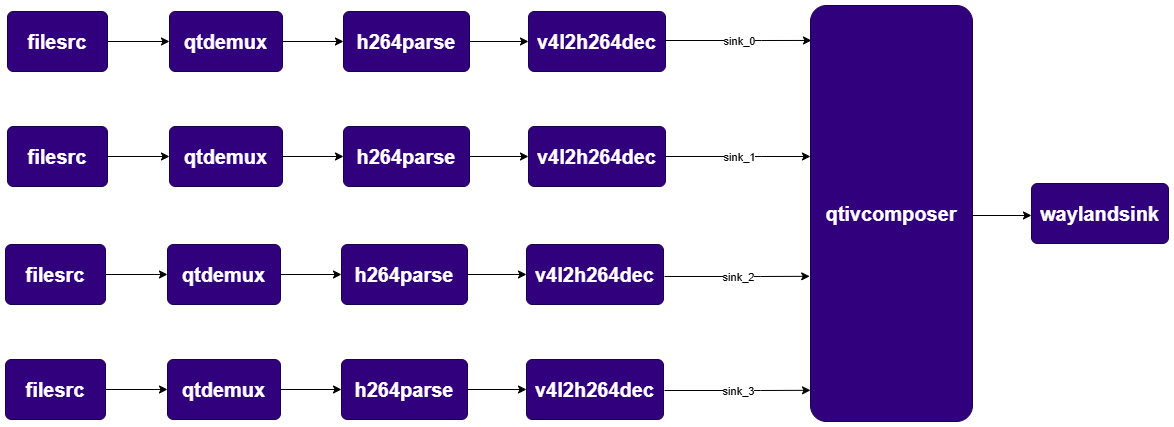
qtivcomposer. waylandsink is only the display endpoint.