📸 Get QCS6490 Camera Up and Running in 3 Simple Steps
1
🔌 Plug & Play: Camera Hardware Setup
Camera Setup
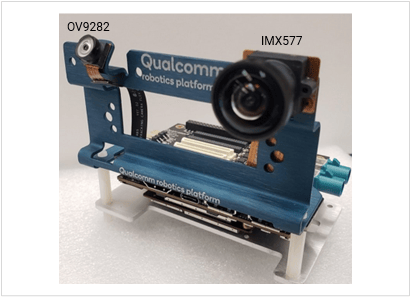
QCS6490 ships with both IMX577 and OV9282 pre-connected, as shown below.
2
🧰 Ready Check: Prerequisites
Prerequisites
Connect to the device console using SSH.
See How To SSH? for instructions.
1
Enable camera functionality
We recommend using the Qualcomm Launcher tool for build flashing, as it handles all required configurations internally. If you are not using Qualcomm Launcher, follow the manual steps below to enable camera functionality.
Flash the Config2 image to use gst-launch-1.0 and the GStreamer plugins.
On Qualcomm Linux 2.0, qcom-multimedia-proprietary-image includes the downstream camera packages by default, but camera functionality is not enabled automatically.
Enable camera support on qcom-multimedia-proprietary-image by running the following command in the device shell:
If a GStreamer command was executed before enabling the camera overlay, the GStreamer registry must be cleared after enabling the camera overlay. Run the following command to clear the registry:
Terminal
rm ~/.cache/gstreamer-1.0/registry.aarch64.bin
3
Log Level Tuning (if needed)
Camera use-cases are expected to run on a performance (perf) build for optimal results. On default builds, reduce the kernel console log level as shown below:
This command starts the camera with 720p at 30 FPS configuration and saves it as a video file after h264 video encoding. If the gst pipeline status is changed to “PLAYING”, this indicates the camera is running.To stop the camera, press CTRL+C.
2
Pull recorded content
/opt/mux_avc.mp4 is generated on the device. The recorded content can be pulled from the device by running the following scp command on the host PC:
📸 Get IQ-8275-EVK Camera up and running in 3 Simple steps.
1
🔌 Plug & Play: Camera Hardware Setup
Camera Setup
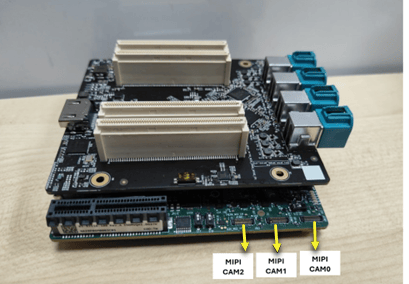
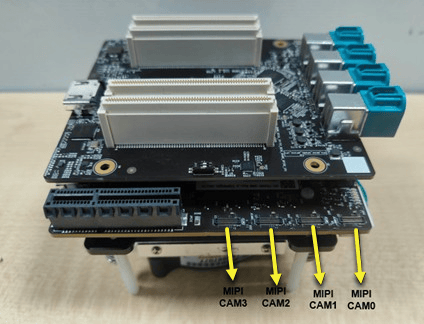
Connect the IMX577 MIPI camera sensor to any of the MIPI CSI slots of the IQ-8275-EVK device.
2
🧰 Ready Check: Prerequisites
Prerequisites
Connect to the device console using SSH.
See How To SSH? for instructions.
1
Enable camera functionality
We recommend using the Qualcomm Launcher tool for build flashing, as it handles all required configurations internally. If you are not using Qualcomm Launcher, follow the manual steps below to enable camera functionality.
Flash the Config2 image to use gst-launch-1.0 and the GStreamer plugins.
On Qualcomm Linux 2.0, qcom-multimedia-proprietary-image includes the downstream camera packages by default, but camera functionality is not enabled automatically.
Enable camera support on qcom-multimedia-proprietary-image by running the following command in the device shell:
If a GStreamer command was executed before enabling the camera overlay, the GStreamer registry must be cleared after enabling the camera overlay. Run the following command to clear the registry:
Terminal
rm ~/.cache/gstreamer-1.0/registry.aarch64.bin
3
Log Level Tuning (if needed)
Camera use-cases are expected to run on a performance (perf) build for optimal results. On default builds, reduce the kernel console log level as shown below:
This command starts the camera with 720p at 30 FPS configuration and saves it as a video file after h264 video encoding. If the gst pipeline status is changed to “PLAYING”, this indicates the camera is running.To stop the camera, press CTRL+C.
2
Pull recorded content
/opt/mux_avc.mp4 is generated on the device. The recorded content can be pulled from the device by running the following scp command on the host PC:
📸 Get IQ-9075-EVK Camera up and running in 3 Simple steps.
1
🔌 Plug & Play: Camera Hardware Setup
Camera Setup
Connect the IMX577 MIPI camera sensor to any of the MIPI CSI slots of the IQ-9075-EVK device.
2
🧰 Ready Check: Prerequisites
Prerequisites
Connect to the device console using SSH.
See How To SSH? for instructions.
1
Enable camera functionality
We recommend using the Qualcomm Launcher tool for build flashing, as it handles all required configurations internally. If you are not using Qualcomm Launcher, follow the manual steps below to enable camera functionality.
Flash the Config2 image to use gst-launch-1.0 and the GStreamer plugins.
On Qualcomm Linux 2.0, qcom-multimedia-proprietary-image includes the downstream camera packages by default, but camera functionality is not enabled automatically.
Enable camera support on qcom-multimedia-proprietary-image by running the following command in the device shell:
If a GStreamer command was executed before enabling the camera overlay, the GStreamer registry must be cleared after enabling the camera overlay. Run the following command to clear the registry:
Terminal
rm ~/.cache/gstreamer-1.0/registry.aarch64.bin
3
Log Level Tuning (if needed)
Camera use-cases are expected to run on a performance (perf) build for optimal results. On default builds, reduce the kernel console log level as shown below:
This command starts the camera with 720p at 30 FPS configuration and saves it as a video file after h264 video encoding. If the gst pipeline status is changed to “PLAYING”, this indicates the camera is running.To stop the camera, press CTRL+C.
2
Pull recorded content
/opt/mux_avc.mp4 is generated on the device. The recorded content can be pulled from the device by running the following scp command on the host PC:
📸 Get IQ615 Camera up and running in 3 Simple steps.
1
🔌 Plug & Play: Camera Hardware Setup
Camera Setup
Connect the IMX577 MIPI camera sensor to the CAM1 slot of the IQ615 device.
2
🧰 Ready Check: Prerequisites
Prerequisites
Connect to the device console using SSH.
See How To SSH? for instructions.
1
Enable camera functionality
We recommend using the Qualcomm Launcher tool for build flashing, as it handles all required configurations internally. If you are not using Qualcomm Launcher, follow the manual steps below to enable camera functionality.
Flash the Config2 image to use gst-launch-1.0 and the GStreamer plugins.
On Qualcomm Linux 2.0, qcom-multimedia-proprietary-image includes the downstream camera packages by default, but camera functionality is not enabled automatically.
Enable camera support on qcom-multimedia-proprietary-image by running the following command in the device shell:
If a GStreamer command was executed before enabling the camera overlay, the GStreamer registry must be cleared after enabling the camera overlay. Run the following command to clear the registry:
Terminal
rm ~/.cache/gstreamer-1.0/registry.aarch64.bin
3
Log Level Tuning (if needed)
Camera use-cases are expected to run on a performance (perf) build for optimal results. On default builds, reduce the kernel console log level as shown below:
This command starts the camera with 720p at 30 FPS configuration and saves it as a video file after h264 video encoding. If the gst pipeline status is changed to “PLAYING”, this indicates the camera is running.To stop the camera, press CTRL+C.
2
Pull recorded content
/opt/mux_avc.mp4 is generated on the device. The recorded content can be pulled from the device by running the following scp command on the host PC:
📸 Get IQx7181 Camera up and running in 3 Simple steps.
1
🔌 Plug & Play: Camera Hardware Setup
Camera Setup
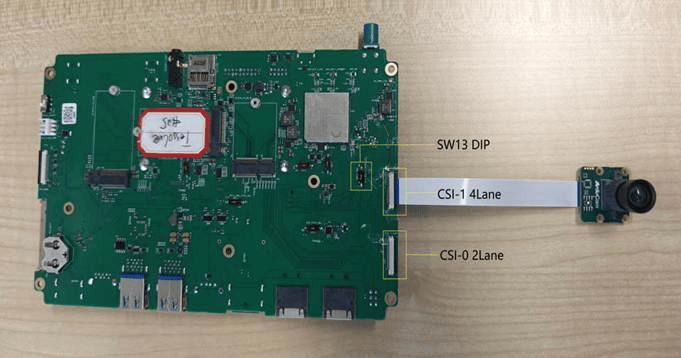
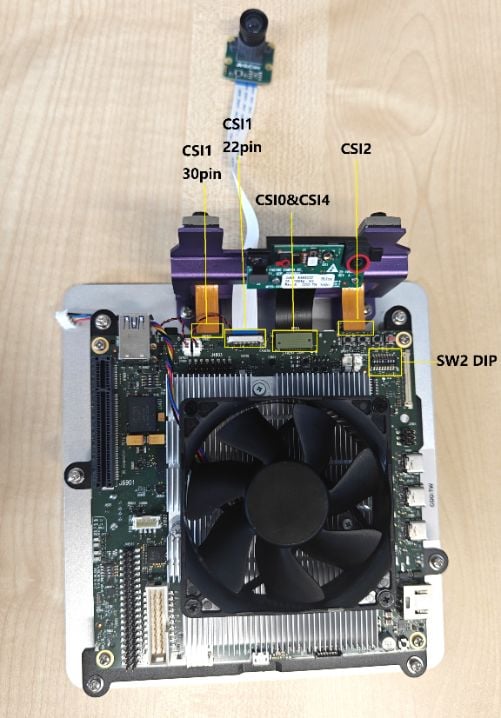
Connect the IMX577 MIPI camera sensor to the CAM1 (CSI1 22-pin) slot of the IQx7181 device.
2
🧰 Ready Check: Prerequisites
Prerequisites
Connect to the device console using SSH.
See How To SSH? for instructions.
1
Enable camera functionality
We recommend using the Qualcomm Launcher tool for build flashing, as it handles all required configurations internally. If you are not using Qualcomm Launcher, follow the manual steps below to enable camera functionality.
Flash the Config2 image to use gst-launch-1.0 and the GStreamer plugins.
On Qualcomm Linux 2.0, qcom-multimedia-proprietary-image includes the downstream camera packages by default, but camera functionality is not enabled automatically.
Enable camera support on qcom-multimedia-proprietary-image by running the following command in the device shell:
If a GStreamer command was executed before enabling the camera overlay, the GStreamer registry must be cleared after enabling the camera overlay. Run the following command to clear the registry:
Terminal
rm ~/.cache/gstreamer-1.0/registry.aarch64.bin
3
Log Level Tuning (if needed)
Camera use-cases are expected to run on a performance (perf) build for optimal results. On default builds, reduce the kernel console log level as shown below:
This command starts the camera with 720p at 30 FPS configuration and saves it as a video file after h264 video encoding. If the gst pipeline status is changed to “PLAYING”, this indicates the camera is running.To stop the camera, press CTRL+C.
2
Pull recorded content
/opt/mux_avc.mp4 is generated on the device. The recorded content can be pulled from the device by running the following scp command on the host PC: