

qtivtransform: Accelerates color conversion, cropping, and resizing on GPU.qtimltflite: Executes TensorFlow Lite models on NPU.
To begin exploring Qdemo on your Dragonwing device, follow these step-by-step instructions to install required dependencies, configure the system, and launch the graphical interface.
Prerequisites
- Qualcomm Ubuntu image: The device must be flashed with the prebuilt Qualcomm Ubuntu image.
- HDMI monitor: Connect to the device to view Qdemo output.
- Mouse and keyboard: Required to interact with the Weston desktop and the Qdemo application.
- Wi-Fi connection: Required for AI sample applications to download models and labels from GitHub. Not required for multimedia applications.
-
USB camera (optional): Required for camera-based sample applications. If connected, select it from the
Sourcelist in Qdemo. To use a camera, enablecamxon the device by running the following commands on the target device:
Run sample applications using Qdemo
To run sample applications using Qdemo, do the following:Install needed packages
To install the needed pre-built packages, refer to the 🔗Install required software packages section and run the provided “Install PPA Packages” script.Install Dependencies
Open the terminal install following packages which are needed for QDemo:Create necessary folders and download artifacts
Launch the GUI from SBC terminal
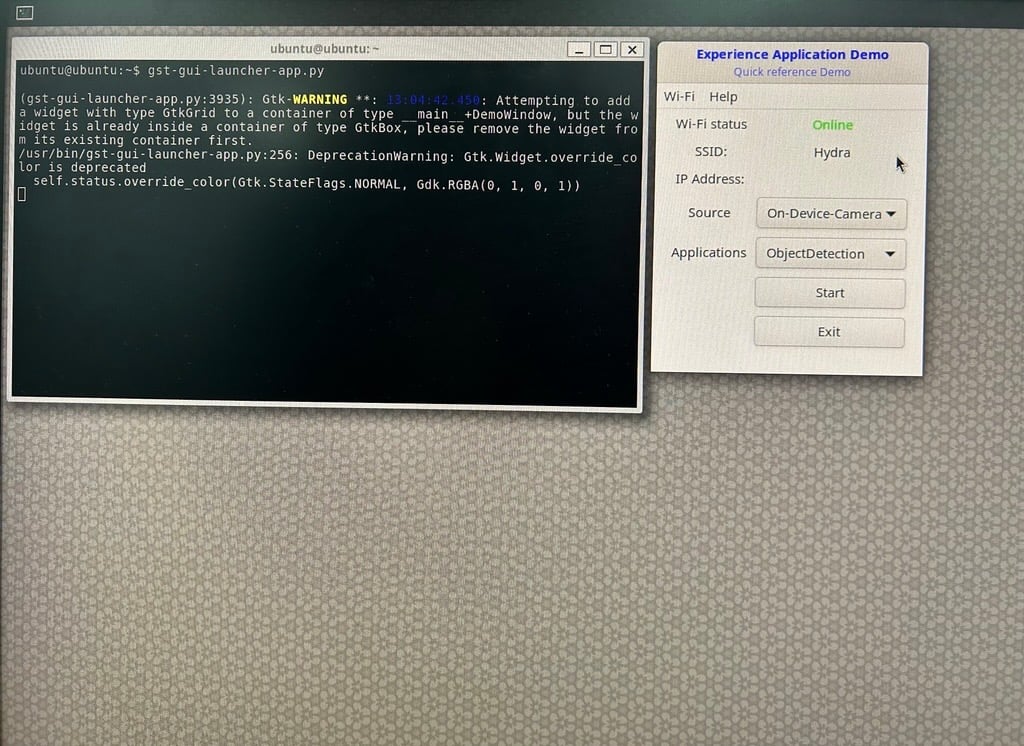
Run a sample application
Run a sample application from the Experience Application Demo window.1
Connect to Wi-Fi
Connect to a Wi-Fi network by selecting Wi-Fi.
A Wi-Fi connection is required to run AI sample applications only. If you want to run a multimedia application, skip this step.
2
Select the camera source
In the Source dropdown list, select the required camera.The Dragonwing IQ-9275 device doesn’t have a built-in camera, and not all applications require a camera. If you’ve connected an external camera to the device, select it from the Source dropdown list. By default, the On-Device-Camera option is selected.
3
Select and start an application
In the Applications dropdown list, select an application and select Start.The selected application starts running, and a pop-up window displays the output on the screen.When you run a sample application for the first time, it may take a minute or more to run as the device downloads the AI models and labels from GitHub.The following figure shows the sample output of the Object Detection application, identifying two objects including a person and a dog.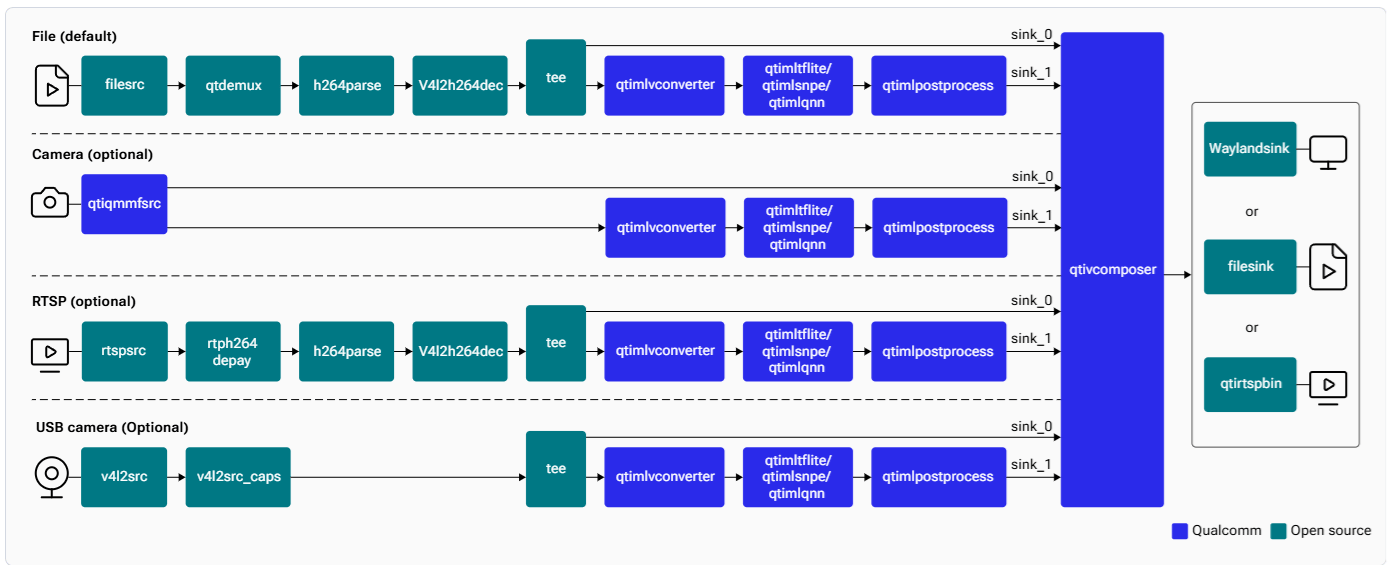
4
Stop the application
Stop the sample application by closing the output window.
Run Multistream Qdemo supported sample application
The screenshot below displays the output of the Multistream Qdemo sample application running with eight streams—one live stream and seven video streams: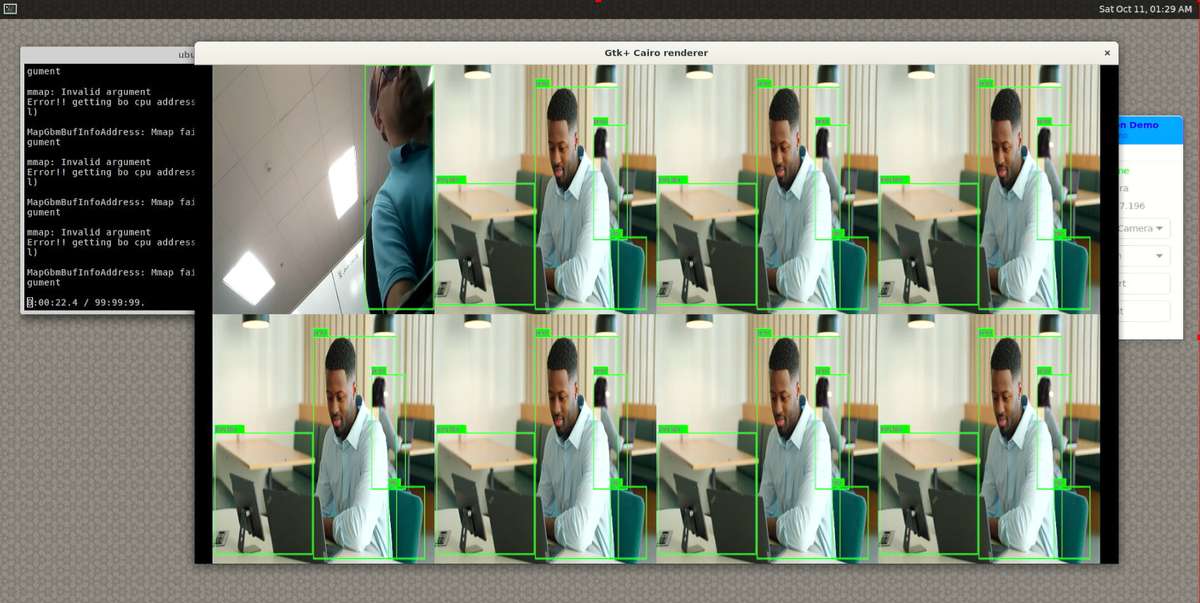
Note: On Wayland output, stretch the Gtk+ Cairo renderer to ensure proper display of the sample application output.