

You can run LiteRT models on Qualcomm development kits using the precompiled label_image sample application, the LiteRT C++ APIs, or the Qualcomm IM SDK gst-ai-classification pipeline.
Before deploying, ensure you have completed the prerequisites and model setup.

Deploy as a native application

The label_image sample application is part of the TensorFlow repository and is cross-compiled with the LiteRT library and installed on the target device. It loads a classification LiteRT model and performs inference on an image using a delegate. Run on CPU using the XNNPACK delegate:
label_image -l /etc/artifacts/labels.txt \
            -i /etc/artifacts/grace_hopper.bmp \
            -m /etc/artifacts/mobilenet_v1_1.0_224_quant.tflite \
            -c 10 \
            -p 1 \
            --xnnpack_delegate 1
Run on GPU using the GPU delegate:
label_image -l /etc/artifacts/labels.txt \
            -i /etc/artifacts/grace_hopper.bmp \
            -m /etc/artifacts/mobilenet_v1_1.0_224.tflite \
            -c 10 \
            -p 1 \
            --gl_backend 1
For the source code, see the label_image example on the TensorFlow GitHub repository.

Deploy as a C++ application

The following figure shows the steps involved in creating a C++ application to run a LiteRT model:

Workflow to create a C++ application and run a LiteRT model

Load a LiteRT model

A LiteRT model is a FlatBuffers file containing model operators, weights, and biases. Use the following API to load a model for inference:
#include <cstdio>
#include <iostream>
#include "tensorflow/lite/interpreter.h"
#include "tensorflow/lite/kernels/register.h"
#include "tensorflow/lite/model.h"
#include "tensorflow/lite/optional_debug_tools.h"

std::unique_ptr<tflite::FlatBufferModel> model;

model = tflite::FlatBufferModel::BuildFromFile(model_name.c_str());

if (!model) {
    std::cerr << "Failed to mmap model " << model_name << std::endl;
    exit(-1);
}

Create a LiteRT interpreter

The interpreter configures model execution on a chosen delegate and allocates memory for forward propagation:
tflite::ops::builtin::BuiltinOpResolver resolver;
tflite::InterpreterBuilder builder(*model, resolver);
std::unique_ptr<tflite::Interpreter> interpreter;
builder(&interpreter);

if (!interpreter) {
    std::cerr << "Failed to construct interpreter on provided tflite model" << std::endl;
}
if (interpreter->AllocateTensors() != kTfLiteOk) {
    std::cerr << "Failed to allocate tensors!" << std::endl;
    exit(-1);
}

Prepare the model with a delegate

The following example creates the XNNPACK delegate for running a LiteRT model on the Arm® CPU:
TfLiteXNNPackDelegateOptions xnnpack_options = TfLiteXNNPackDelegateOptionsDefault();
xnnpack_options.num_threads = num_threads;

TfLiteDelegate* xnnpack_delegate = TfLiteXNNPackDelegateCreate(&xnnpack_options);
if (interpreter->ModifyGraphWithDelegate(xnnpack_delegate) != kTfLiteOk) {
    // Report error and fall back to another delegate, or the default backend
}

Prepare input/output buffers

Before running inference, preprocess the input data (such as camera frames) to match the model’s expected format. Common preprocessing steps include:
  • Resizing the input image to the resolution expected by the model
  • Normalization
  • Mean subtraction

Run inference

Use the Invoke() API to run inference. After completion, parse the output tensors from the interpreter:
interpreter->Invoke();
For a comprehensive example, see the label_image example on the TensorFlow GitHub repository. For more information, see the LiteRT documentation.

Deploy with the Qualcomm IM SDK

The gst-ai-classification sample application uses the Qualcomm IM SDK plugins to run a LiteRT classification model on Qualcomm development kits with hardware acceleration. The pipeline receives a video stream from a camera, performs preprocessing, runs inference on the AI hardware, and displays the results:
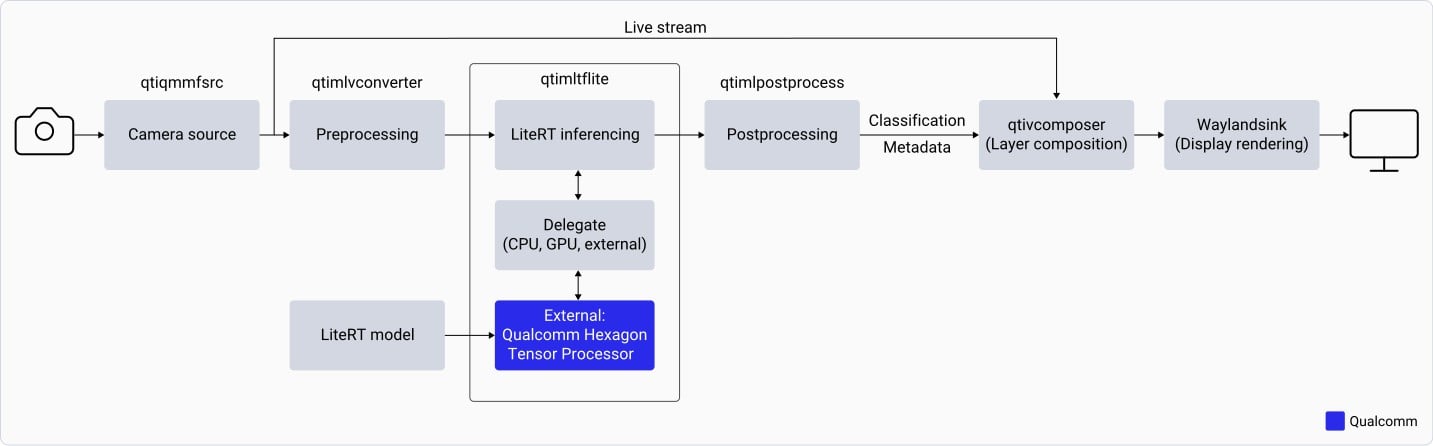
LiteRT model pipeline using the Qualcomm IM SDK on Qualcomm Linux
The gst-ai-classification application:
  1. Opens the IMX577 camera at a specified resolution and frame rate (for example, 1080p at 30 fps).
  2. Preprocesses each camera frame — downscales to 224×224 and normalizes based on model requirements.
  3. Loads the LiteRT classification model and runs inference using the qtimltflite plugin.
  4. Extracts the label with the highest predicted probability from the output tensor.
  5. Overlays the inference result on the original camera frame and displays it on the connected monitor.

Download the model and label files

  1. Go to Qualcomm AI Hub and download the Inception-v3 quantized model.
  2. Download the label file:
    curl -L -O https://raw.githubusercontent.com/qualcomm/sample-apps-for-qualcomm-linux/refs/heads/main/artifacts/json_labels/classification.json
    
  3. On the target device, create the required directories:
    ssh root@<IP_ADDRESS_OF_TARGET_DEVICE>
    
    mkdir -p /etc/models /etc/labels /etc/media
    
    exit
    
  4. Copy the model and label files to the device:
    scp classification.json root@<IP_ADDRESS_OF_TARGET_DEVICE>:/etc/labels
    
    scp inception_v3-inception-v3-w8a8.tflite root@<IP_ADDRESS_OF_TARGET_DEVICE>:/etc/models
    

Run the sample application

  1. Sign in to the target device using SSH:
    ssh root@<IP_ADDRESS_OF_TARGET_DEVICE>
    
  2. Edit the /etc/configs/config_classification.json configuration file:
    {
      "file-path": "/etc/media/video.mp4",
      "ml-framework": "tflite",
      "model": "/etc/models/inception_v3-inception-v3-w8a8.tflite",
      "labels": "/etc/labels/classification.json",
      "threshold": 40,
      "runtime": "dsp",
      "output-type": "waylandsink"
    }
    
  3. Copy a video file to /etc/media/video.mp4 on the device.
  4. Run the classification sample application:
    gst-ai-classification --config-file=/etc/configs/config_classification.json
    
    To stop the application, press Ctrl+C.
When running, the application displays the video stream on the connected monitor with inference results overlaid on each frame.