

Build and flash an aDSP image
To build the aDSP repository and flash the aDSP image on the device, see Build and flash an aDSP image.Enable sensors on the Qualcomm Dragonwing™ RB3 Gen 2 Development Kit
Use the following resources to set up and validate the sensors based on either the Core Kit or the Vision Kit. For more information about the Core and Vision Kits, see Qualcomm Dragonwing™ RB3 Gen 2 Development Kit.Enable sensor on the Core Kit
The following resources cover the hardware setup to enable the sensor on the main board. Table : Main board DIP switch (DIP_SW_0) setting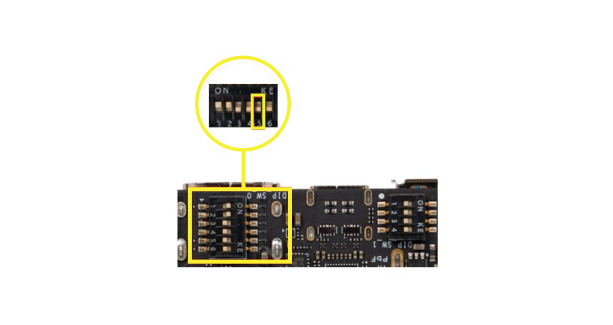
Figure: DIP switch setting to enable accelerometer and gyroscope sensor on main board
Enable sensor on the Vision Kit
The following resources cover the hardware setup to enable sensors on the vision mezzanine board.- Set up the hardware DIP switch as mentioned in the following table to disable sensors on the main board.
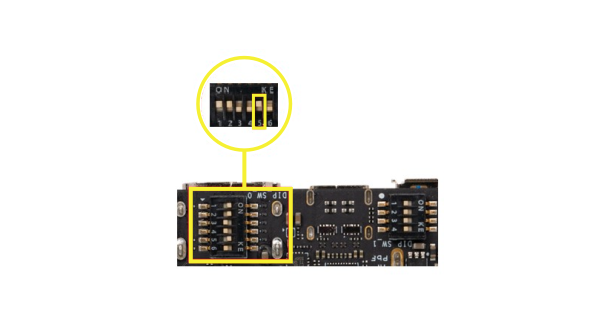
Figure: DIP switch setting to disable accelerometer and gyroscope sensor on main board
- Set up the hardware DIP switches as mentioned in the following tables to enable sensors on the vision mezzanine board.
Table : Vision mezzanine DIP switch (DIP2) setting
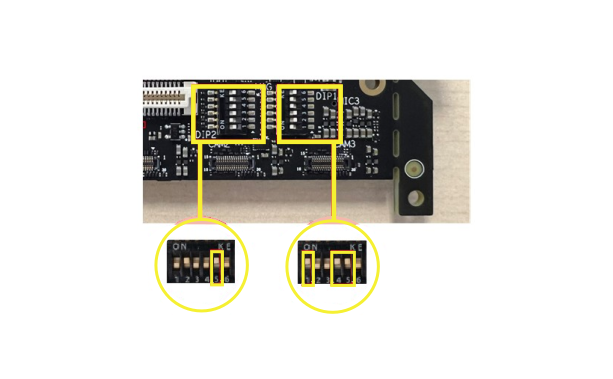
Figure: DIP switch setting to enable all sensors on vision mezzanine board
Use an accelerometer and gyroscope on the Vision Kit main board (optional)
If you are using the accelerometer and gyroscope sensors on the main board instead of the accelerometer and gyroscope sensors on the vision mezzanine board, then do the following:- Set up the hardware DIP switch as mentioned in the following table to enable the accelerometer and gyroscope sensors on the main board.
- Set up the hardware DIP switches as mentioned in the following tables to disable the accelerometer and gyroscope sensors on the vision mezzanine board.
Table : Vision mezzanine DIP switch (DIP2) setting
Software setup
The
<registry_path> referred to in the following sections should be considered as one of the existing paths on the device: /etc/sensors/registry/registry/ or /var/cache/sensors/registry/registry/.- Edit the
json.lstfile to remove theqcm6490_rbx_navmez_icm4x6xx_0.jsonentry (if present).
- Open the
qcm6490_rbx_icm4x6xx_0.jsonfile.
- Add the value
2to the existingplatform_subtype_idfield as shown here, and save theqcm6490_rbx_icm4x6xx_0.jsonfile.
- Remove the existing parsed registry files.
- Reboot the device.
- Check for the registry files that are parsed.
- The following output is displayed for the main board:
- The following output is displayed for the vision mezzanine board:
- After enabling the sensors, revert or undo all the earlier hardware and software setup steps.
-
After the reboot, on the next bootup verify that multiple files with the
qcm6490_rbx_navmez_icm4x6xx_0prefix are present under the<registry_path>path.