

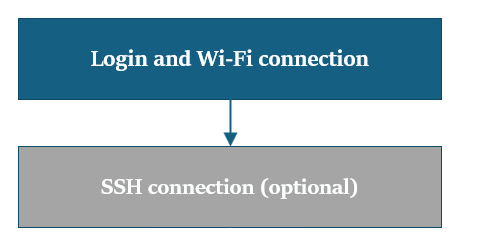
This guide walks you through a streamlined process to update your system using prebuilt packages, while preserving your existing environment. The update is performed from a host computer—running Ubuntu, Windows®, or macOS®—to ensure your device benefits from the latest improvements in performance, security, and compatibility.
Prerequisites: Before You Start - Complete 🔗 Set up the device instructions.
Login & Wi-Fi Connection
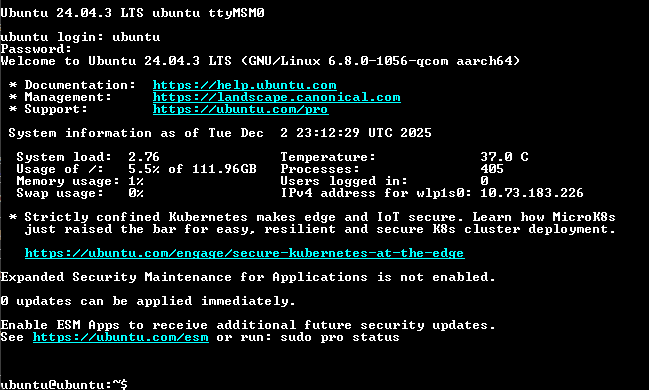
a. Login and change password (if not yet changed) on an attached monitor using a keyboard and mouse, or via the UART console if connected over serial.
- Sign in to the Dragonwing IQ-9075 EVK Ubuntu UART console, using ubuntu as both the username and password. Then, you can reset the password in your command terminal.
- After successful login, you will see the following serial console prompt.
b. Set up Wi-Fi connectivity by following these steps: 🔗 Wi-Fi Setup Guide
SSH Connection
SSH facilitates secure terminal access across a network between the host computer and the Dragonwing IQ-9075 device.
Before you connect to SSH, ensure that your device has network connectivity through Ethernet or Wi-Fi.
Note: Ensure that the remote host computer connects to the same Wi-Fi access point as the device.
a. To connect to SSH, first find the IP address of the Dragonwing IQ-9075 by running the appropriate command on the UART console of the host computer, based on the network connection type:
For Ethernet:
For Wi-Fi:
This command displays the IP address of the Dragonwing IQ-9075 device.
b. Establish an SSH connection to the device from the host computer by running the following command:
Details of the Parameters
The ip-address is the IP address of eth0 or wlan0 interface.
Example
To connect to a device with IP address 192.168.0.222, run the following command:
c. Login by entering the password for the ubuntu user.
Verify the SW version
Run the following commands in the device shell to verify the OS version:
Output:
PRETTY_NAME="Ubuntu 24.04.4 LTS"
NAME="Ubuntu"
VERSION_ID="24.04"
VERSION="24.04.4 LTS (Noble Numbat)"
VERSION_CODENAME=noble
ID=ubuntu
ID_LIKE=debian
HOME_URL="https://www.ubuntu.com/"
SUPPORT_URL="https://help.ubuntu.com/"
BUG_REPORT_URL="https://bugs.launchpad.net/ubuntu/"
PRIVACY_POLICY_URL="https://www.ubuntu.com/legal/terms-and-policies/privacy-policy"
UBUNTU_CODENAME=noble
LOGO=ubuntu-logo
Run the following command to check the Linux kernel version:
Output:
Linux ubuntu 6.8.0-1064-qcom #65-Ubuntu SMP PREEMPT_DYNAMIC Mon Feb 9 09:59:39 UTC 2026 aarch64 aarch64 aarch64 GNU/Linux
Upgrade Pre-built Packages
This command will upgrade to the latest pre-built packages on the device.
sudo apt update
sudo apt upgrade -y
Note:
If your software version is not currently Ubuntu (such as a device running Qualcomm Linux), please follow the
🔗Flash images using Launcher guide for flashing Ubuntu first.
Important: Additional Drivers and Packages
Next:
If the required software packages are not installed, refer to the 🔗Install required software packages section and run the provided Install PPA Packages script.