

Prerequisites
- IQ-8275 EVK hardware
- Ethernet cable (RJ45)
- Host PC on the same network as the IQ-8275 EVK
- SSH client software
- Basic Linux command-line knowledge
Architecture
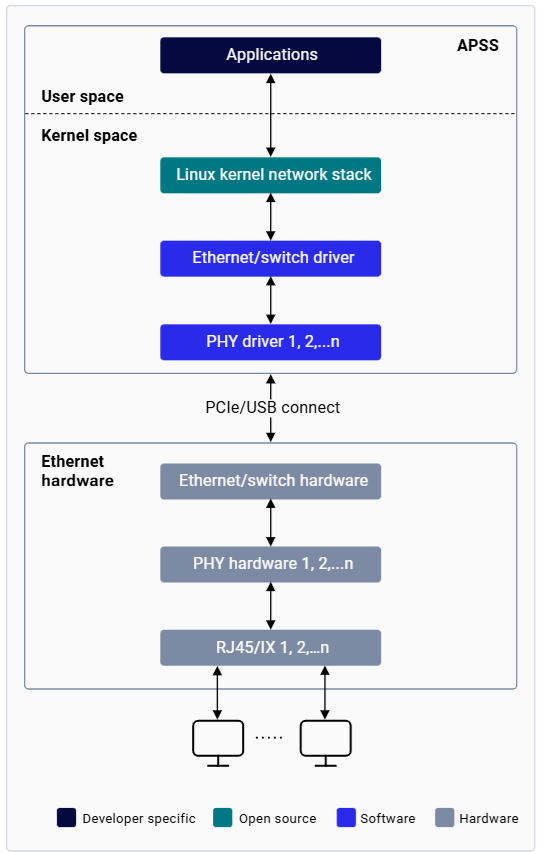
Getting Started

Bring Up Ethernet

Establish access to the device via SSH over Wi-Fi or the serial prompt before proceeding. See the Set up the device section for instructions.
Flash the corresponding CDT on the device to ensure the correct configuration is used for Ethernet bring-up.
1
Configure MAC Address (optional)
The IQ-8275 EVK ships with a factory MAC address. Skip this step to use it as-is.To change the MAC address:
2
Assign an IP Address
On a public network, the DHCP server assigns an IP address automatically. To assign a static IP address manually:
3
Configure MTU
4
Verify Bring-Up
Confirm the following:
end0is visible inipoutput- Interface status shows
UP BROADCAST RUNNING MULTICAST - IP address is correctly assigned
- MTU is set to the desired value (typically 1500)
- No errors in RX/TX packet counters
Ethernet Operations
Check Connectivity
Useping to verify connectivity between the device and a remote host. The client IP address must be in the same subnet as the device.
Configure NIC Settings
Capture Network Traffic
View Routing Table
Configure Link Speed
Troubleshooting
Collect Diagnostic Logs
1
Collect dmesg logs
2
Collect tcpdump logs
Ctrl+C to stop capture.3
Pull log files to host PC
Common Issues
No Link Detected
No Link Detected
dmesg.Cannot Ping Remote Host
Cannot Ping Remote Host
Slow Network Performance
Slow Network Performance
Interface Not Detected
Interface Not Detected