

Safety & Security
Real-time pipeline that detects when a person steps into a predefined restricted zone using IM SDK foot detection — with color-coded visual alerts, bounding box status indicators, and RTSP/WebRTC output.
Introduction
Monitoring access to restricted areas is a common requirement in industrial sites, warehouses, and other controlled environments. While these zones are often clearly marked, enforcing compliance in real time remains difficult. Manual supervision and post-event video review do not scale well and cannot provide the immediate response required in safety-critical scenarios. The QIM SDK enables a shift from reactive monitoring to real-time, automated situational awareness. By using hardware-accelerated GStreamer plugins, the SDK offloads compute-intensive tasks — including video decoding, frame preparation, multi-stage AI inference, and encoding — to dedicated hardware blocks. Frame preparation includes resizing, color conversion (YUV to RGB), and pixel normalization for neural network input. At the core of this use case is a streamlined pipeline that combines machine learning with spatial reasoning. A foot detection model identifies the location of a person’s feet in each frame, providing a reliable indicator of physical position within the scene. These detections are then evaluated against a predefined restricted zone to determine, in real time, whether a boundary has been crossed. The SDK also provides hardware-accelerated visualization through overlay rendering. Detection results and zone boundaries are composited directly onto video frames, with dynamic visual cues: green bounding boxes indicate the foot is outside the restricted zone, red indicates a violation. Beyond visualization, the SDK supports AI metadata streaming, synchronizing detection and zone-evaluation results with the video stream and transmitting them in parallel for alerting, logging, or dashboard integration. The complete application source code is available here.Use Case Overview
1
Video Input
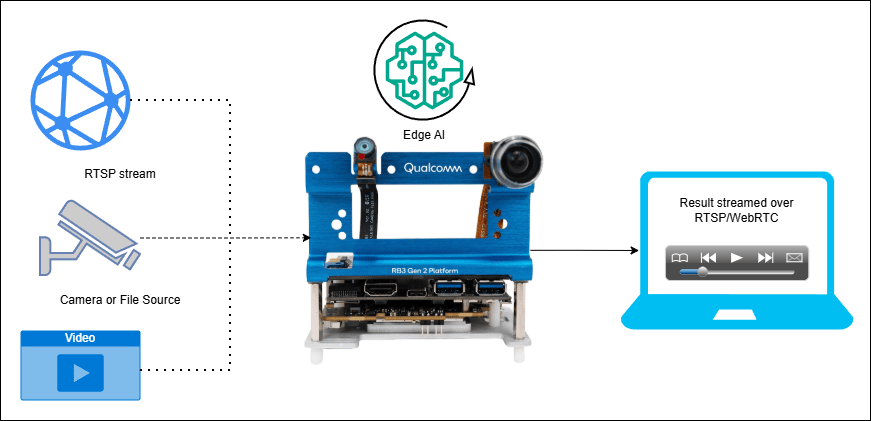
A camera monitors the restricted area and its surroundings. The pipeline accepts input from RTSP, ISP, USB, or file-based sources.
2
Foot Detection
Each frame is submitted to a foot detection model that identifies the location of each person’s feet within the scene.
3
Zone Evaluation
qtirestrictedzonedbg evaluates each detected foot position against the predefined restricted zone polygon to determine whether a boundary has been crossed.4
Metadata Generation
Detection results are attached to the video stream as structured per-frame metadata for downstream consumption.
5
Visualization
qtivoverlay renders bounding boxes and the restricted zone polygon onto video frames. Bounding boxes are green (outside zone) or red (violation).6
Metadata Synchronization
qtimetamux synchronizes all inference and zone-evaluation results with the original video frames, maintaining per-frame consistency.7
Output
The annotated stream is delivered via RTSP or WebRTC. Structured detection data is transmitted in parallel as JSON metadata for alerting, logging, and external integrations.
Pipeline diagram
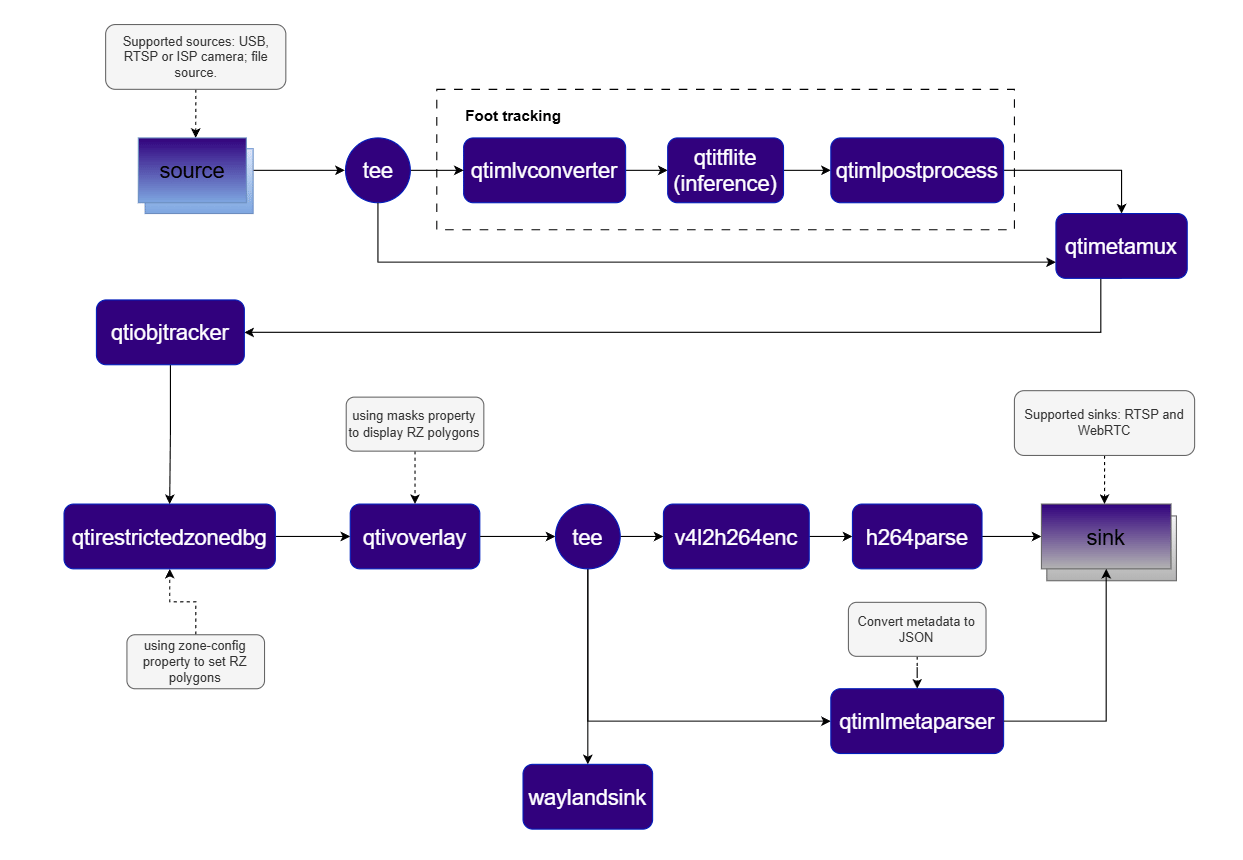
Elements used in pipeline
How it works
1
Stage 1 — Foot Detection
The full video frame is preprocessed by
qtimlvconverter to align with model input requirements. Preprocessed tensors are passed to qtimltflite, which runs the foot detection model and produces raw output tensors.2
Post-Processing
qtimlpostprocess converts the tensors into bounding box detections. qtimetamux attaches these detections to the original video frame as metadata.3
Stage 2 — Zone Evaluation
qtirestrictedzonedbg evaluates each detected foot position against the configured restricted zone polygon. If a foot lies inside the polygon, the pipeline flags it as a violation in real time.4
Tracking
qtiobjtracker maintains object identity across frames, assigning a consistent tracking ID to each detected foot for reliable zone evaluation over time.5
Visualization and Output
qtivoverlay renders bounding boxes and the restricted zone on the video stream. Visual cues update dynamically based on zone evaluation. The processed stream can be displayed locally, saved to file, or streamed via RTSP or WebRTC. qtimlmetaparser serializes metadata into JSON for external system integration.Run application on device
Setup Requirements
Hardware
Software
Flash your Qualcomm Edge device by following the device setup and flashing instructions here. Once your device is ready, follow the instructions below to set up the Restricted Zone pipeline.AI Model and config files
Copy files to device
Note: A display must be connected to the device. If no display is available, use the --no-display flag.
RTSP output
RTSP output
WebRTC output
WebRTC output
Display only
Display only
Note: This example uses an offline video file as input. To use an IP/RTSP camera or USB camera instead, update the --input-type argument accordingly — refer to the Command-Line Options section below.
It produces two key output results: an AI-annotated video stream and a JSON metadata stream. To visualize these results, refer to the Host-Side Visualization section below.
Visualize the Results - Host-Side Visualization (Windows + WSL)
This section describes how to run the visualization client on a Windows host machine using WSL (Windows Subsystem for Linux). The client renders the live video stream alongside a real-time AI metadata panel. 📥 The visualization client script can be downloaded here: rtsp_webrtc_client.py It displays:- Left panel — Live video stream with AI overlays (bounding boxes and restricted zone polygon).
- Right panel — Real-time AI metadata (JSON): object detections, tracking IDs, bounding boxes, and confidence scores.
RTSP
RTSP
WebRTC
WebRTC
After following the steps, the video and metadata streams should be up and running. When a person steps into the restricted zone, the corresponding bounding box changes from green to red.
The pipeline generates structured JSON metadata in the following format:
Command-Line Options
--input-type
--input-type
Selects the video input source for the pipeline.
--input-config
--input-config
Specifies the input source configuration corresponding to the selected
--input-type.--output-type
--output-type
Defines how the processed output video stream is delivered.
--output-config
--output-config
Specifies the output destination configuration.
--model-base-path
--model-base-path
Root directory for AI model, label, and configuration files.
--no-display
--no-display
Disables local on-screen rendering. Recommended for headless deployments, remote streaming (RTSP/WebRTC), or performance optimization.
--width / --height / --framerate
--width / --height / --framerate
Sets the raw input video resolution and frame rate. Applicable only to ISP and USB inputs.
--webrtc-id
--webrtc-id
Specifies the local WebRTC signaling client ID.
Update Restricted Zone Area
The restricted zone can be customized by setting thezone-config property of qtirestrictedzonedbg. The configuration supports one or more zones defined as ordered polygon vertex lists.
Implementation Deep-Dive
1. Application Configuration and Runtime Context
1. Application Configuration and Runtime Context
The application separates user-configurable settings from runtime state.
2. Reusable Pipeline Skeleton
2. Reusable Pipeline Skeleton
The pipeline is assembled from three logical sections: input branch, output branch, and application-specific user branch.
3. Inference, Zone, and Overlay Configuration
3. Inference, Zone, and Overlay Configuration
The pipeline uses the QNN external delegate, QPD post-processing, JSON metadata serialization, and overlay masks.
4. Pipeline Linking
4. Pipeline Linking
The metadata-enriched stream is routed through tracking, zone evaluation, and overlay before reaching the output branch.
5. WebRTC Signaling
5. WebRTC Signaling
WebRTC signaling uses explicit SDP offer/answer and ICE candidate exchange via WebSocket with
libsoup.Build the Application
- Source code: gst-restricted-zone
- Build instructions: Steps to build custom application