SELinux is enabled by default in the qcom-distro-catchall distribution and runs in Enforcing mode.
When SELinux is enabled, all system objects, including files, directories, processes, sockets, drivers, and more, are labeled with a security context.A security context consists of a user, role, type identifier, and optional sensitivity, separated by colons.For example: user:role:type:sensitivityNoteUser is unrelated to a Linux user, and Type is unrelated to the kind of object it is.
A set of valid users, roles, and types is defined in the policy.
Different objects are labeled with the same security context.
The MAC mechanism of SELinux security policies is implemented using:
Type enforcement (TE)
Role-based access control (RBAC)
Refpolicy Targeted
Types enable the policy to specify the allowed operations.
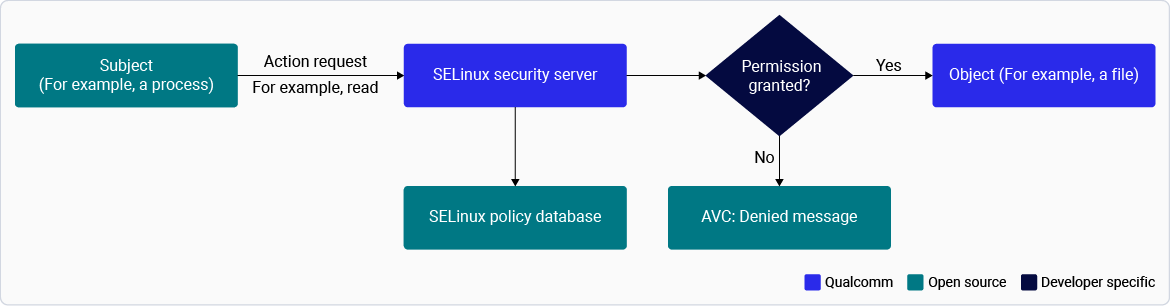
Figure : SELinux processThe following procedures explains how to verify and enable SELinux and modify SELinux modes.NoteBy default, SELinux is enabled and configured in Enforcing mode to provide mandatory access control and strengthen platform security. During development and debugging, SELinux can be temporarily switched to Permissive mode to log policy violations without enforcing access restrictions. For production and commercial deployments, Qualcomm recommends keeping SELinux in Enforcing mode
Edit SELINUX= to one of the three supported values: enforcing, permissive, or disabled in /etc/selinux/config.
Reboot the device using the following command:
reboot
To specify the SELinux mode in the build: Change the DEFAULT_ENFORCING build flag to one of the three supported values: enforcing, permissive, or disabled.
The SELinux Disabled mode leaves behind many code paths that go through the SELinux framework. These code paths aren’t useful for KPI testing or verifying bugs in the SELinux framework. It also doesn’t allow any more access than Permissive mode.
To disable the feature for testing, remove SELinux from DISTRO_FEATURES: