

- Once the session is created, select Connect on the top bar.
-
In the Private Key File Path text box, enter the path to the
.pemfile downloaded in the previous step. The command shown on this screen sets up port forwarding; it does not open an SSH shell or connect you directly to the QDC device. Run this command in your local terminal and keep it running to maintain port forwarding. Proceed to the next steps to obtain the SSH shell command.
 - Select Next to obtain the commands to connect to the SSH shell.
-
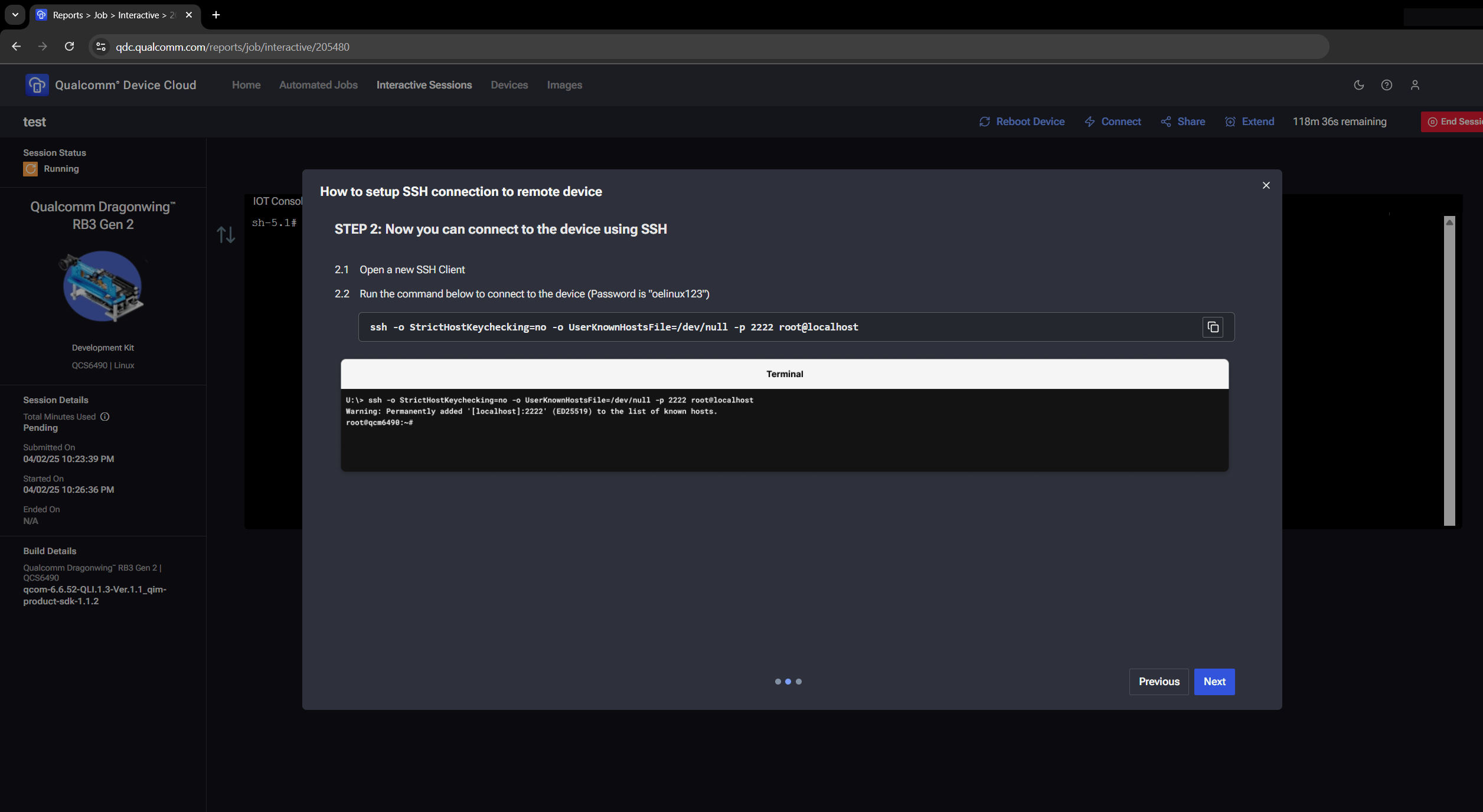
Copy the commands provided and run them on your host computer.
-
Copy the SSH connection command and run it in your terminal.
If prompted for a password, enter
oelinux123. -
Select Next to obtain the commands to enable port forwarding.
 The command above is an example only. The command in your device session uses a unique session ID in the format
8900:sa<unique_session_id>.sa.svc.cluster.local:8900. Edit the command from your own device session as shown above.
Connect using SSH
Connect to a Qualcomm Device Cloud session over SSH and set up port forwarding
Was this page helpful?