

-
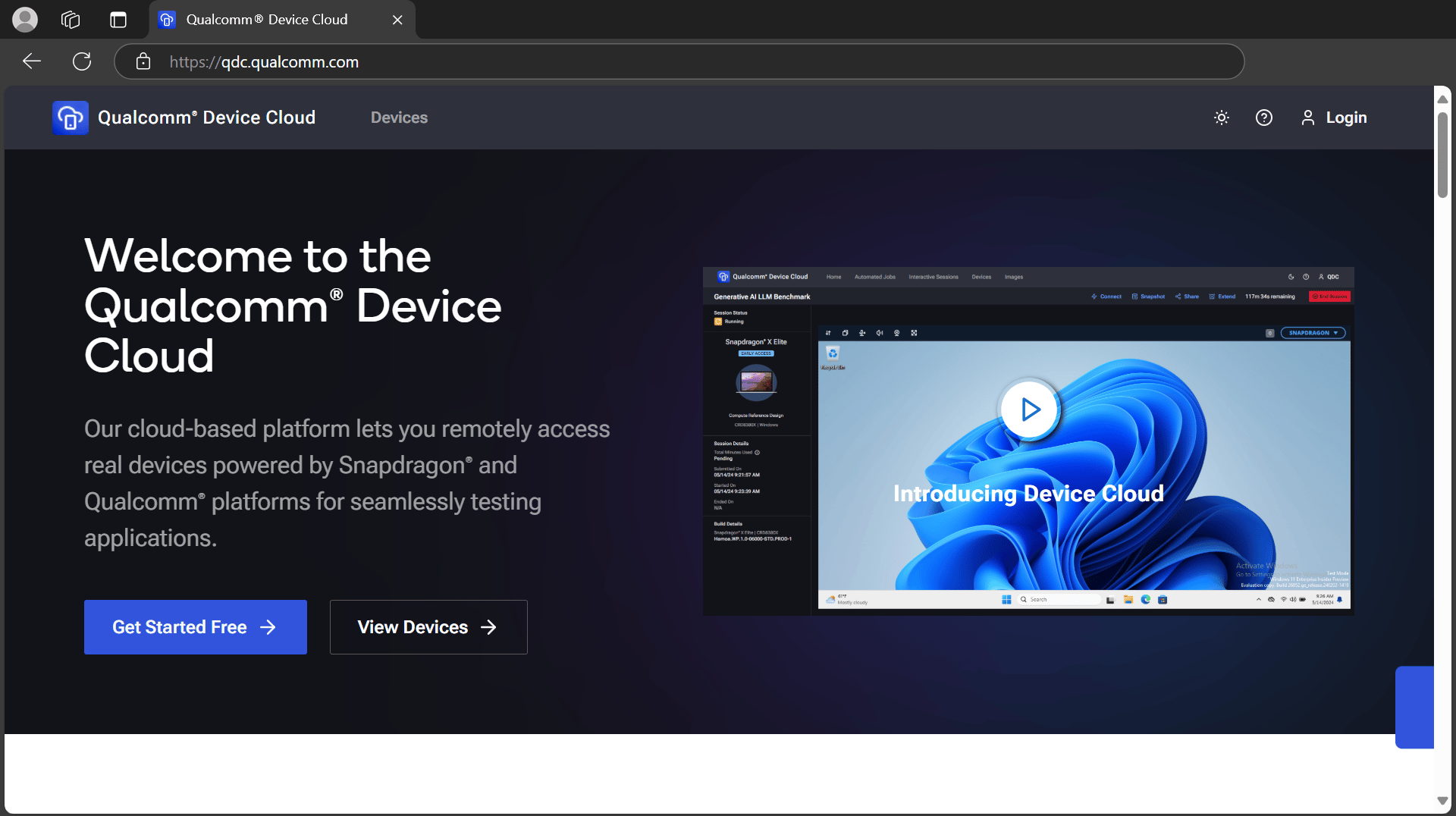
Go to Qualcomm Device Cloud and sign in using your Qualcomm ID.
-
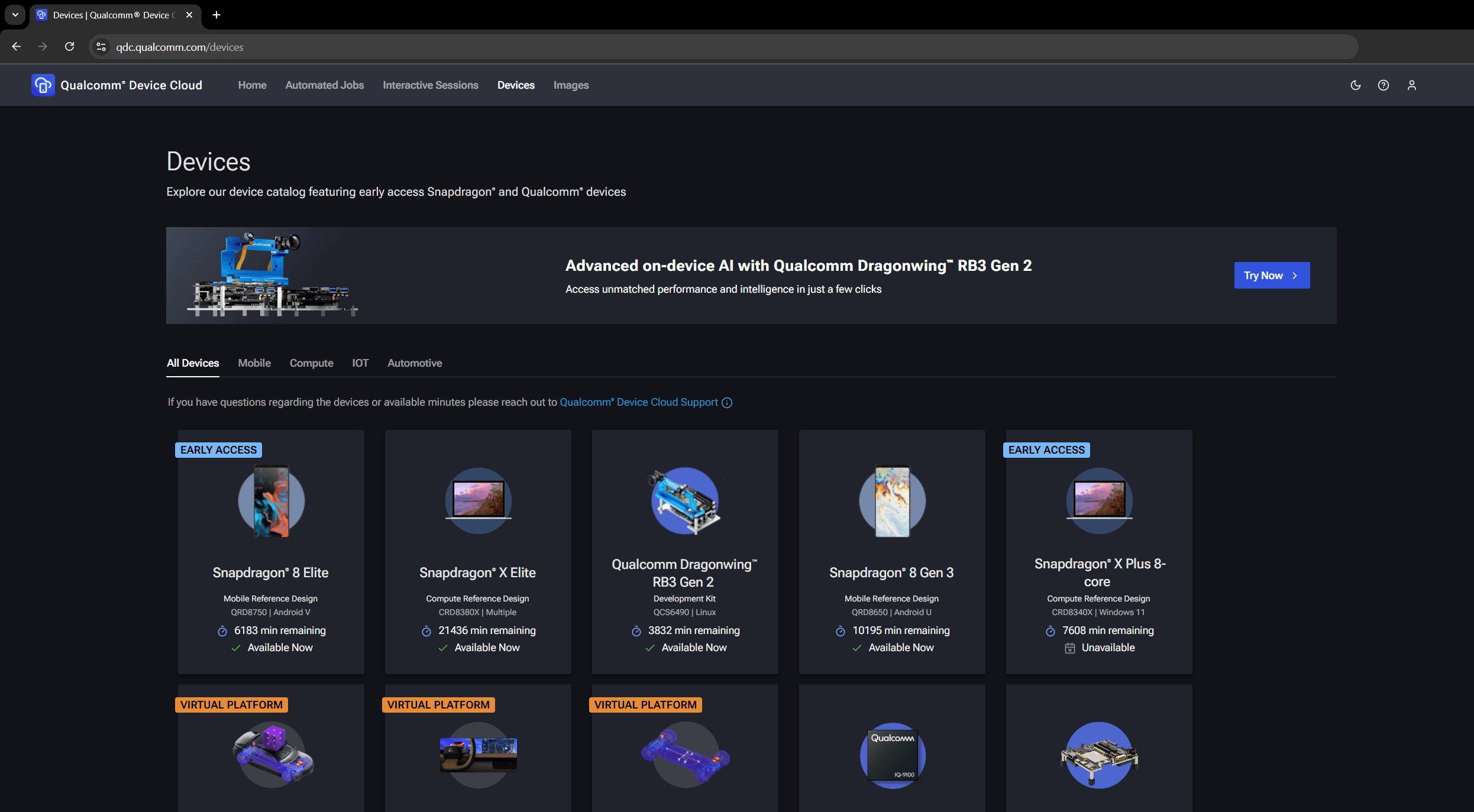
Select Devices and select Qualcomm Dragonwing™ RB3 Gen 2.
-
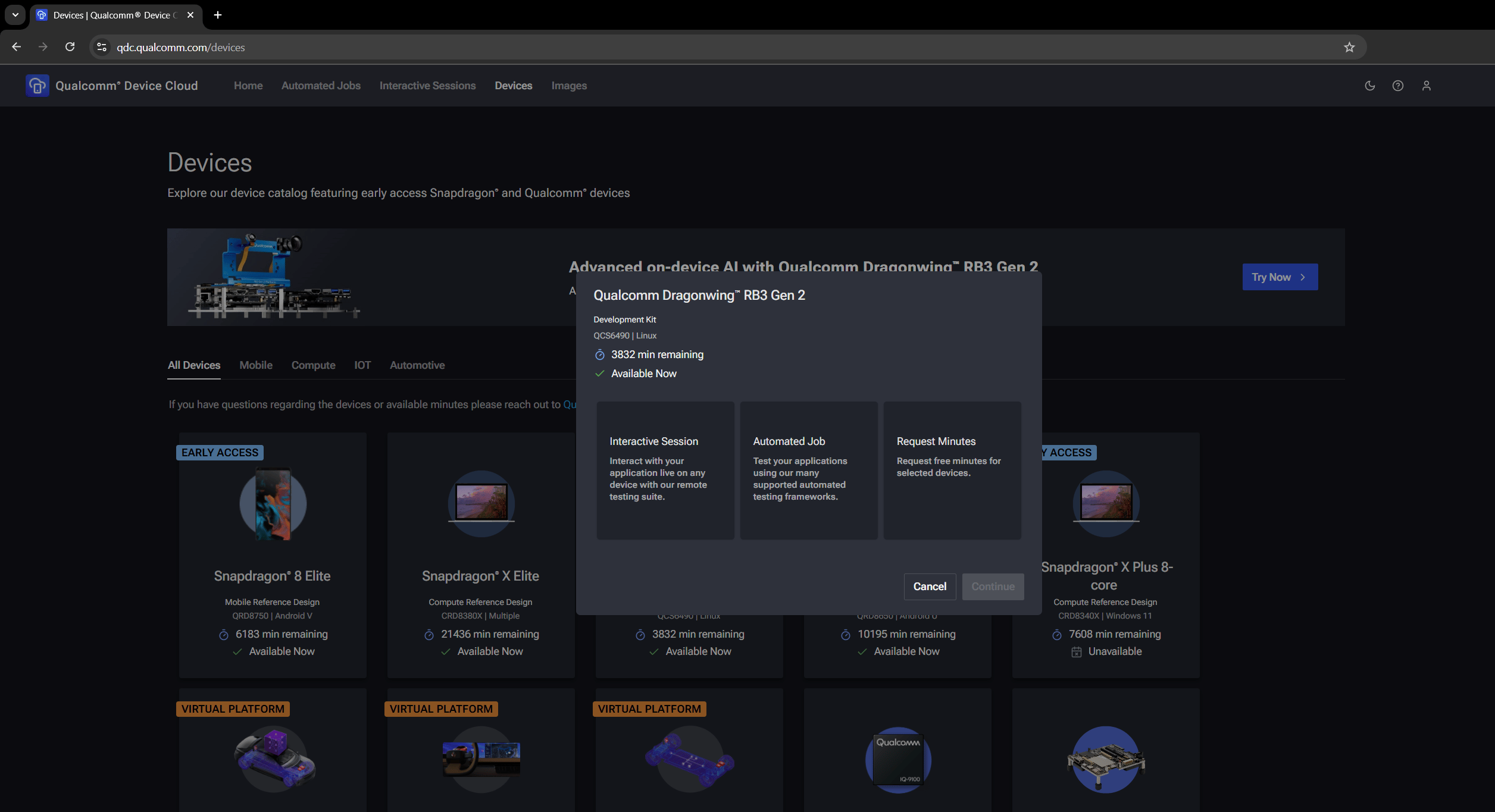
Select Interactive session and select Continue.
-
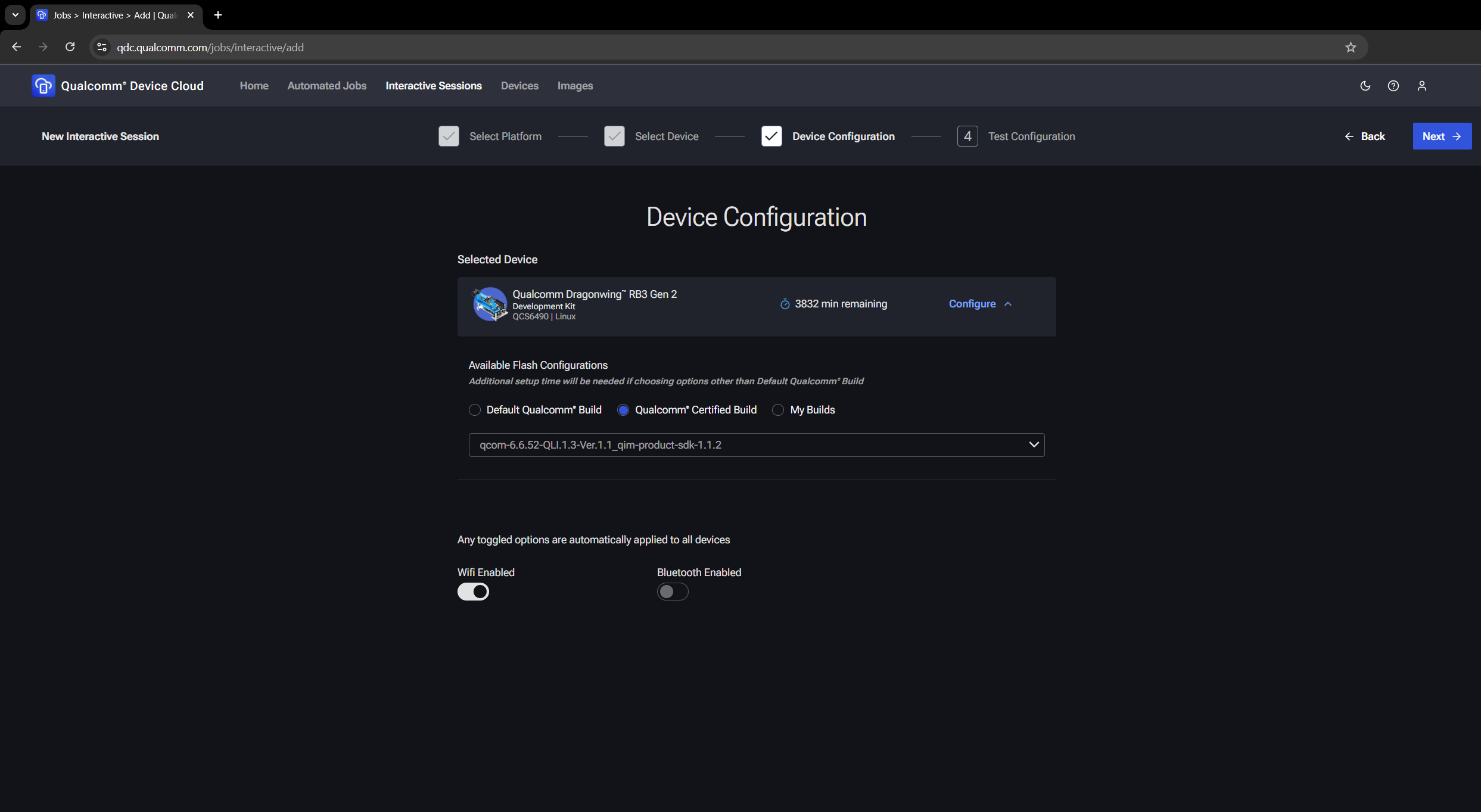
On the Device Configuration page, select a build (Qualcomm Certified or custom) and enable Wi-Fi and Bluetooth as needed. Ensure that Wi-Fi is enabled before proceeding.
-
On the Test Configuration page, enter the Session Name and Maximum Minutes Per Device. Select Interactive shell + SSH and generate a new public key for the session.
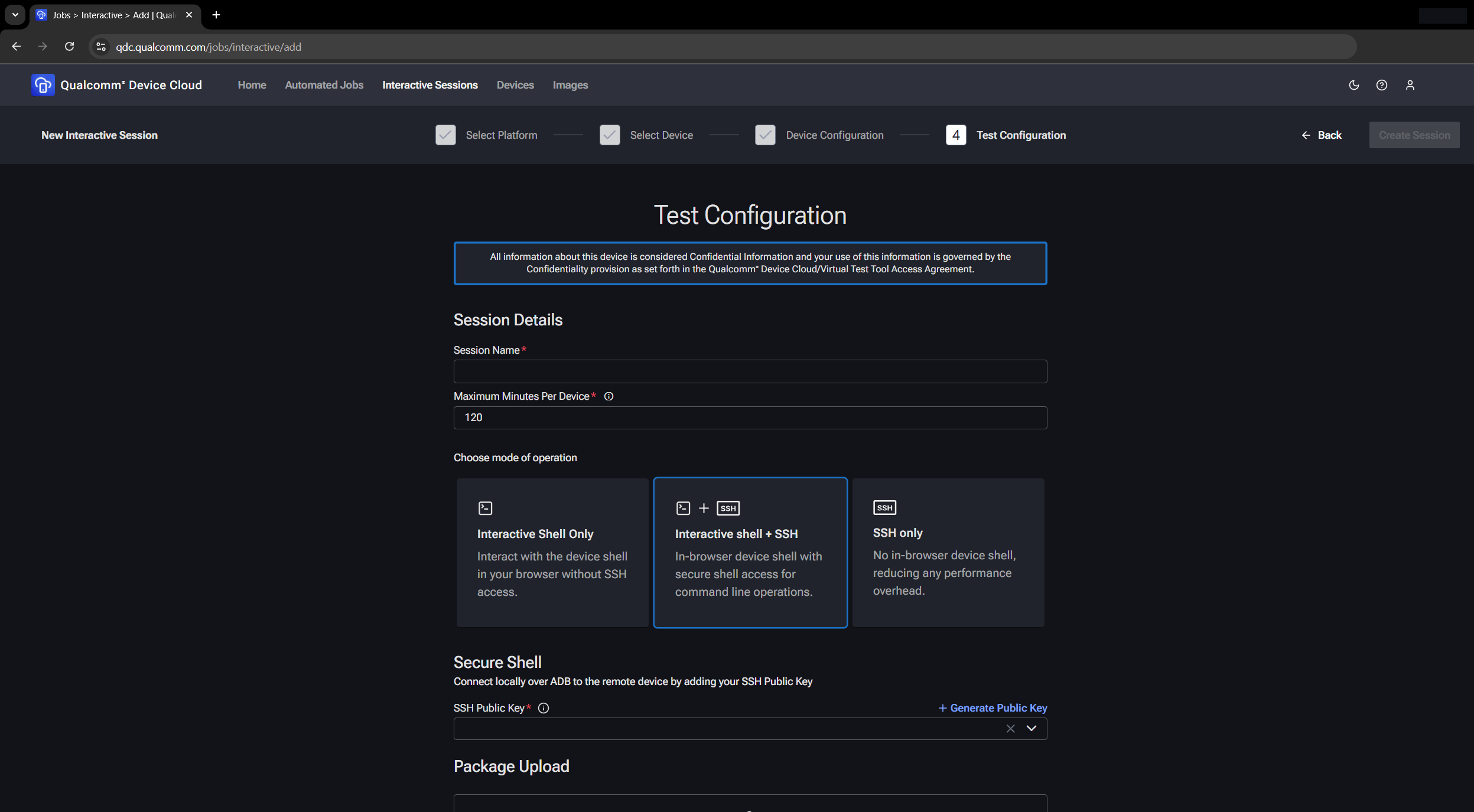
-
Select Generate New Pair.
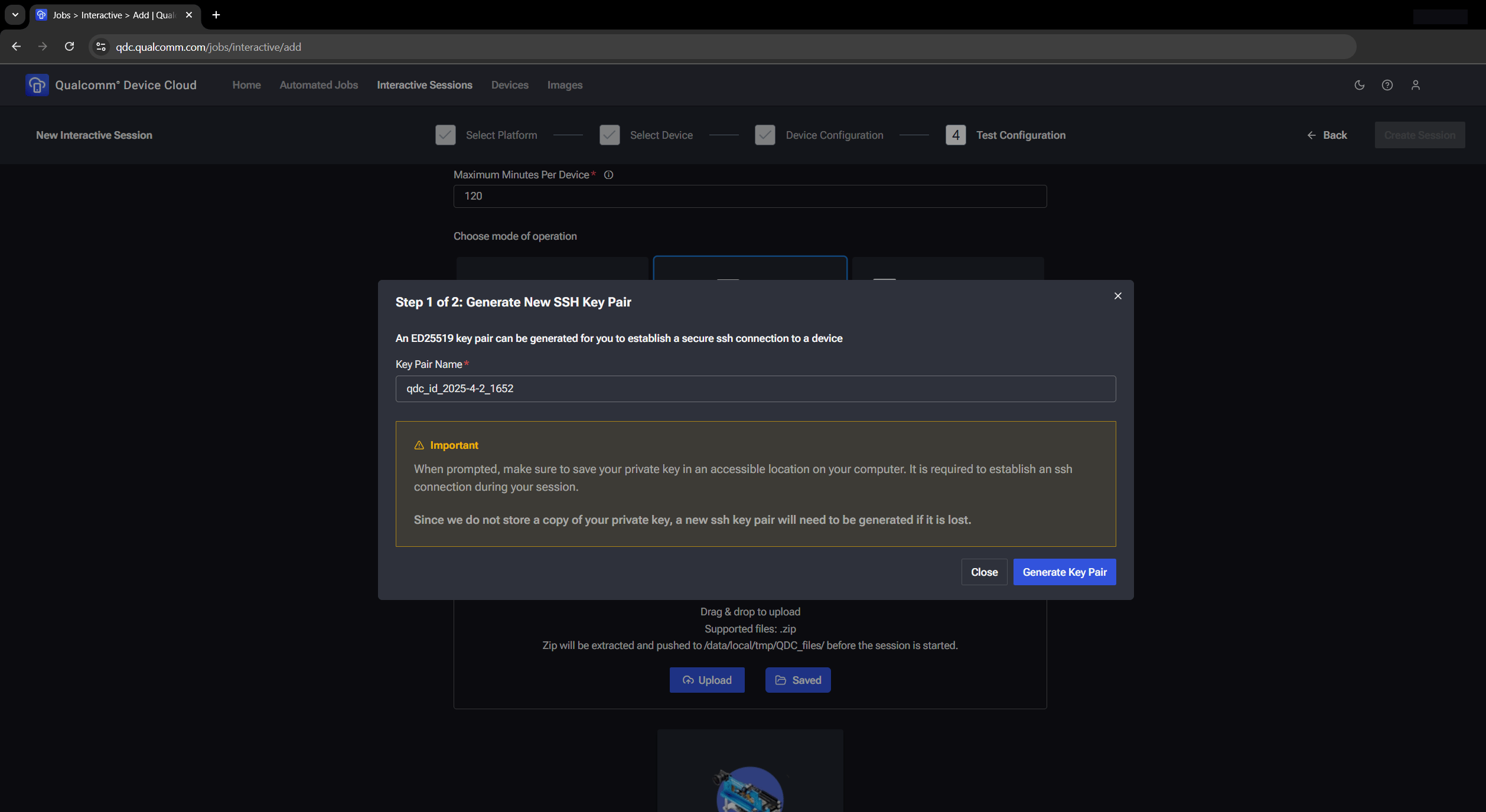
.pemfile is downloaded to your host computer. - Select Create Session. A new device session is created in 10–15 minutes.
Start a device session
Create and launch an interactive device session on Qualcomm Device Cloud
Was this page helpful?