

Prerequisites
- IQ-9075 EVK hardware
- Ethernet cable (RJ45)
- Host PC on the same network as the IQ-9075 EVK
- SSH client software
- Basic Linux command-line knowledge
Architecture
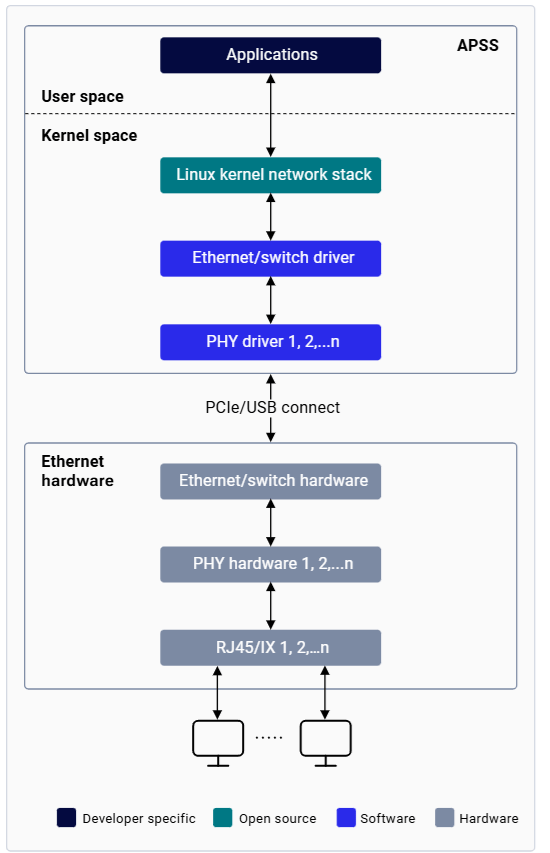
Getting Started

Bring Up Ethernet

Establish access to the device via SSH over Wi-Fi or the serial prompt before proceeding. See the Set up the device section for instructions.
Flash the corresponding CDT on the device to ensure the correct configuration is used for Ethernet bring-up.
1
Configure MAC Address (optional)
The IQ-9075 EVK ships with a factory MAC address. Skip this step to use it as-is.To change the MAC address:
2
Assign an IP Address
On a public network, the DHCP server assigns an IP address automatically. To assign a static IP address manually:
3
Configure MTU
4
Verify Bring-Up
Confirm the following:
end0is visible inifconfigoutput- Interface status shows
UP BROADCAST RUNNING MULTICAST - IP address is correctly assigned
- MTU is set to the desired value (typically 1500)
- No errors in RX/TX packet counters
Ethernet Operations
Check Connectivity
Useping to verify connectivity between the device and a remote host. The client IP address must be in the same subnet as the device.
Configure NIC Settings
Useethtool to view and configure NIC parameters such as speed, duplex, and auto-negotiation:
Configure Network Interface
Useifconfig to assign addresses and configure interface parameters:
Monitor Network Connections
Usenetstat to monitor incoming/outgoing connections, routing tables, and port usage:
Capture Network Traffic
Usetcpdump to intercept and analyze packets:
View Routing Table
Configure Link Speed
Set link speed from the supported modes shown inethtool output:
Troubleshooting
Collect Diagnostic Logs
1
Collect dmesg logs
2
Collect tcpdump logs
Ctrl+C to stop capture.3
Pull log files to host PC
4
Collect diagnostic output
Common Issues
No Link Detected
No Link Detected
Symptoms: Solutions: Replace faulty cable, ensure both ends are securely connected, verify link partner is powered on, check for PHY driver errors in
ethtool end0 shows “Link detected: no”; interface shows as DOWN.Steps:dmesg.Cannot Ping Remote Host
Cannot Ping Remote Host
Symptoms: Link detected but ping fails; “Destination Host Unreachable” or “Network is unreachable”.Steps:Solutions: Configure correct IP address and subnet mask; add default gateway if needed (
route add default gw <gateway_ip>); verify firewall rules are not blocking ICMP.Slow Network Performance
Slow Network Performance
Symptoms: High latency, slow file transfers, packet loss.Steps:Solutions: Force 1000 Mbps full-duplex if auto-negotiation fails; replace cable if errors are detected; adjust MTU for specific network requirements.
Interface Not Detected
Interface Not Detected
Symptoms: Solutions: Ensure correct CDT is flashed; verify Ethernet driver is compiled in kernel; check for hardware initialization errors in
end0 does not appear in ifconfig output.Steps:dmesg; reboot and check again.MAC Address Issues
MAC Address Issues
Symptoms: MAC address changes after reboot, random MAC assigned, or MAC conflicts.Steps:Solutions: Create or restore
/var/persist/config.ini. Format: MDIOBUSID1: 1: MAC_ID01: XX:XX:XX:YY:YY:YY. Back up config.ini before software upgrades.Advanced Diagnostics
Filter Ethernet-related dmesg messages:.pcap file in Wireshark on your host PC.
Monitor real-time hardware statistics: