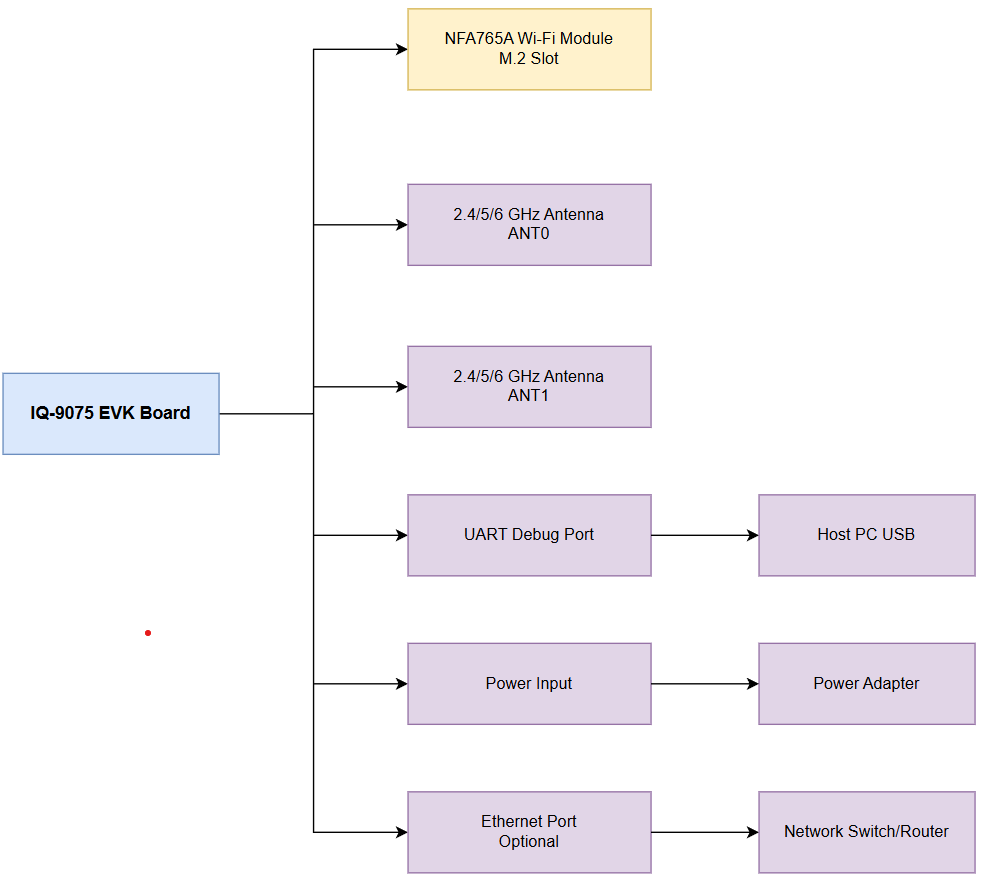
The Qualcomm Dragonwing IQ-9075 EVK features integrated Wi-Fi and Bluetooth connectivity via the NFA765A module (WCN6856 NSP288 chip) over an M.2 interface.

Specifications

Wi-Fi

FeatureSpecification
StandardWi-Fi 6E (802.11ax)
Bands2.4 GHz, 5 GHz, 6 GHz (tri-band)
Peak PHY Rate2.9 Gbps with 1K QAM
OperationDual Band Simultaneous (DBS), STA and AP modes
Driverath11k

Bluetooth

FeatureSpecification
StandardBluetooth Core Specification v5.2
BLE SpeedUp to 2 Mbps
Long Range500 Kbps and 125 Kbps
StackBlueZ

Hardware Setup

1

Install Wi-Fi Module

Insert the NFA765A module into the M.2 slot at a 30-degree angle, press flat, and secure with the provided screw.
2

Connect Antennas

  • ANT0 (2.4G) — shared between Wi-Fi and Bluetooth
  • ANT1 (5G/6G) — Wi-Fi 5 GHz and 6 GHz only
3

Connect UART Debug Cable

Connect the UART cable to the debug port and note the assigned COM port or /dev/ttyUSB device.
4

Connect Power and Boot

Power on and observe the boot sequence via UART console. Default login: ubuntu / ubuntu.

Architecture

Wi-Fi Software Architecture
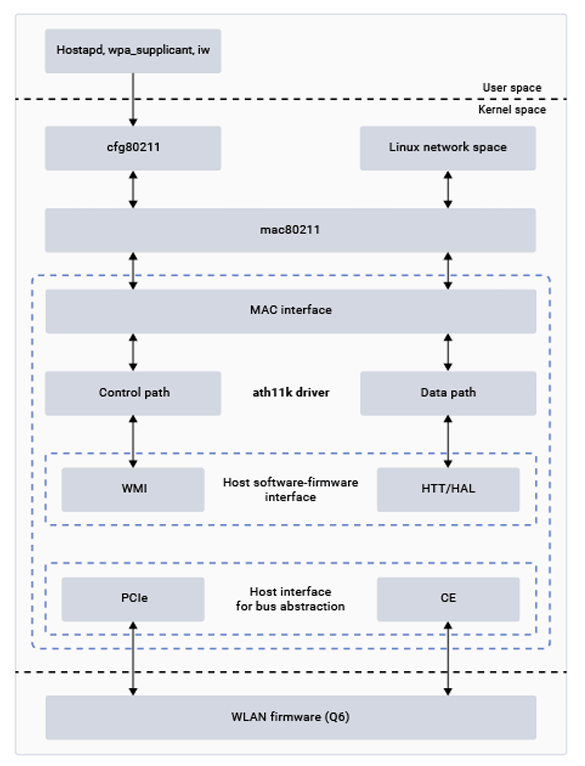
ComponentDescription
hostapdAccess point and authentication server (WPA/WPA2/WPA3)
cfg80211Wireless device configuration management
mac80211Open-source WLAN protocol implementation
ath11k MAC InterfaceInterface between mac80211 and lower ath11k layers
ath11k Control/Data PathScan, auth, association; data traffic management
WMI/HTTHigh-level protocols between host driver and firmware

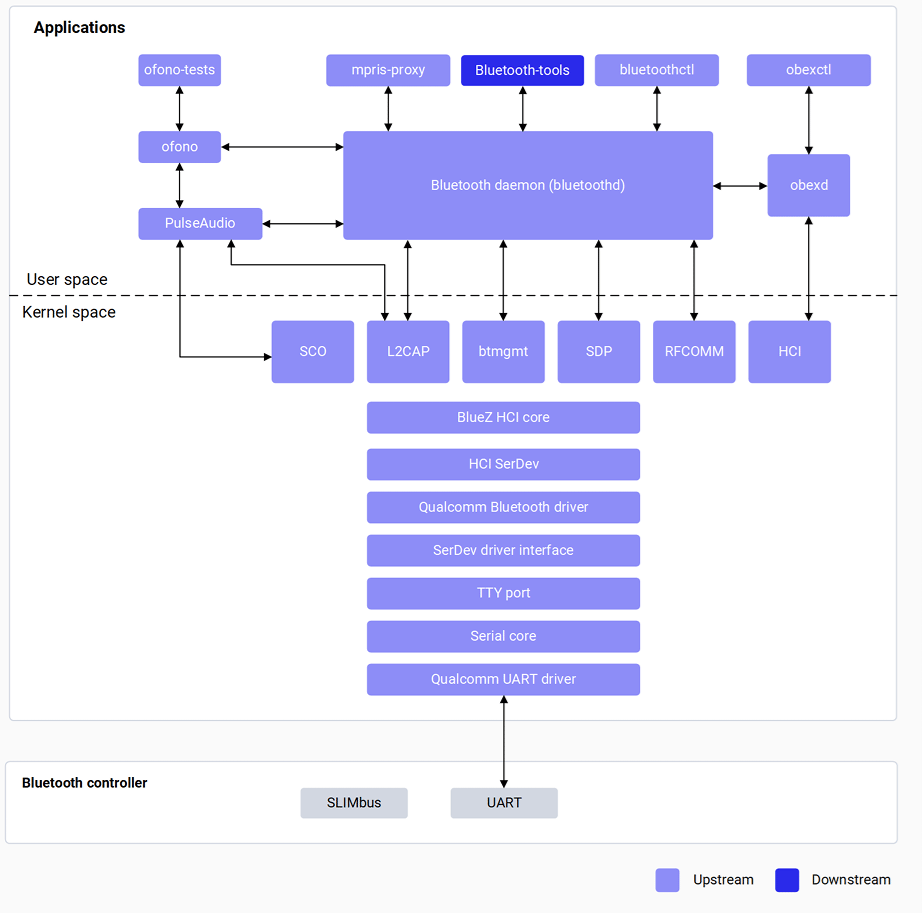
Bluetooth Software Architecture

ComponentDescription
bluetoothdCentral Bluetooth daemon with D-Bus interfaces
bluetoothctlCLI tool for Bluetooth functionality testing
HCI CoreSends/receives HCI commands between user space and driver
L2CAPBreaks large packets into frames; handles QoS
Qualcomm BT DriverGPIO config, regulators, patch and NV data download

Verify Components

Wi-Fi

# Check driver
lsmod | grep ath11k

# Check interface
iw dev

# Check firmware
ls -la /lib/firmware/ath11k/

Bluetooth

# Check driver
sudo lsmod | grep bt

# Check HCI device
hciconfig

# Check firmware
ls -la /lib/firmware/qca/

# Check BlueZ daemon
systemctl status bluetooth

Wi-Fi Configuration

Station Mode

# Scan for networks
nmcli dev wifi list

# Connect
nmcli dev wifi connect <SSID> password <password>

# Verify connection
nmcli general status
nmcli dev status
ifconfig wlp1s0
ping 8.8.8.8

Set MAC Address (Optional)

The manually set MAC address persists only until the next reboot, then reverts to the factory OTP address.
ifconfig wlp1s0 down
ifconfig wlp1s0 hw ether XX:XX:XX:XX:XX:XX
ifconfig wlp1s0 up

Hotspot Mode

1

Add SoftAP interface

iw dev wlp1s0 interface add wlp1s0 type managed
2

Configure and start hostapd

# Pull default config (optional)
scp -r ubuntu@<IP>:/etc/hostapd.conf .
# Edit and push back, then start:
hostapd -B /etc/hostapd.conf
3

Start DHCP server

brctl addbr br0
brctl addif br0 wlp1s0
ifconfig br0 192.168.225.1 netmask 255.255.255.0 up
dnsmasq --conf-file=/etc/dnsmasq.conf \
  --dhcp-range=br0,192.168.225.20,192.168.225.60,255.255.255.0,43200
4

Monitor connections

hostapd_cli -i wlp1s0 -p /var/run/hostapd
Stop hotspot:
killall hostapd
ifconfig wlp1s0 down
rm -rf /var/run/hostapd/wlp1s0
sudo ethtool -s end0 autoneg on speed 1000 duplex full

Bluetooth Configuration

Set Bluetooth MAC Address (Optional)

A manually set Bluetooth MAC address does not persist across reboots.
# Power off Bluetooth first
hciconfig hci0 down

# Set address
btmgmt public-addr 22:22:9B:2C:79:1E

# Verify
hciconfig

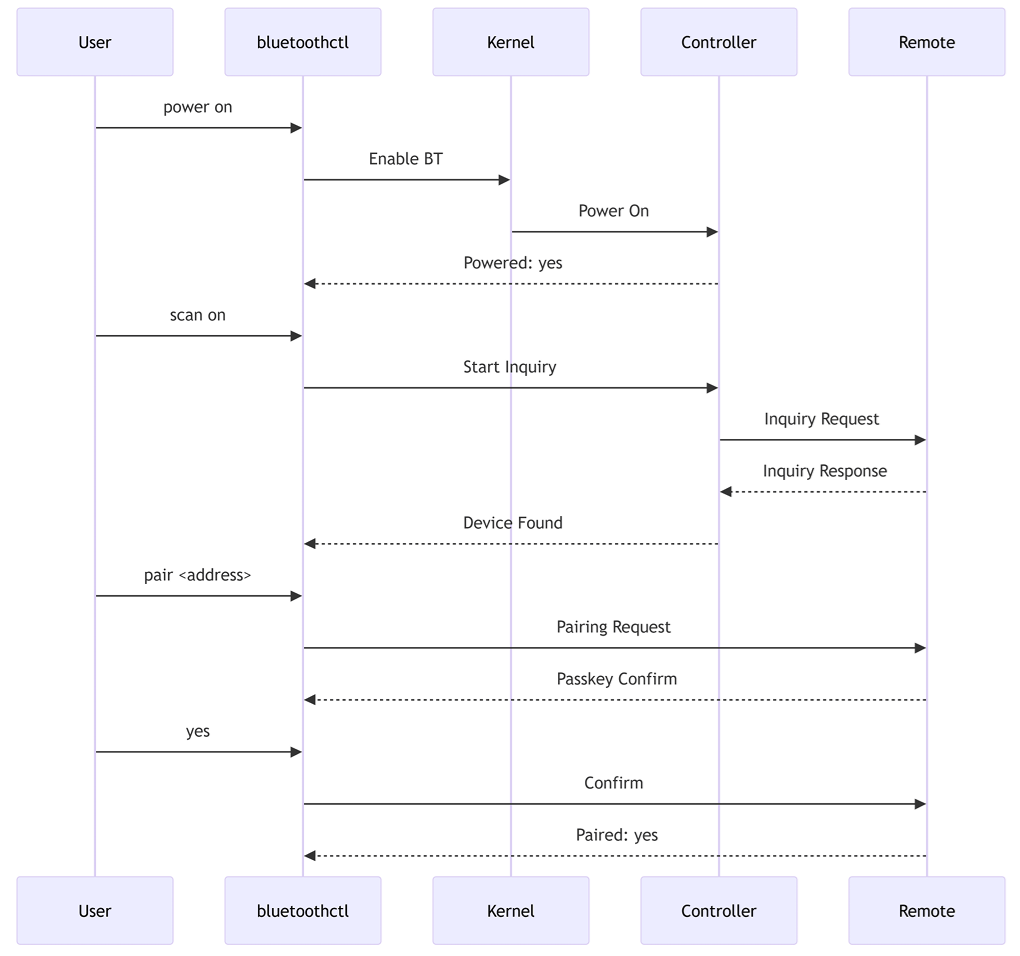
GAP Operations

# Launch bluetoothctl
bluetoothctl

# Enable Bluetooth
power on

# Scan for devices
scan on

# Pair with device
pair F8:7D:76:9D:9B:6B

# List paired devices
devices

# Enable discoverable mode
discoverable on

# Disable Bluetooth
power off

Supported Bluetooth Profiles

ProfileRoleVersion
GAPCentral and Peripheral
SPPClient and Serverv1.2
GATTCentral and Peripheral
OPPClient and Serverv1.2
FTPClient and Serverv1.2
PBAPClient and Serverv1.1
MAPClient and Serverv1.2
A2DP, AVRCP, and HFP are supported on WCN6750/WCN6856.

Debugging

Wi-Fi Debug Logs

# Enable logging
echo "module ath11k +p" > /sys/kernel/debug/dynamic_debug/control
echo "module ath11k_pci +p" > /sys/kernel/debug/dynamic_debug/control

# Collect logs
dmesg > /tmp/dmesg.txt
scp ubuntu@<IP>:/tmp/dmesg.txt .

# Collect firmware dump (on crash)
cat /sys/class/devcoredump/devcd*/data > /tmp/firmware_dump.bin

Bluetooth Debug Logs

# Enable HCI snoop log (edit bluetooth.service)
# ExecStart=.../bluetoothd --noplugin=* --debug

# HCI snoop log location
/var/log/btsnoop_hci.log

# Enable kernel debug
echo "module bluetooth +p" > /sys/kernel/debug/dynamic_debug/control
echo "module btqca +p" > /sys/kernel/debug/dynamic_debug/control
echo "module hci_uart +p" > /sys/kernel/debug/dynamic_debug/control

dmesg > /tmp/bt_dmesg.txt

Troubleshooting

Cause: Driver not loaded or firmware missing.
dmesg | grep ath11k
ls /lib/firmware/ath11k/
Cause: Wrong password or security mismatch.Verify SSID and password; check AP security settings.
Cause: DHCP server issue.Check DHCP server on AP; manually assign static IP for testing.
Cause: hostapd configuration error.Verify hostapd.conf settings; check channel and security parameters.
Cause: Driver not loaded or firmware missing.
dmesg | grep -i bluetooth
ls /lib/firmware/qca/
Cause: Passkey mismatch or timeout.Ensure both devices confirm the same passkey; retry pairing.
Cause: A2DP/HFP not supported on NFA765A.Verify profile support — A2DP and HFP require WCN6750/WCN6856.
Cause: 2.4 GHz interference or power management.Disable power management; check for 2.4 GHz interference from Wi-Fi.

Quick Start Checklists

  • NFA765A module installed in M.2 slot
  • Antennas connected (ANT0 and ANT1)
  • Firmware files present (/lib/firmware/ath11k/)
  • wlp1s0 interface present (iw dev)
  • Connected to AP (nmcli dev wifi connect ...)
  • IP address assigned (ifconfig wlp1s0)
  • Internet reachable (ping 8.8.8.8)
  • NFA765A chipset initialized
  • Bluetooth firmware present (/lib/firmware/qca/)
  • hci0 controller present (hciconfig)
  • bluetoothd running (systemctl status bluetooth)
  • bluetoothctl available
  • Bluetooth powered on (power on)
  • Scan and pair successful

Resources