

Download
The extension is available on the Qualcomm® Software Center (QSC) — no account or login required.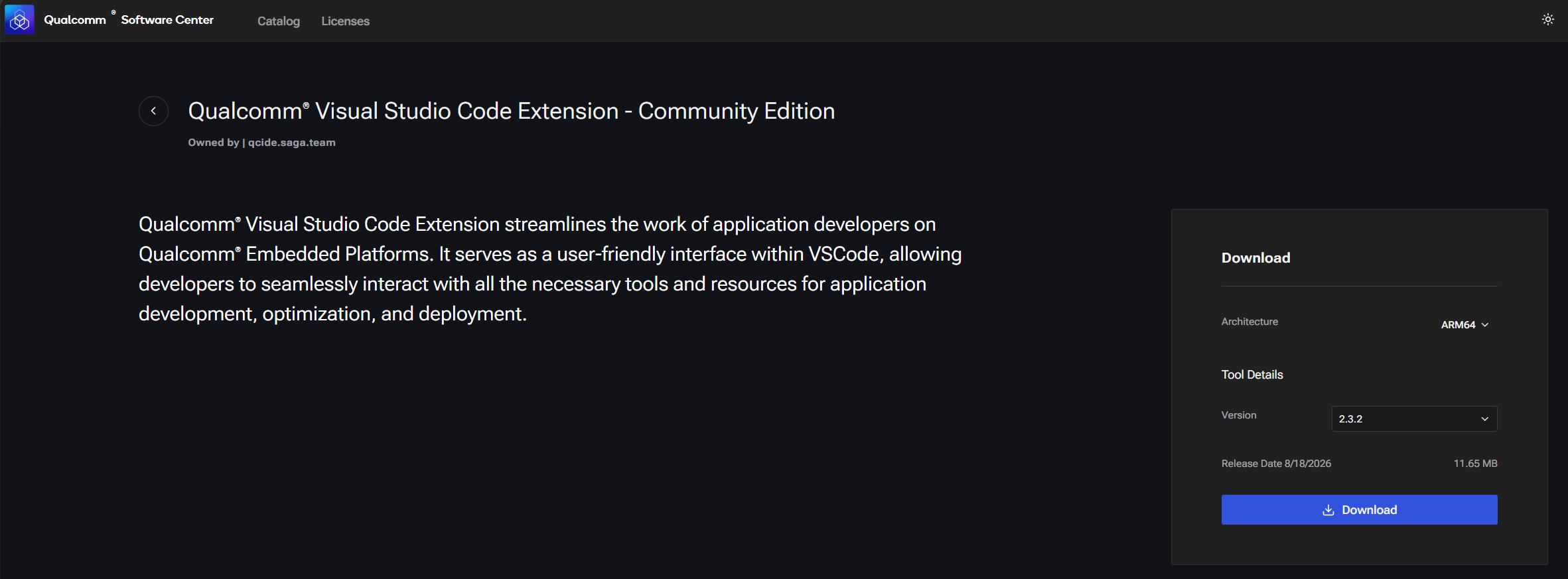
Look for Qualcomm IDE Developer Edition on the catalog page. The download is a
.vsix file.Install in VS Code
1
Open the Extensions side-bar
Click the Extensions icon in the Activity Bar (or press
Ctrl+Shift+X).2
Install from VSIX
Click the 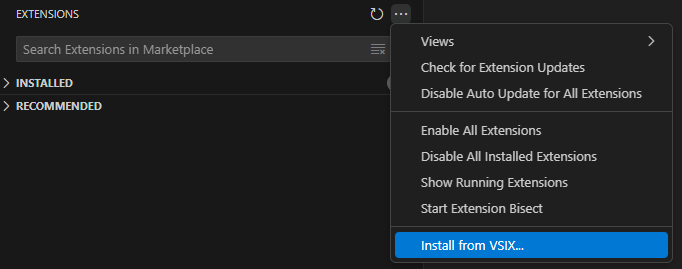 Browse to the
… overflow menu at the top of the Extensions panel and choose Install from VSIX…Browse to the .vsix file you downloaded.Windows users: Install the extension from inside WSL. Confirm that the VS Code status bar reads WSL: Connected before this step.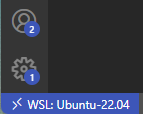
3
Activate the extension
After installation, a Qualcomm Visual Studio Code Extension icon appears in the Activity Bar. Click it.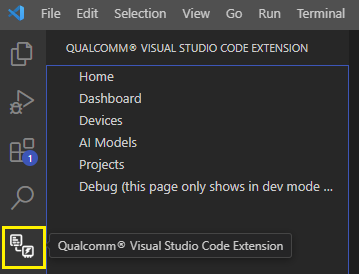 Select Home in the side-bar, then click Get Started to launch the host setup wizard.
Select Home in the side-bar, then click Get Started to launch the host setup wizard.Verify Installation
You should see the Qualcomm extension icon in the Activity Bar and be able to navigate to Home in the side-bar.The Home page loads with a Get Started button — you are ready to configure your development environment.