

GUI
Download software product
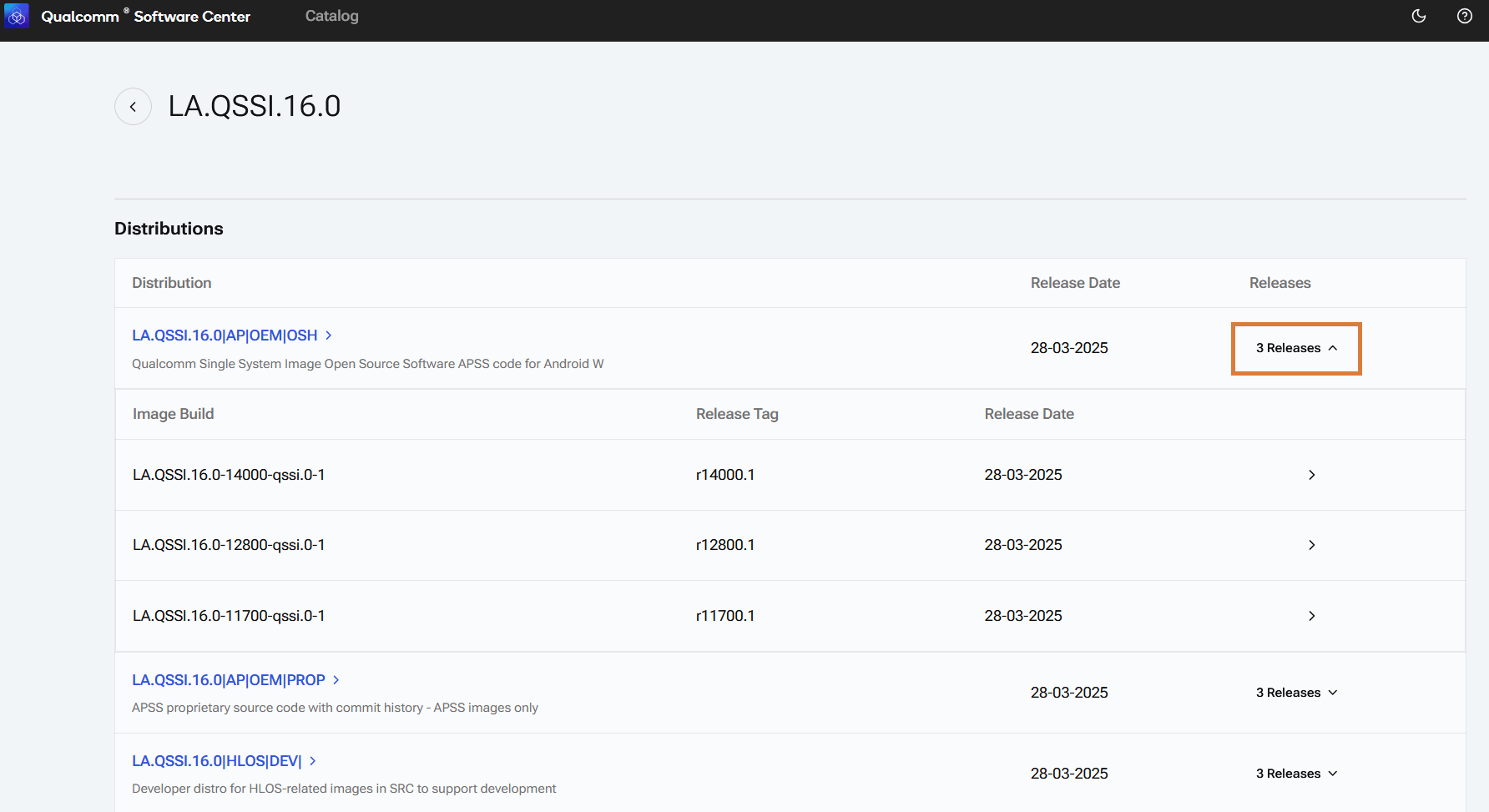
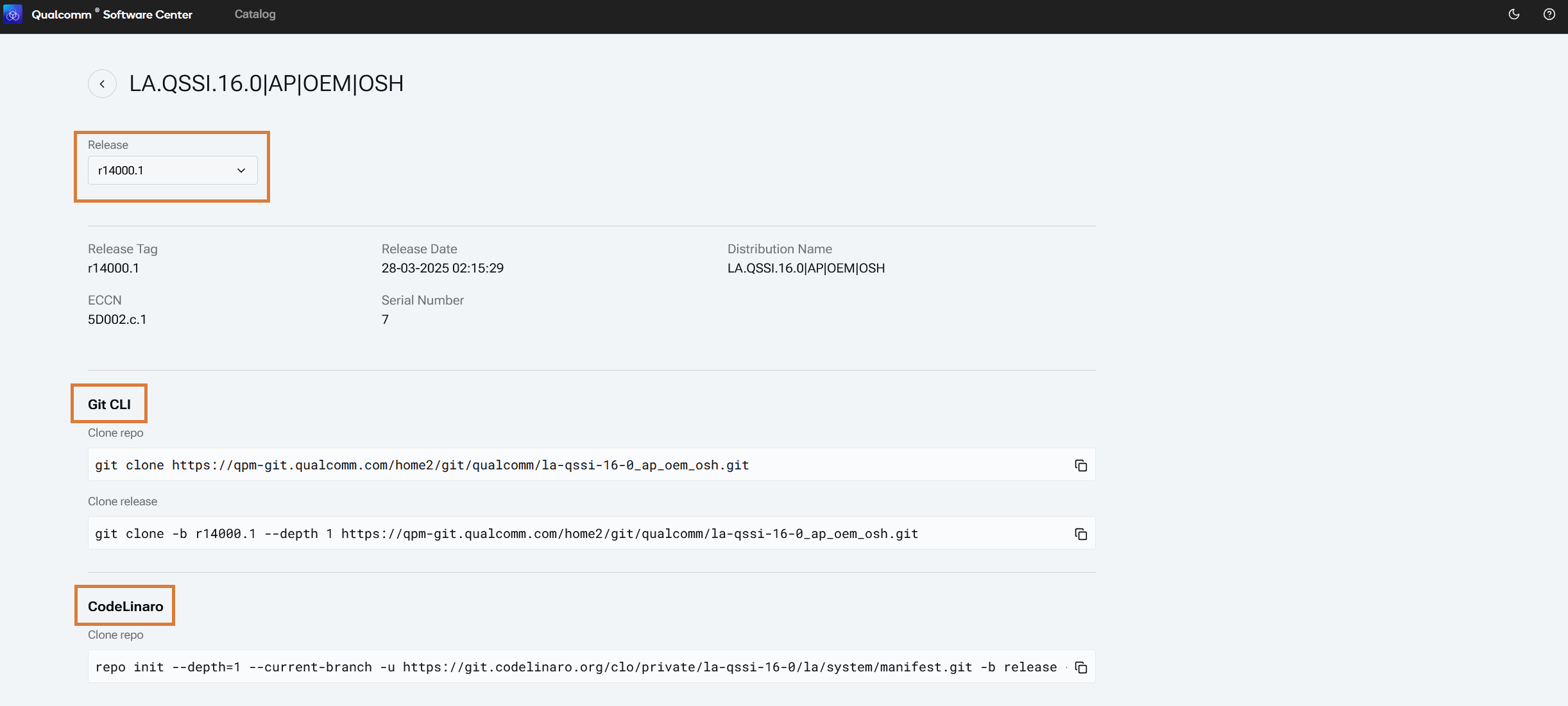
On the Qualcomm Software Center web portal (or desktop application), navigate to Catalog on the top menu bar and select the Chip Software category. Select Software Products to see all software products (SPs) and software product families (SPFs) to which you have access. Click on a row to navigate to the software product detail page.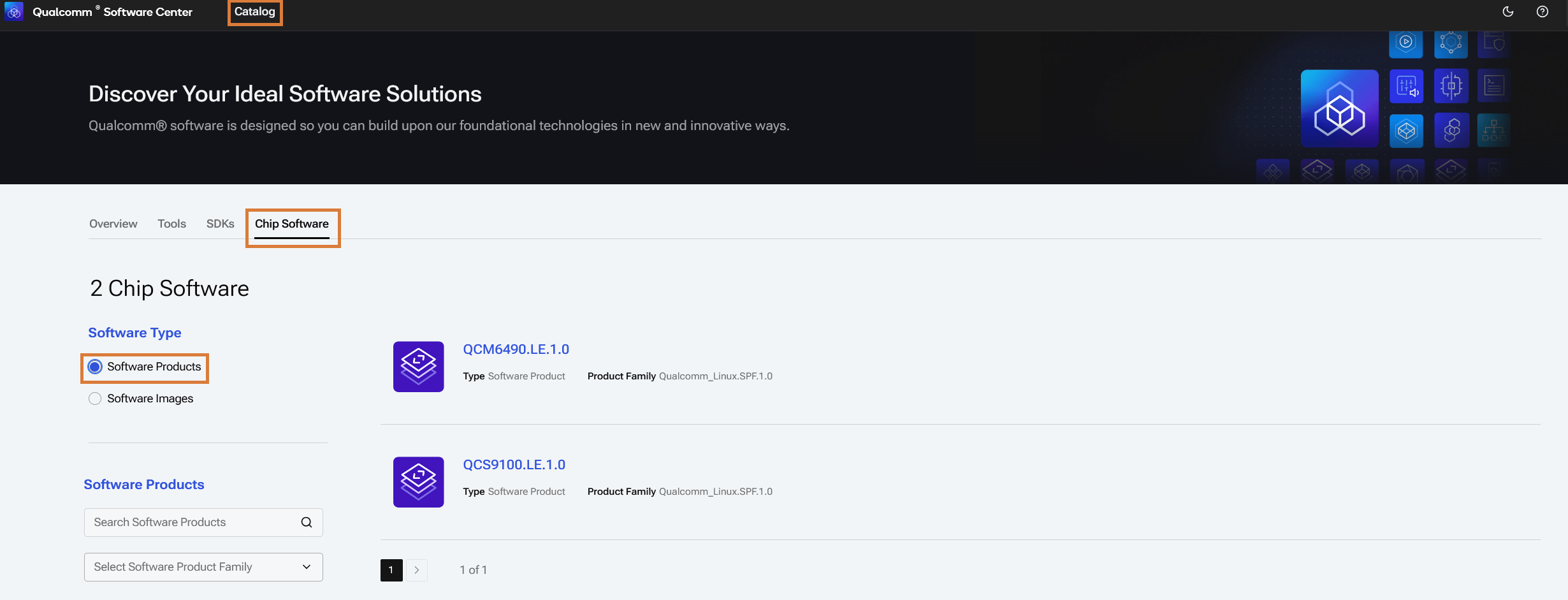
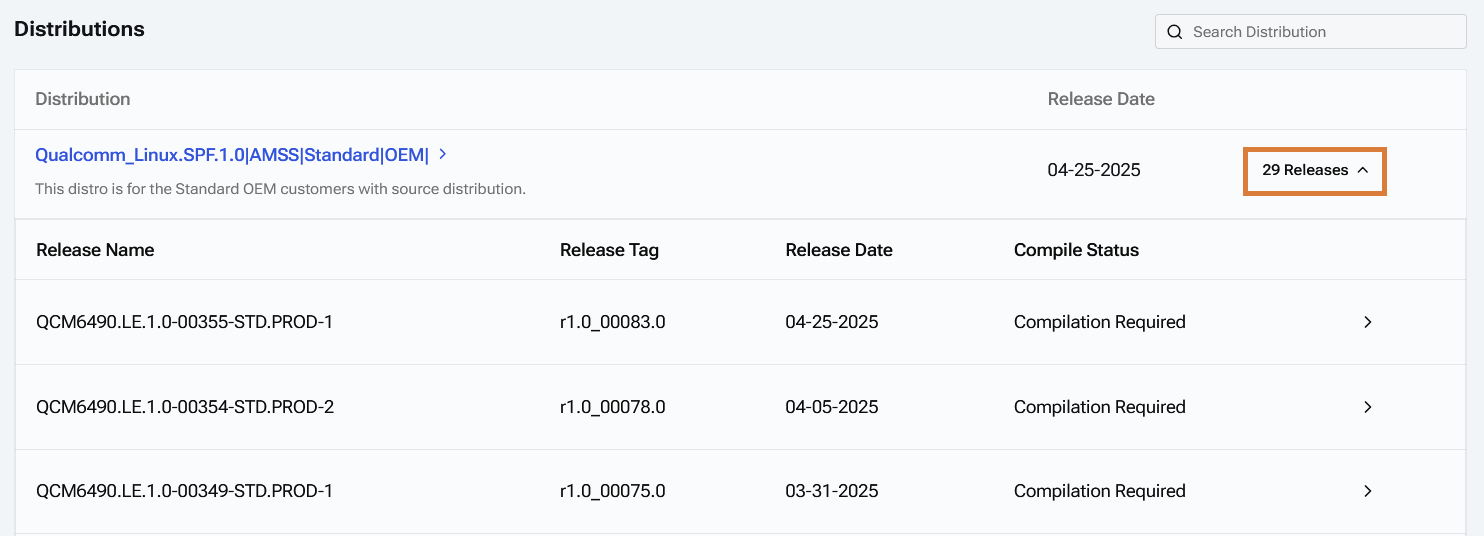
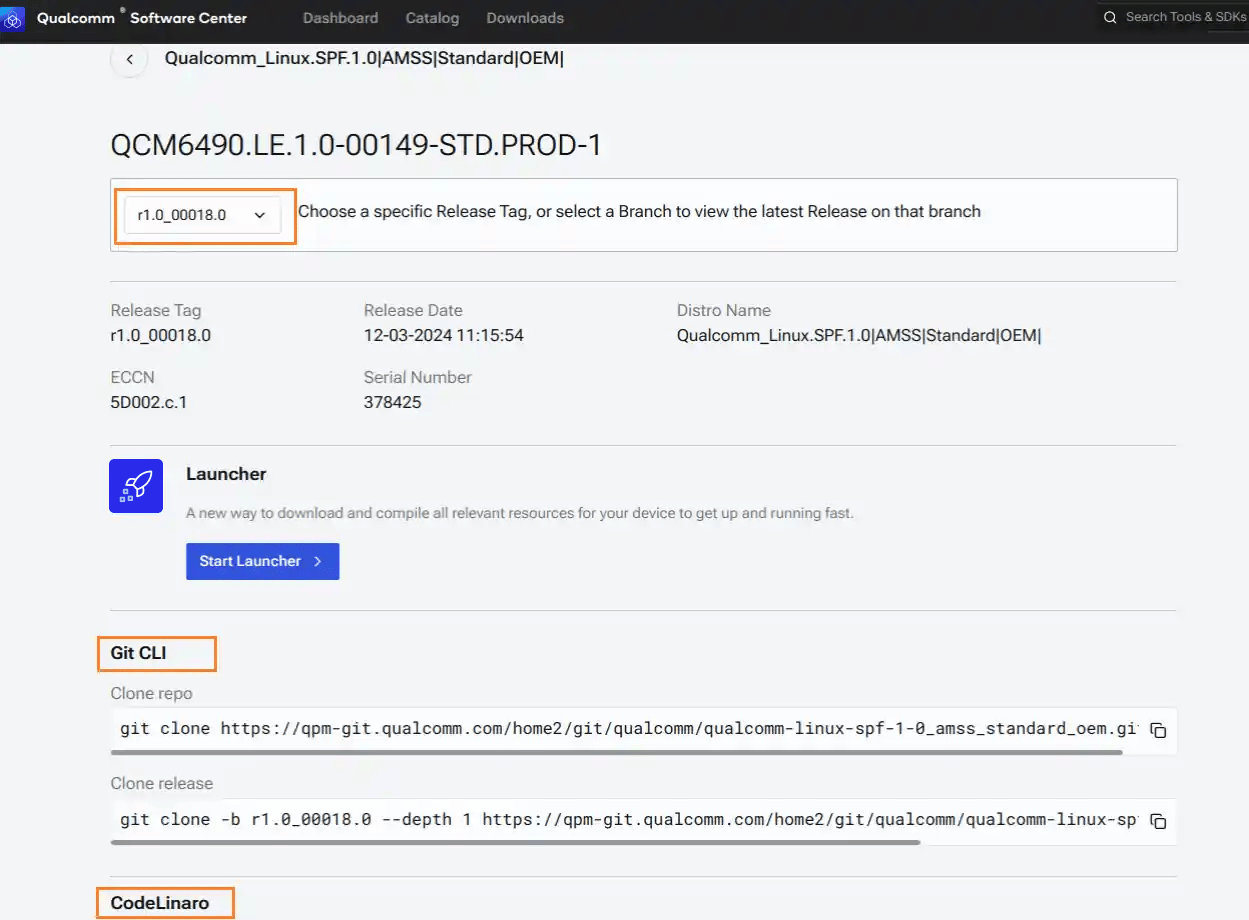
Download software image
On the Qualcomm Software Center web portal (or desktop application), navigate to Catalog on the top menu bar and select the Chip Software category. Select Software Images to see all independent software images (SIs) to which you have access.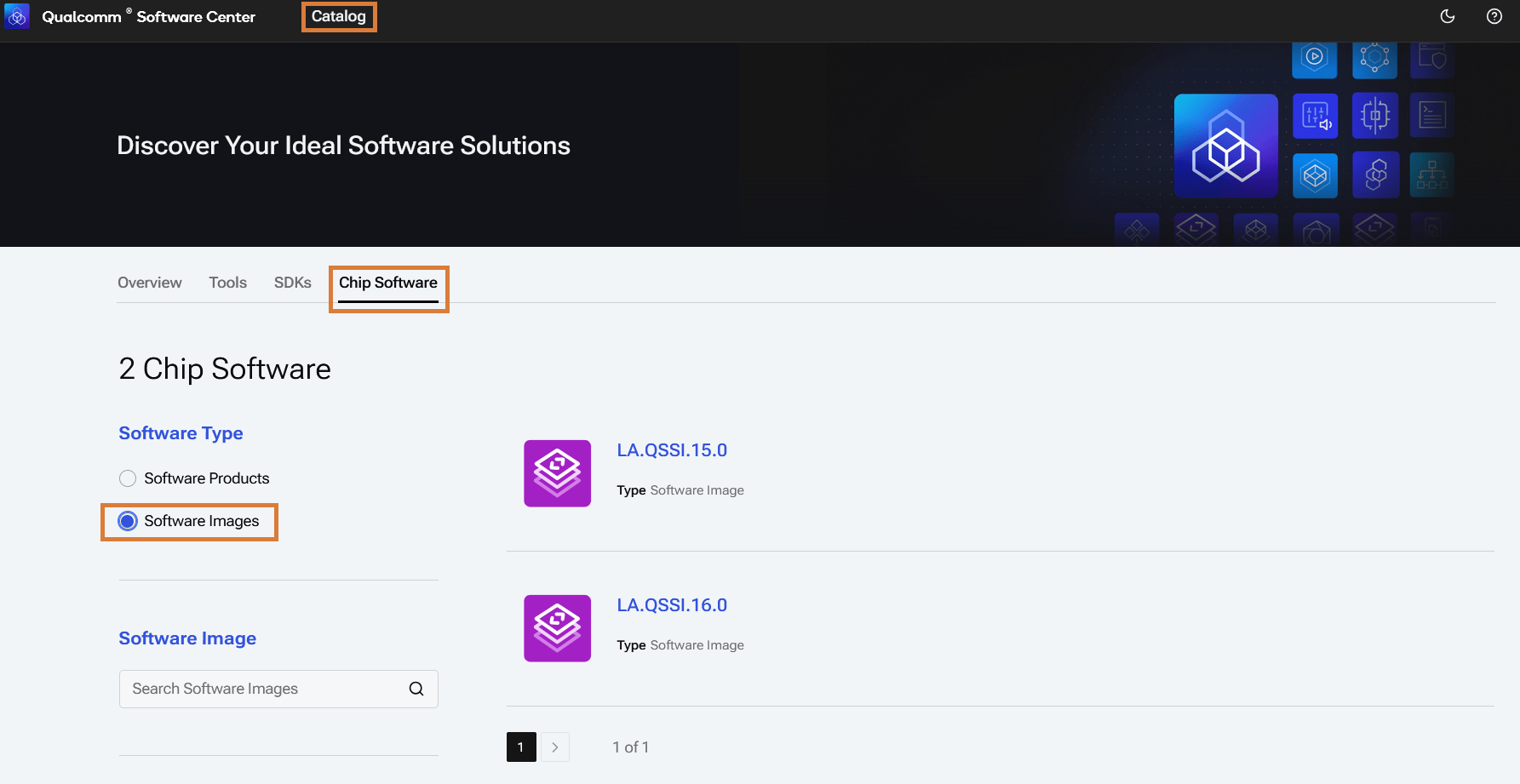
CLI
The Qualcomm Software Center qsc-cli command line interface can be used to activate a license, download and install tools and SDKs and chip software. qsc-cli is installed with Qualcomm Software Center. For qsc-cli usage on WSL, start a new Ubuntu session via the Windows PowerShell. Avoid using/mnt for workspace creation, as it may require admin mode and compilation will be slower.
These commands are applicable for specific SPs only. For supported SPs, see chip-sw-info.
Help
Display the qsc-cli help menu for commands and options and version. Tool helpqsc-cli -h
Log in
Log in with a Qualcomm ID.qsc-cli login -u <your username>
List products, distributions, and releases
List products, distributions, and releases that are available to download and compile. Run the following command to get more information.qsc-cli chip-software info —help
Download
To download both proprietary and open source software from different sources, specify the following input parameters:--workspace-path <workspace path>--product <Product_ID>--distribution <Distro>--release <release>
qsc-cli chip-software download —workspace-path <workspace path> —product “QCM6490.LE.1.0” —distribution “Qualcomm_Linux.SPF.1.0|AMSS|Standard|OEM|” —release ‘r00155.4’
Compile
To compile a downloaded software product, specify an input workspace path.qsc-cli chip-software compile —workspace-path <workspace path>Compile a software image.
qsc-cli chip-software compile —workspace-path <workspace path> —image “LE.QCLINUX.1.0.R1”
Flash
Flash a device. The--buildflavor argument is optional and only required for devices that have multiple flavors.
qsc-cli chip-software flash —workspace-path <workspace path> —buildflavor “sa2150p_emmc” —serialnumber “1424354”List build flavors.
qsc-cli chip-software flash —workspace-path <workspace path> —list-buildflavorList attached devices and get serial number.
qsc-cli chip-software device —list
Open build environment
For optional advanced customization, open a build environment for a workspace and execute build commands for the input software image.qsc-cli chip-software open-build-env —workspace-path <workspace path> —image <software image>
This will set up an environment for you to execute your own build commands for a given software image. QSC will not track the status of input workspaces going forward and flash via
qsc-cli will not be supported for this workspace.qsc-cli chip-software list-workspaceIn output, look for Compilable Images for the software image names.
Manage workspaces
List a workspace.qsc-cli chip-software list-workspaceDelete a workspace.
qsc-cli chip-software delete-workspace —workspace-path <workspace path>