

GUI
Find a tool or SDK
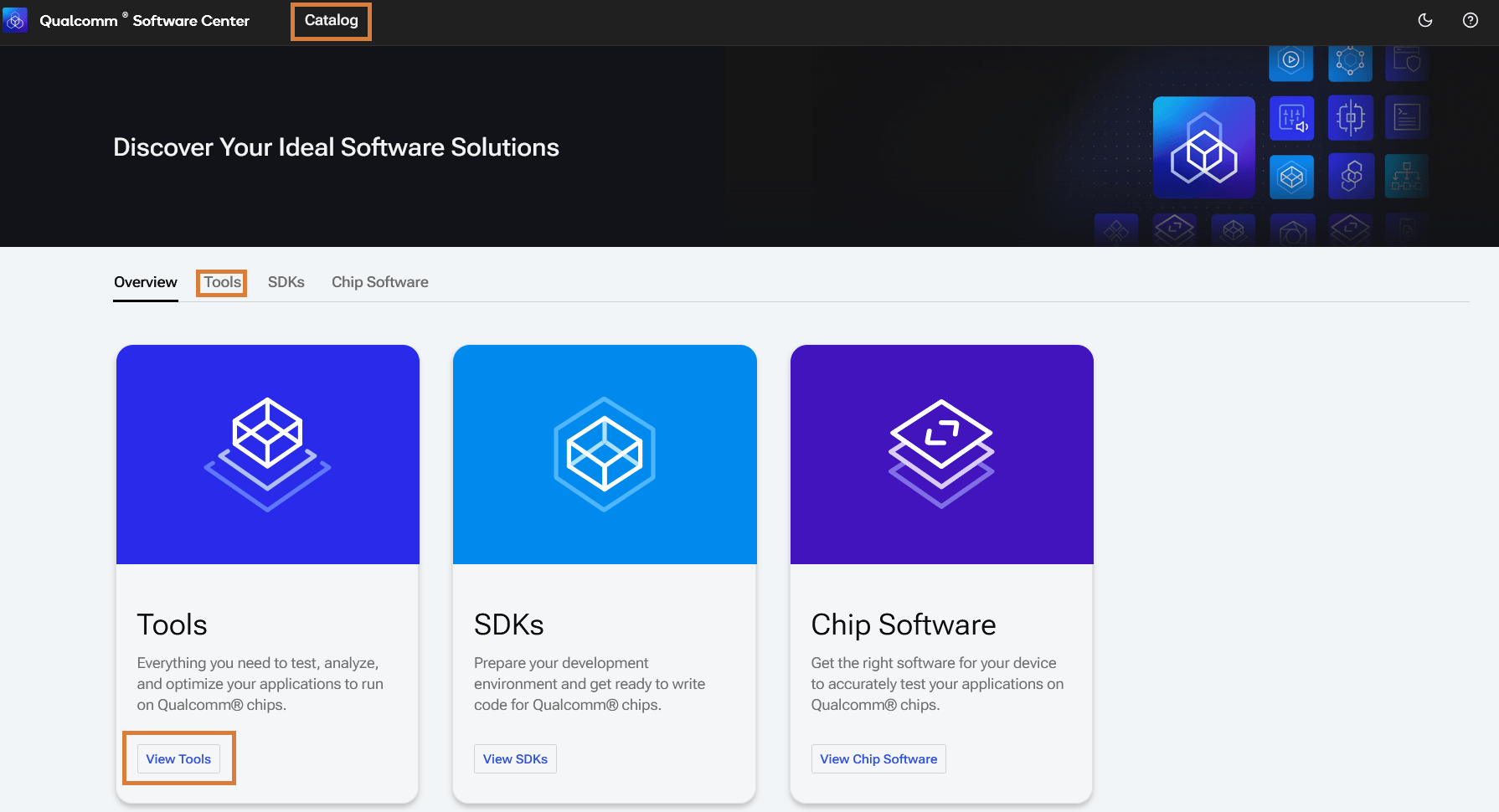
- In the Qualcomm Software Center web portal (or desktop application), navigate to Catalog on the top menu bar and select the Tools category.
-
The Tools page lists tools to which you have access. Click on the card for a tool to navigate to the tool detail page.
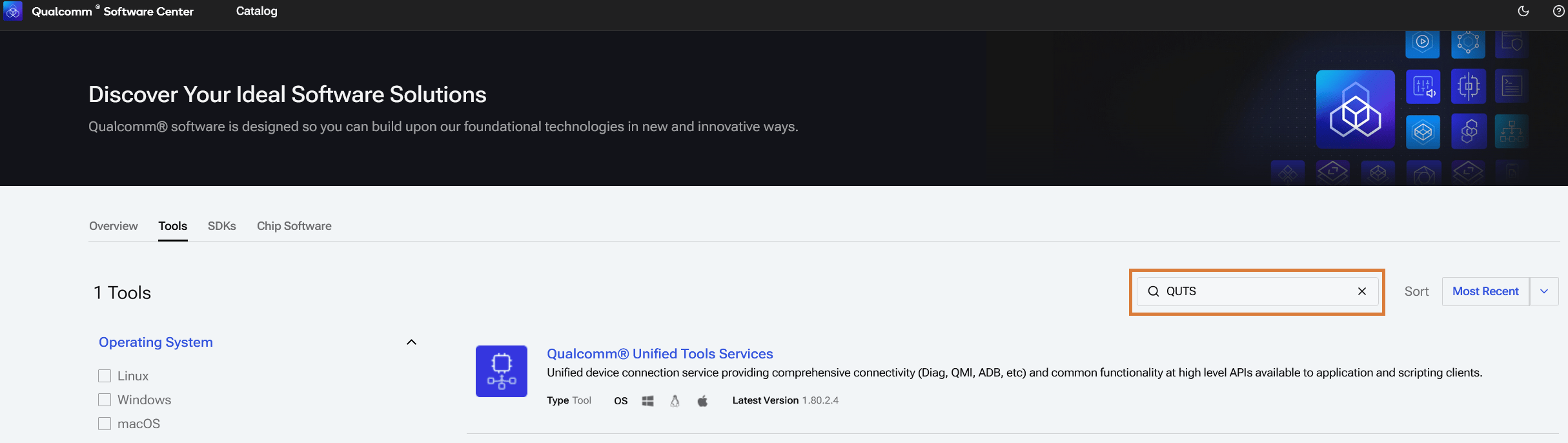
- When you know name of the tool you are looking for, you can search in the menu bar.
Install a tool or SDK
- Select the relevant tool version (by default, the latest version is selected) on the tool detail page and click Install.

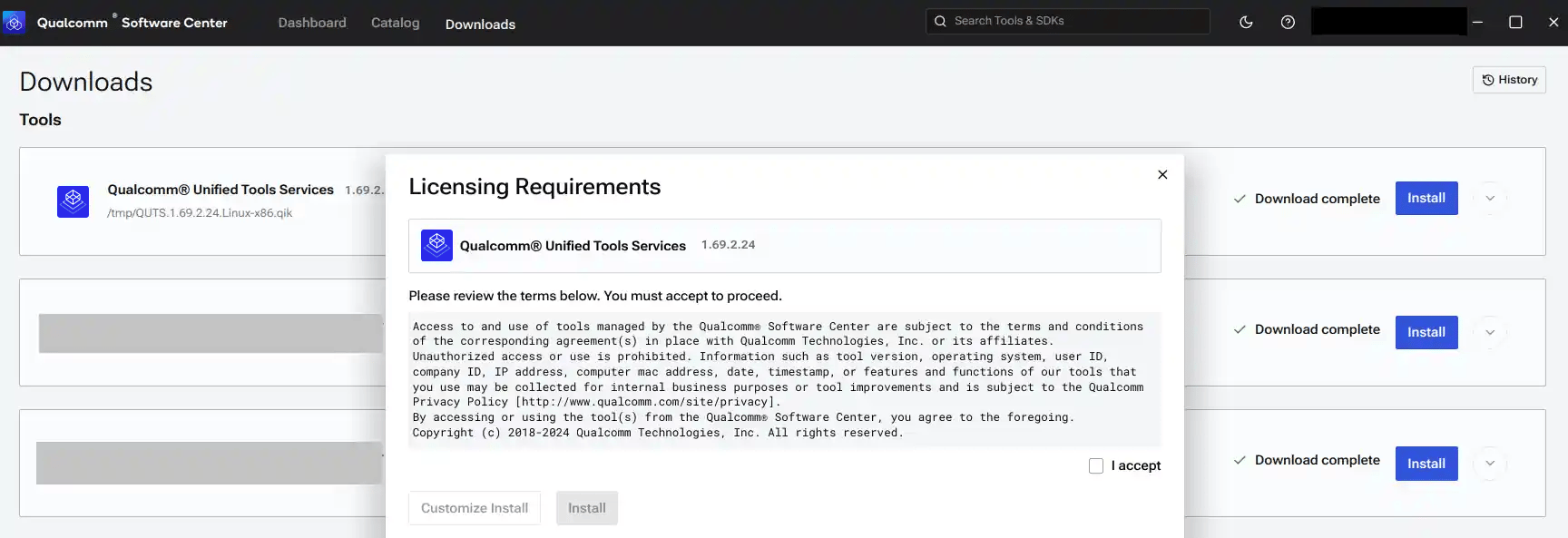
- Review the license agreement when it appears and select I accept to proceed with the installation.
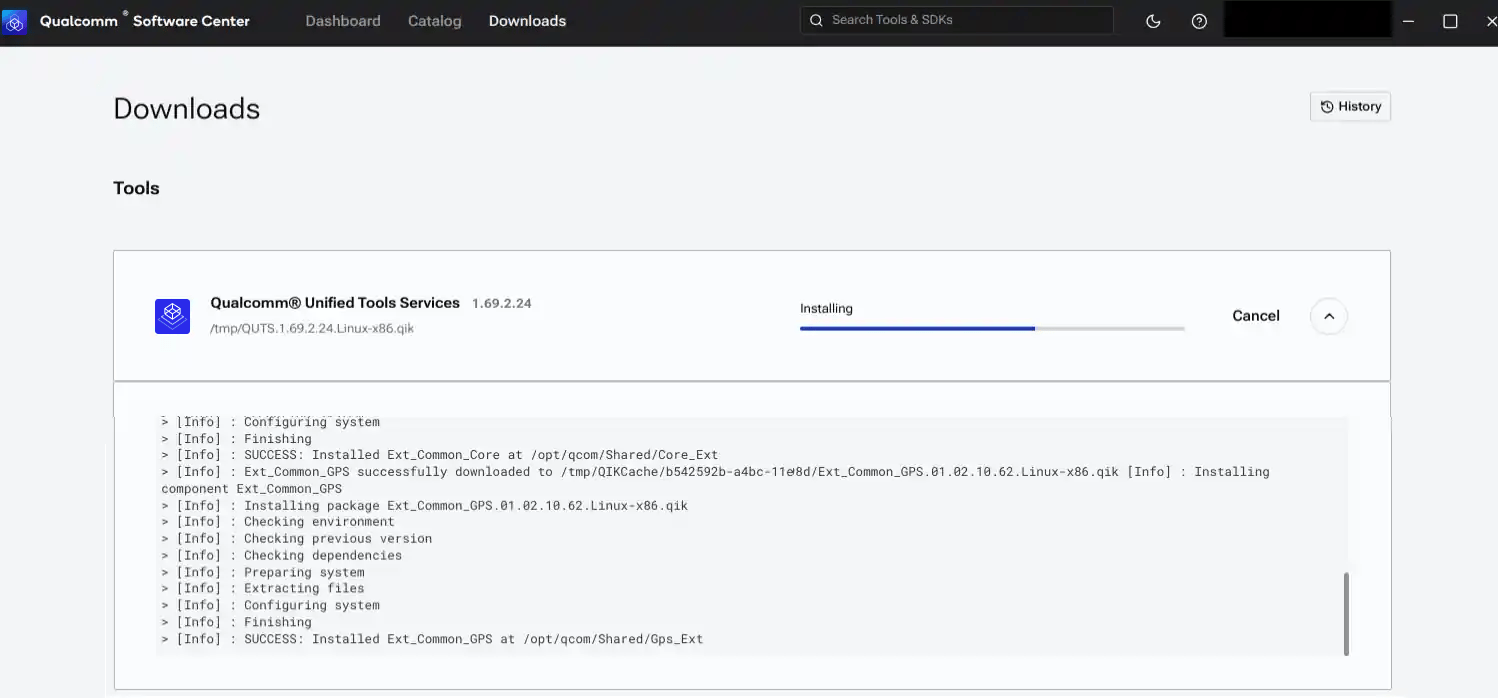
- To view the installation progress and summary, expand the panel for the tool in the Downloads page.
- To launch the tool after it installs, search for the tool in the applications menu on the machine.
The QSC installs and extracts tools of the type Extract, but does not track the Extract type tools as “installed”.
Install multiple tools and SDKs
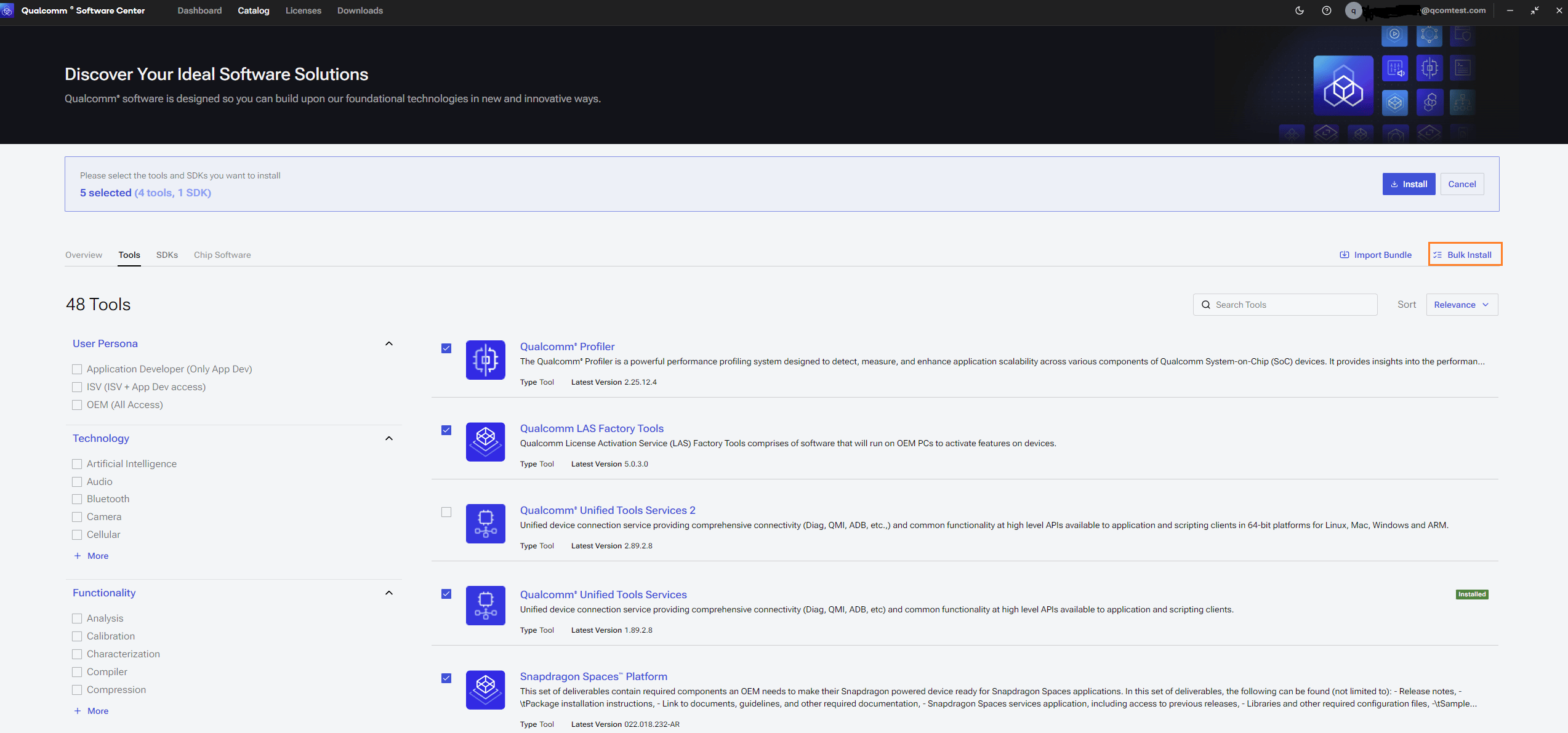
- From Catalog > Tools (or SDKs), select Bulk Install to install multiple tools and SDKs.
Select Import Bundle to import an existing bundle and begin installation.
-
Choose the version to install for each tool/SDK and select Next.
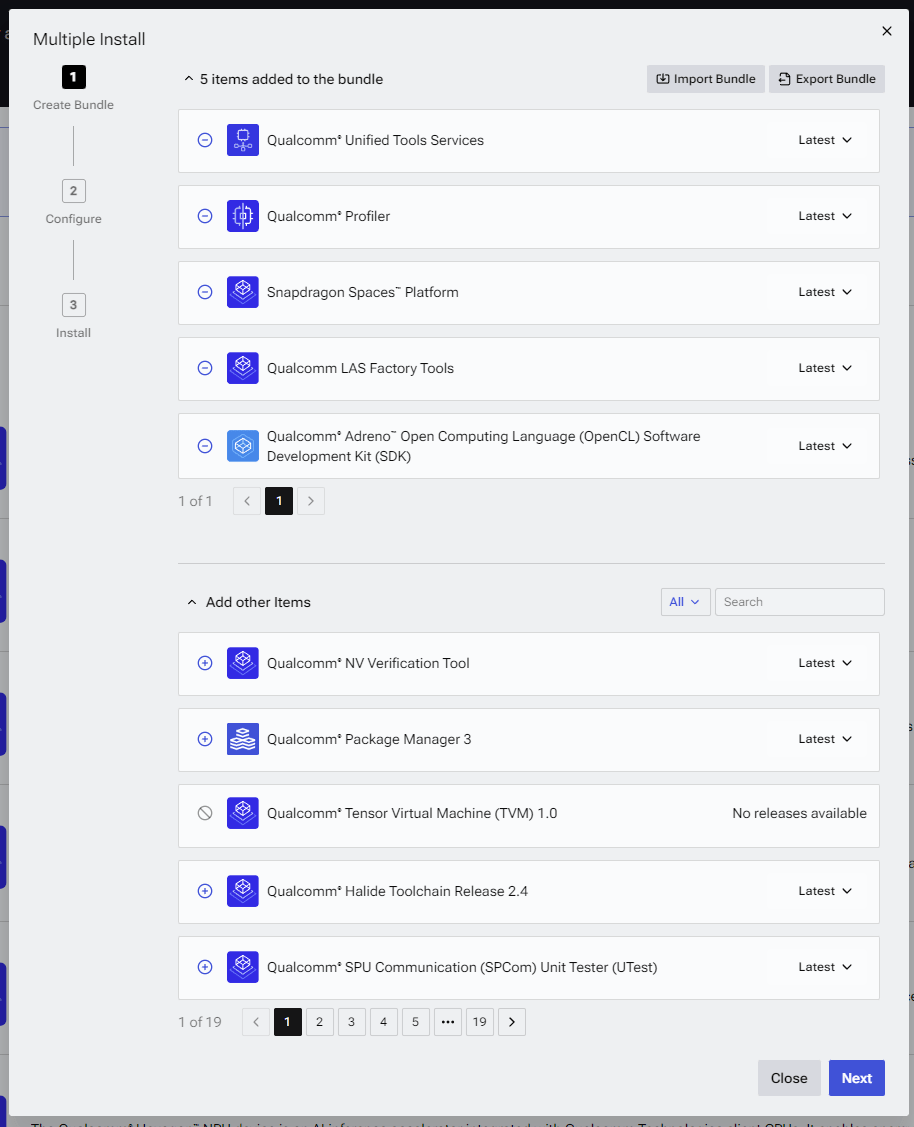
- Optionally, create a bundle using Export Bundle to export the selections to a file for use to set up additional hosts using the QSC desktop app UI and/or QSC-CLI.
-
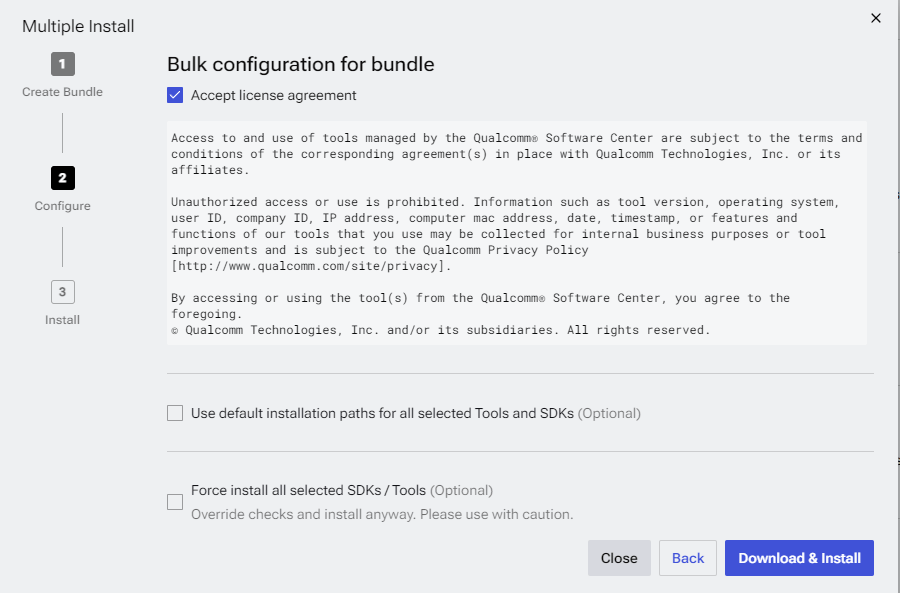
Review and agree to the license terms and select other configuration options, then select Download & Install.
-
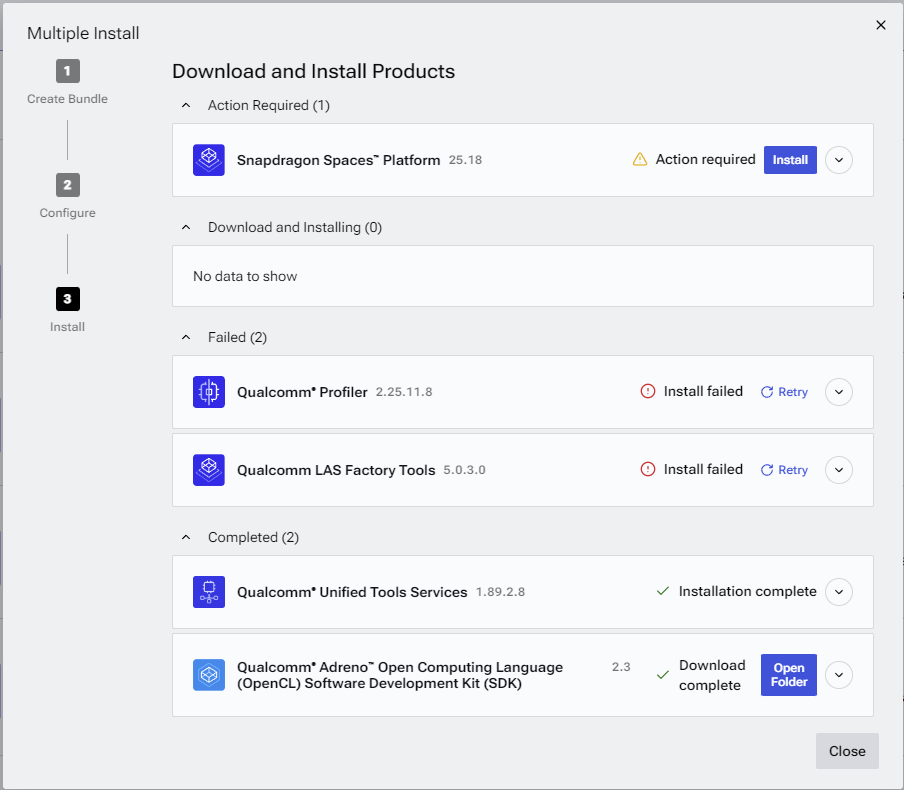
View the download and installation progress in the summary dialog, which is organized into the following sections:
- Action Required: Items needing additional user input
- Downloading & Installing
- Failed: Includes an option to retry
- Completed
Bundles can be created and exported directly from the web portal and, when ready to install, users
will be prompted to open the desktop app to continue the installation process.Bundles created via the QSC UI (web portal or desktop app) can be used as input to QSC-CLI to download
and install the specified tools and SDKs. For more information, run:
qsc-cli tool bundle --helpManage licenses
Most Qualcomm tools require download and install of licenses from the Qualcomm Software Center (QSC). Site, Purchase, Demo, and Factory license types are provided based on user entitlement to the tool and features associated with the tool.- Site licenses are provided as part of your company agreement with Qualcomm for specific chipsets. These Site licenses are visible when you click on a particular tool and automatically activated when you install them, requiring no user action for license activation.
- Purchase licenses are provided as part of your purchase order for a tool via the Qualcomm Sales Center (https://cp.qti.qualcomm.com). Purchase licenses must be manually activated in the Qualcomm Software Center desktop application to install the purchased tool.
- Demo licenses are provided for trial purposes or via an agreement with Qualcomm. These licenses are received via your account sales or technical account manager. Similar to purchase licenses, demo licenses must be manually activated in the Qualcomm Software Center desktop application.
- Factory licenses are entitled to customers involved in manufacturing and are governed by agreements with Qualcomm and are intended for factory floor machines without an Internet connection.
CLI
Help
Display information such as installed version and available versions for the tool or SDK specified as input.qsc-cli tool —helpor
qsc-cli sdk —help
Log in
Log in using your Qualcomm ID.qsc-cli login -u <your username>
Manage tools and SDKs
Display a list of tools or SDKS to which the logged in user has access.qsc-cli tool infoor
qsc-cli sdk infoDisplay tool or SDK information such as installed version and available versions for the tool specified as input.
qsc-cli tool info —name <tool name>Activate entitlements, i.e., SITE license groups, using a tool or SDK name as input. You can also activate licenses using a specific licensegroup UUID as input.
qsc-cli tool activate-license —name <tool name>or
qsc-cli tool activate-license —license-id <license group ID>Specify a tool or SDK to download and install.
qsc-cli tool install —name <tool name>For more options, refer to
qsc-cli tool install --help.
Install PCAT and QUD
Run the following command to install PCAT.qsc-cli tool install —name pcat —activate-default-licenseRun the following command to install QUD.
qsc-cli tool install —name qud —activate-default-license