

simulation_sample_pick_and_place software structure
The following figure shows the software structure of simulation_sample_pick_and_place:

simulation_sample_pick_and_place software structure.
ROS node used in the simulation_sample_pick_and_place software structure
The following table describes the ROS nodes used in the simulation_sample_pick_and_place software structure.
ROS topics used in the simulation_sample_pick_and_place software structure
The following table describes the ROS topics used in the simulation_sample_pick_and_place software structure.
Prerequisites
- You have set up the device, installed ROS2 Jazzy and the Qualcomm Intelligent Robotics (QIR) SDK on the device according to Install the QIR SDK.
Build from the source of simulation_sample_pick_and_place
Build simulation_sample_pick_and_place from source when you need to change the sample code. The device steps install the dependencies, clone the source repository, and build the package.
Device steps
1
Install dependencies
a. Install b. Install the QIR SDK to restore packages.c. Install MoveIt for ROS 2 Jazzy.
qcom-adreno-dev to resolve conflicts with graphic libraries needed by Moveit2.2
Download source code from the qrb_ros_samples repository
3
Build the sample from source code
Launch Gazebo on host Docker
1
Launch QRB Robot arm on the host
Launch QRB Robot arm on the host according to the Build from source section of QRB ROS Simulation. Use the same local network and
ROS_DOMAIN_ID to ensure devices can communicate through ROS.2
Launch Gazebo
Launch Gazebo with the following commands:
3
Launch the controller
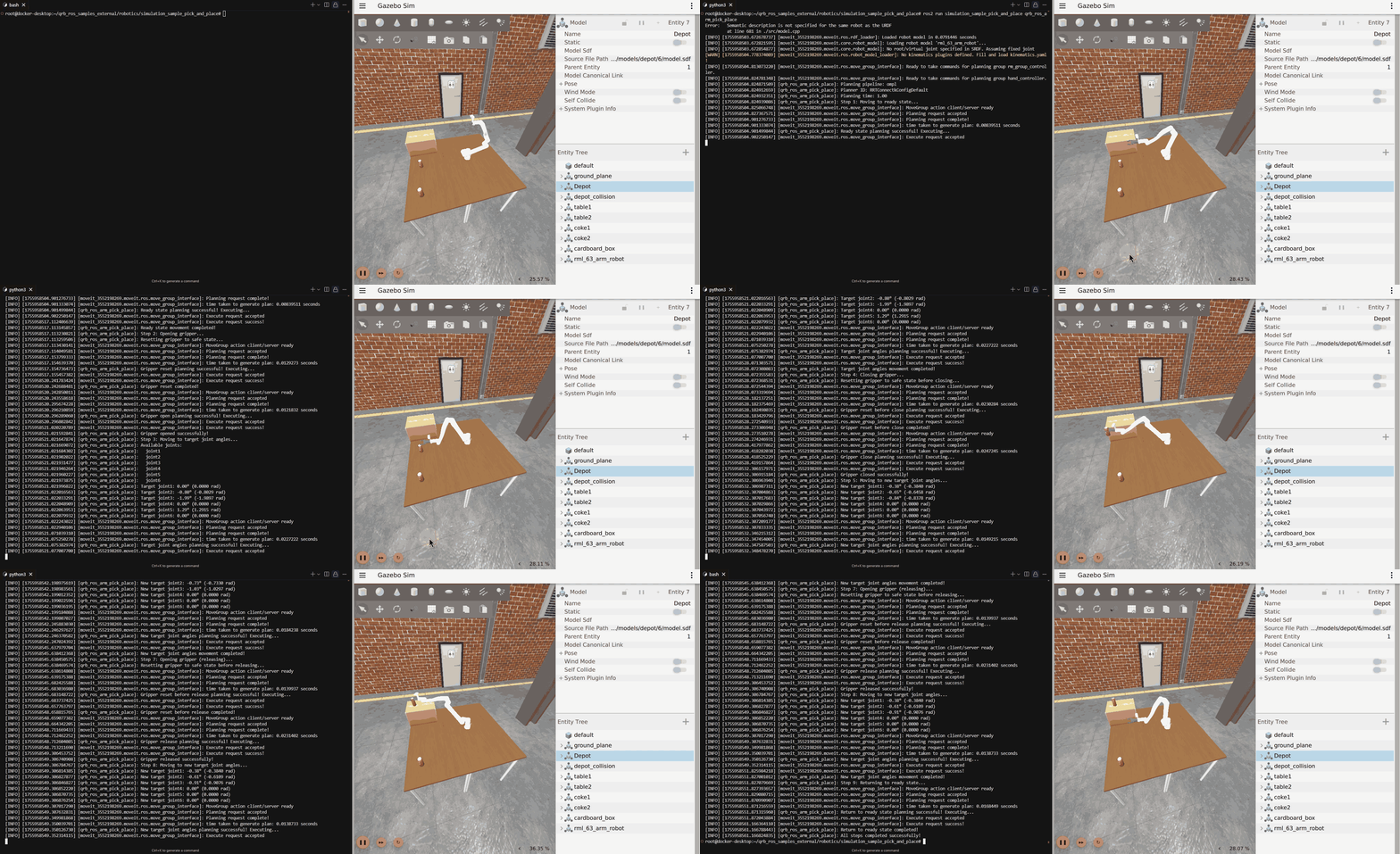
Select the Play button in Gazebo after the world environment renders, open another terminal, and use the following commands to launch the controller: