

Overview
The Dashboard is the central command center of the extension. Reach it from the Qualcomm icon in the Activity Bar.Devices
View connected devices, set the active device, and manage connections over
SSH.
Downloads
Browse downloaded device software and SDKs. Flash firmware directly from the
UI.
Projects
Manage sample projects and templates. Import, reset, and open in the editor.
AI Models
Discover AI models, optimize them with Qualcomm AI Hub, and profile
performance.
Active Device
The device pane shows the device connected to the host, its metadata, and sample apps available on the device. You can execute pre-installed apps and view their output directly from this pane.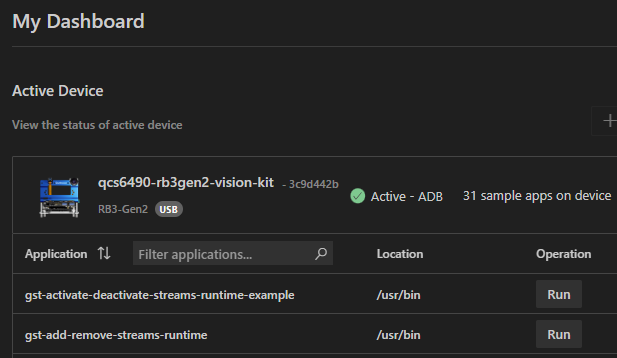
Projects
The projects section shows recently opened projects. Open existing projects, create new ones, or view all projects from this section.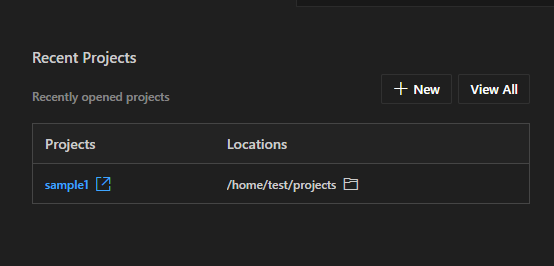
AI Models
The AI models section lists recently used models and models available on Qualcomm AI Hub.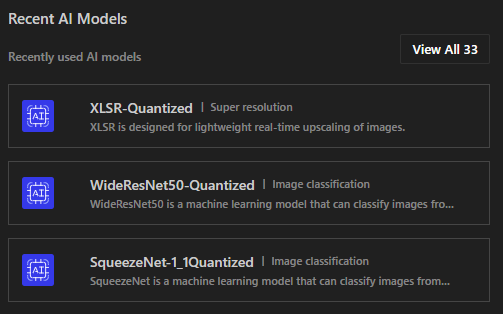
Downloads
The Downloads section has four tabs: Operating System, SDKs, Tools, and Extensions.Operating System tab
Lists available OS images. Each entry shows the device, OS variant, version, and local path. Click Flash & Setup Device to flash the image.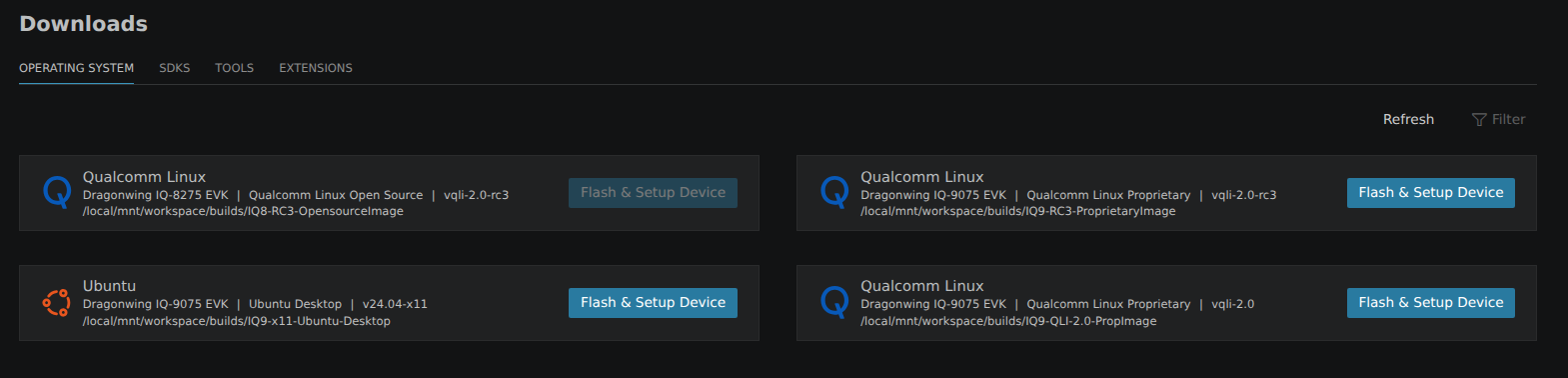
SDKs tab
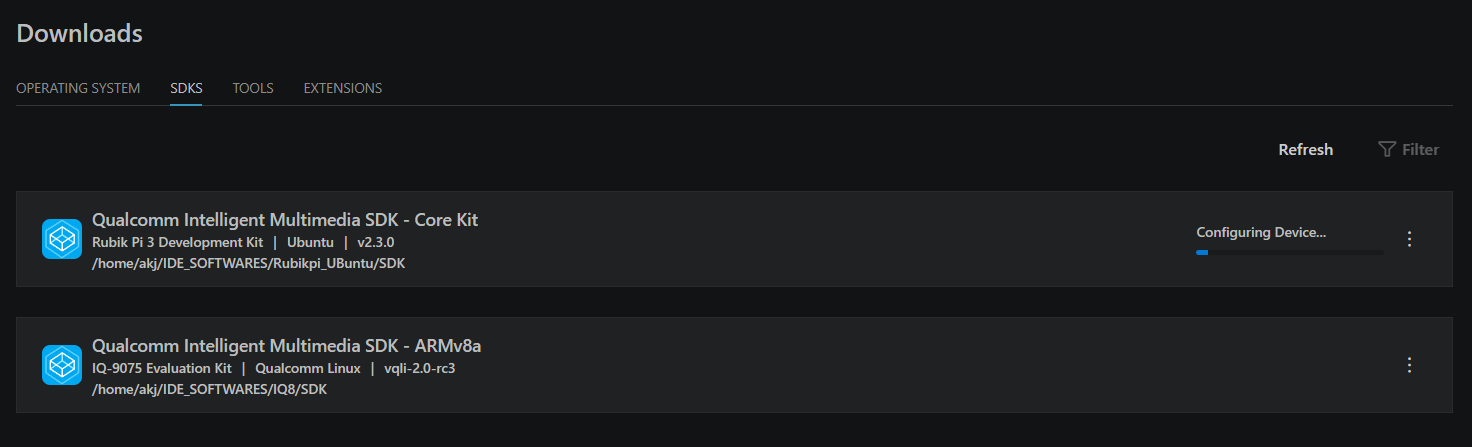
Lists SDKs available. Click Configure Device to run the post-install setup script on the active device.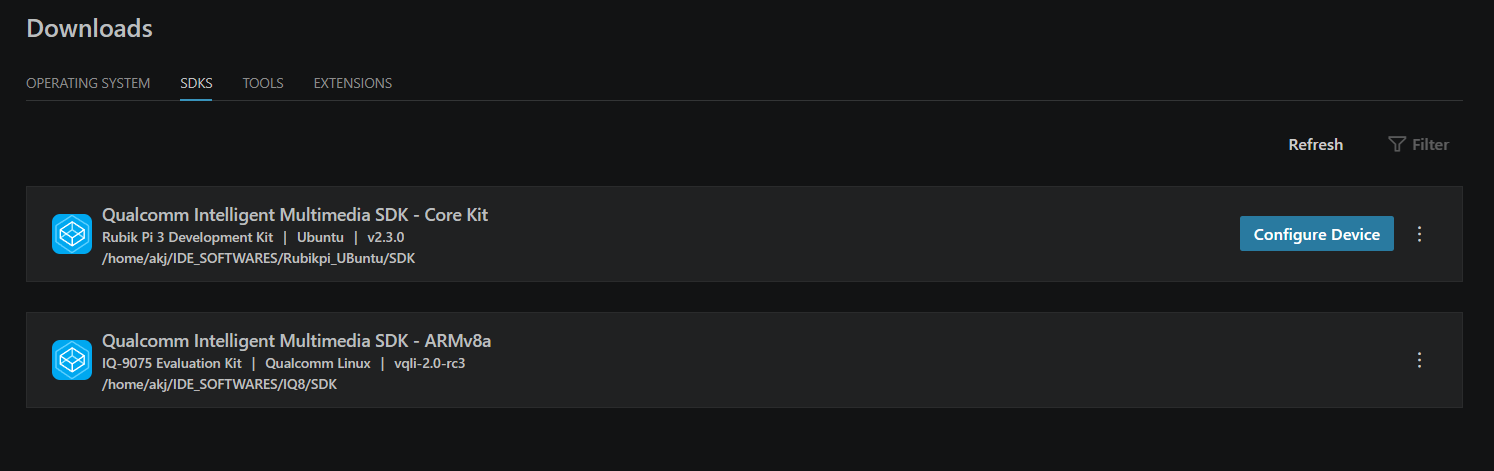 While configuration runs, the row shows Configuring Device… with a progress indicator:
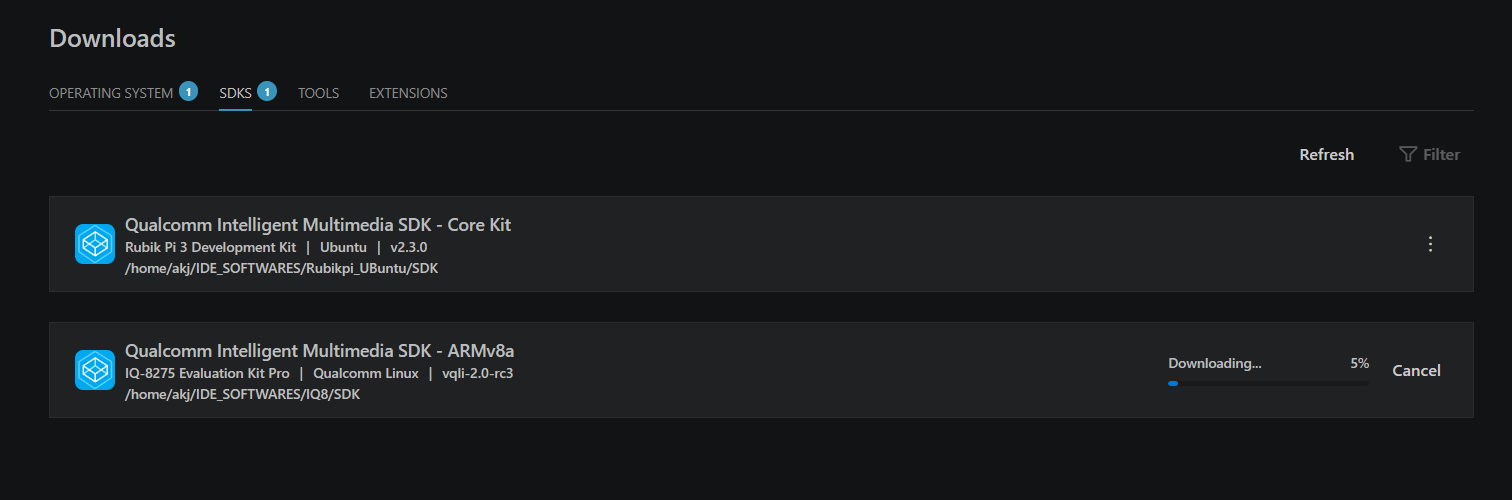
 When downloading an SDK, the row shows a progress bar with percentage and a Cancel button:
Device flashing
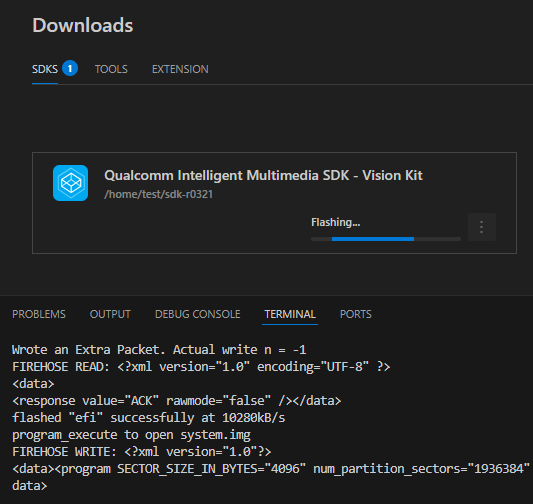
After the OS image is available, click Flash & Setup Device next to the image. Put the device into Emergency Download (EDL) mode and start the flashing process.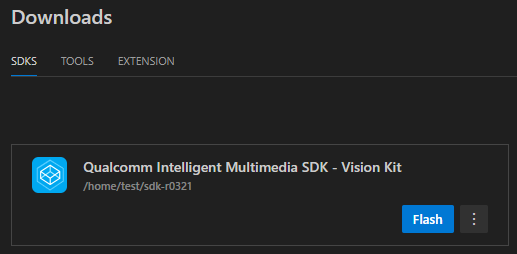
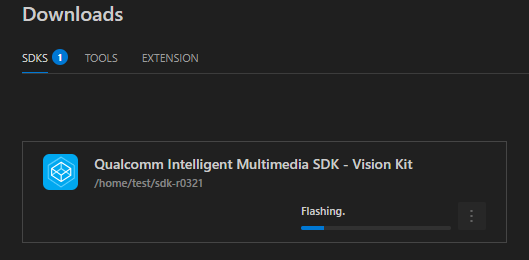 The extension uses Qualcomm Device Loader (QDL) to write the image. Progress is shown in the VS Code Terminal. Once complete, the device reboots and appears in the Active Device pane.
Dashboard sections at a glance
SDK — Configure Device
After flashing, run Dashboard → SDK → Configure Device to execute the
post-flash initialization script. This step is mandatory for the device to
function correctly.