Overview
The AI Models section lets you browse the Qualcomm AI Hub model catalog, download models to your host, flash them to your active device, and profile them — all without leaving VS Code. The AI Models section has two tabs:- MY MODELS — models you have already downloaded to the host
- EXPLORE MODELS — the full Qualcomm AI Hub model catalog
My Models
When no models have been downloaded yet, MY MODELS shows an empty state with an Explore Models button: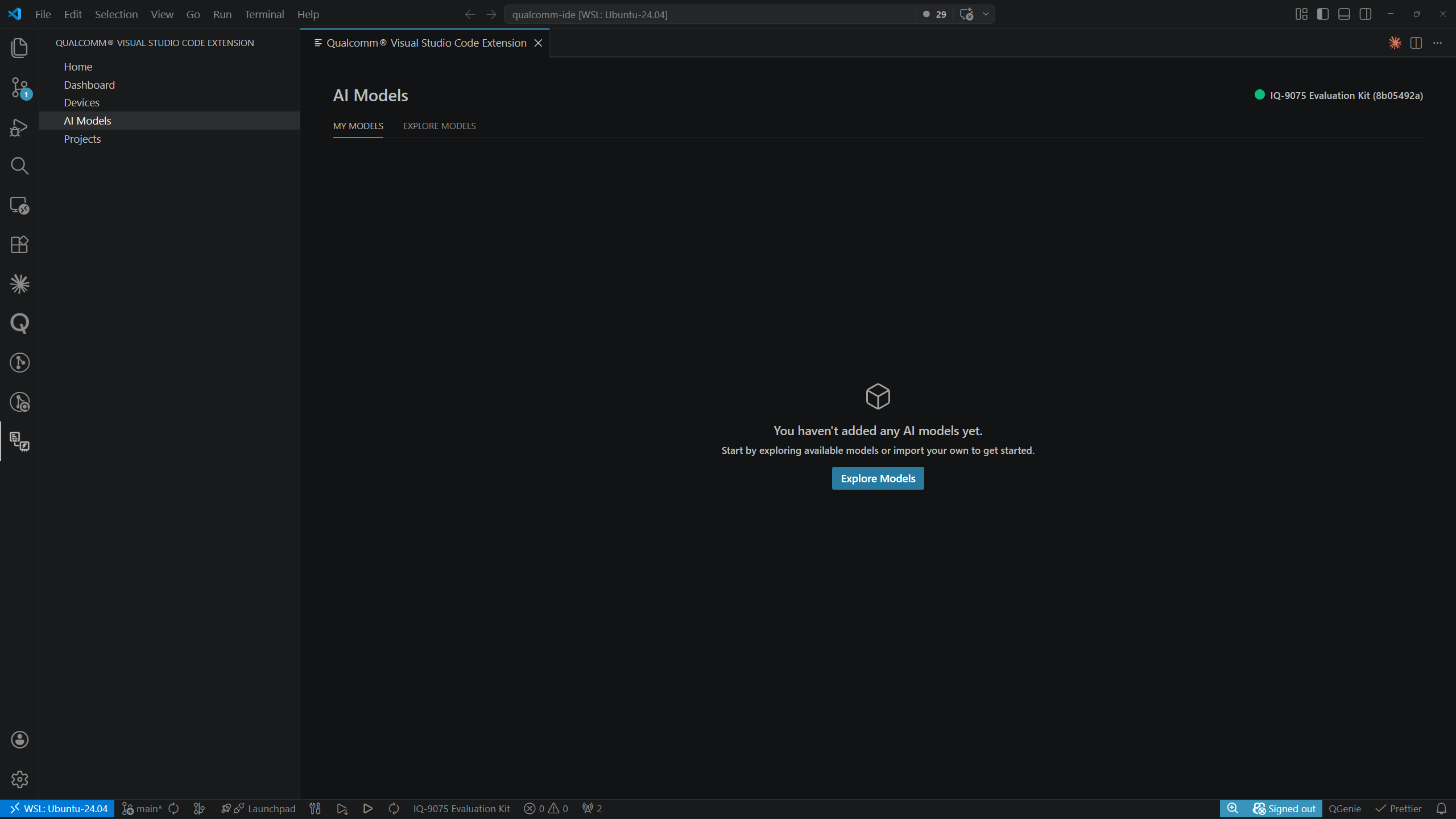 Once models are downloaded, each row shows the model name, tags (task, precision, runtime, supported platforms), local file path, and Profile / Flash action buttons.
Explore Models
The EXPLORE MODELS tab displays the AI Hub model catalog as a card grid grouped by category (e.g., Computer Vision, Generative AI, Multimodal). Each category heading shows the total number of available models and a View All link.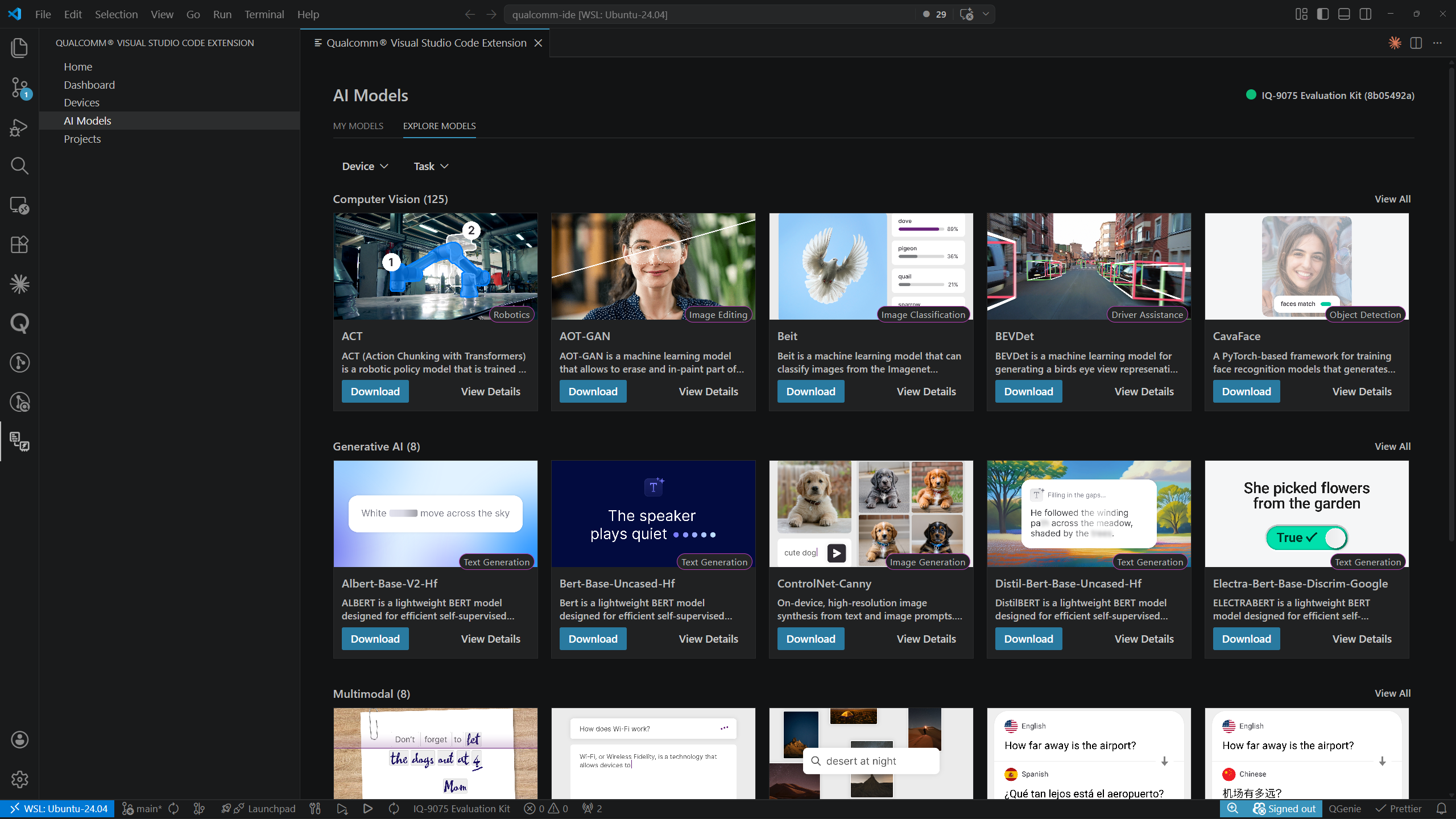 Each card shows:
- A preview image with a task badge (e.g., Image Classification, Text Generation)
- Model name and short description
- Download and View Details action buttons
Filtering the Catalog
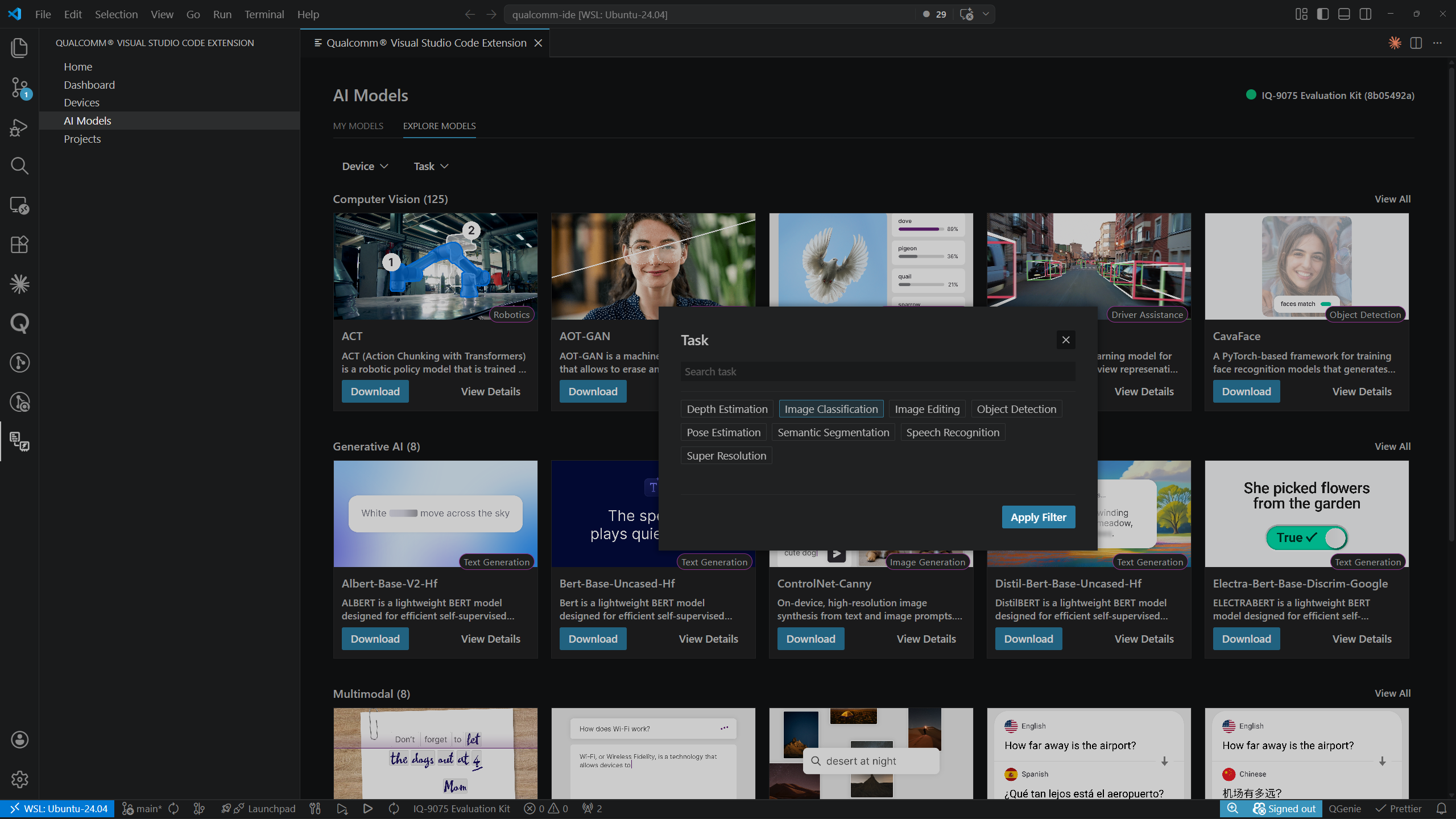
Use the Device and Task filter dropdowns above the grid to narrow results. Clicking Device opens a modal with a search field and device chip selectors (e.g., RB3 Gen2 Vision Kit, IQ-9075 Evaluation Kit, IQ-8275 Evaluation Kit Pro). Select one or more devices, then click Apply Filter.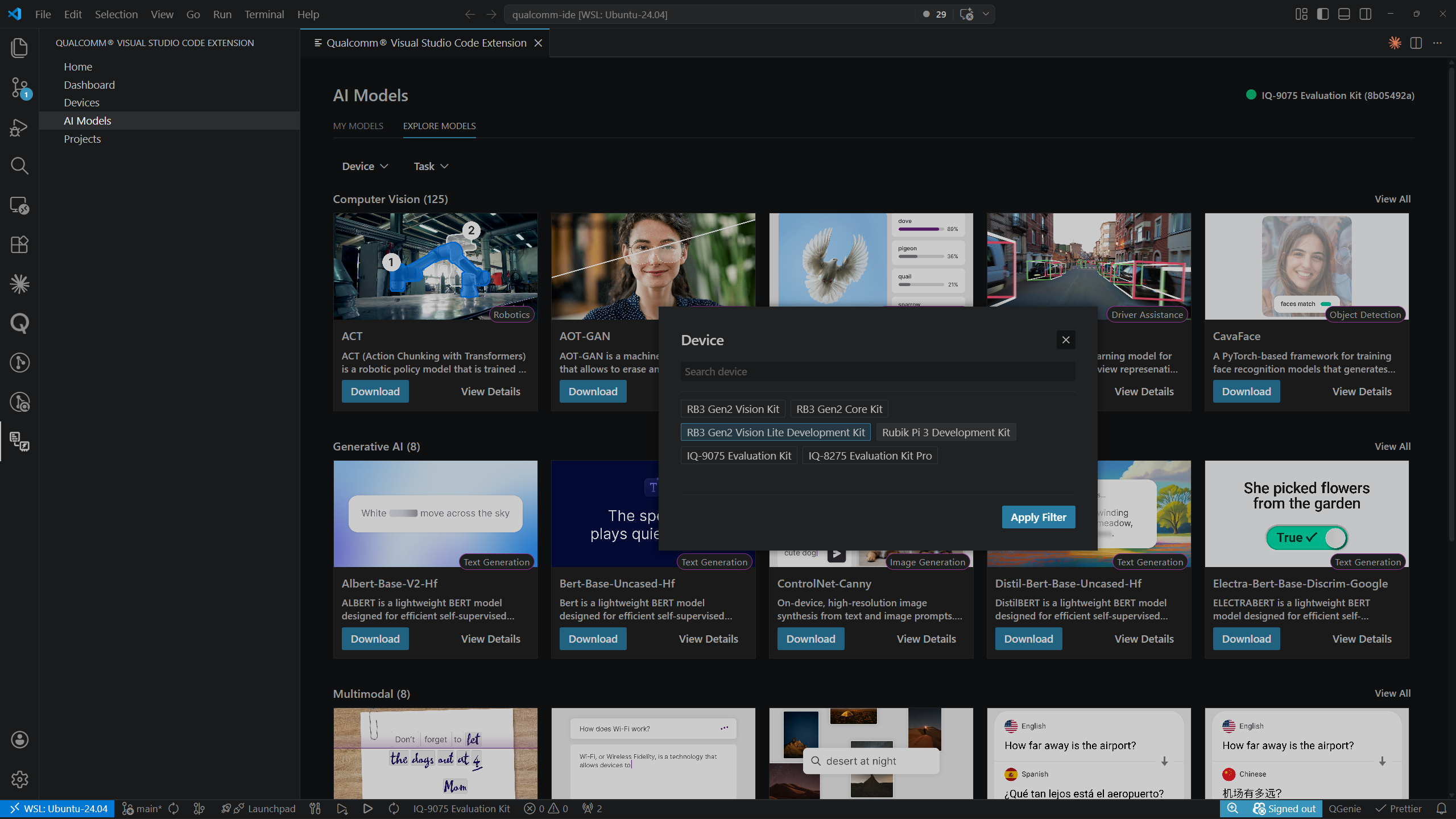 Clicking Task opens a similar modal with task chip selectors (e.g., Depth Estimation, Image Classification, Image Editing, Object Detection, Pose Estimation, Semantic Segmentation, Speech Recognition, Super Resolution). Select one or more tasks, then click Apply Filter.
Model Detail Page
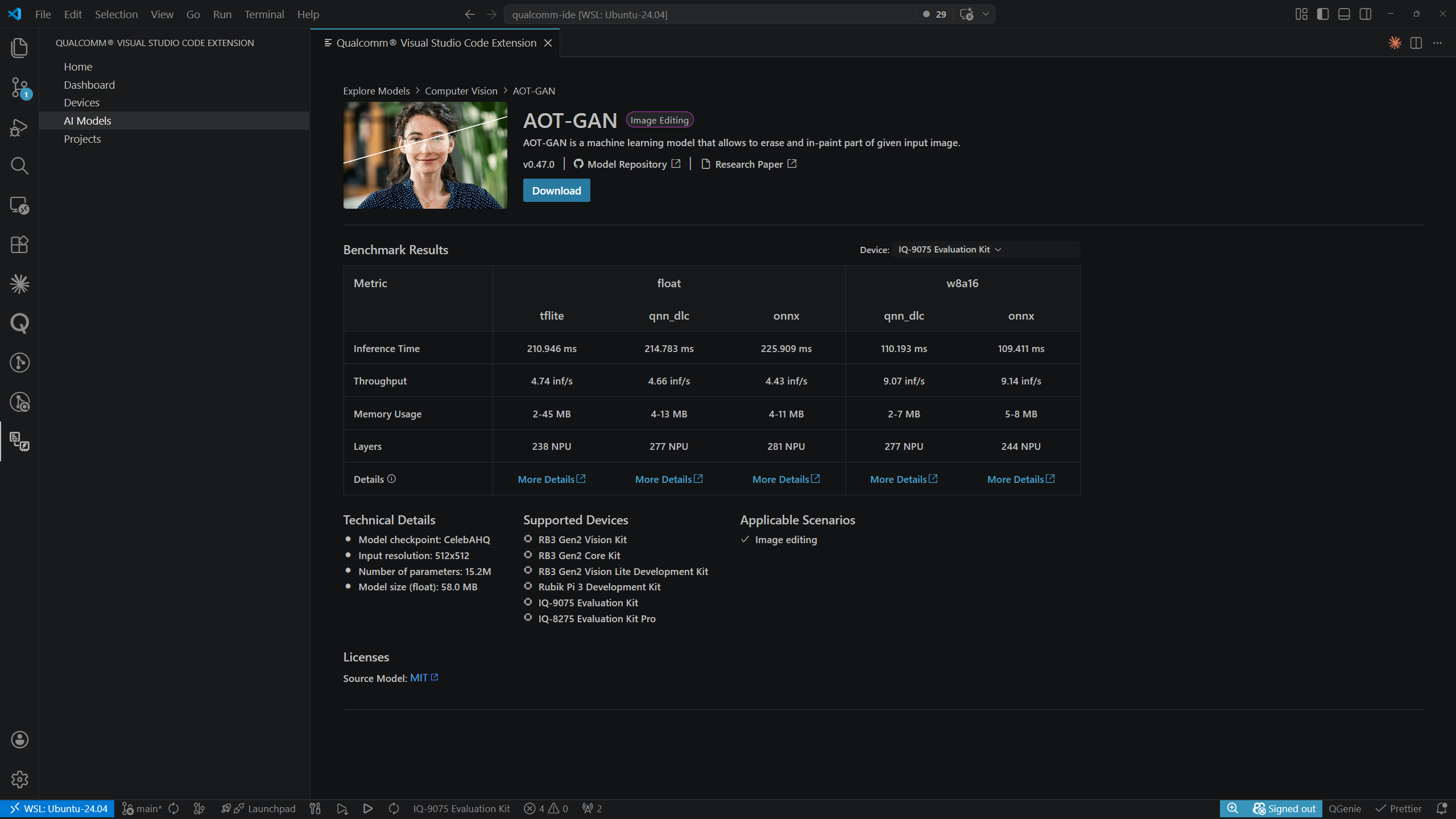
Click View Details on any catalog card to open the model detail page. You can also reach this page from MY MODELS by clicking the model name. The breadcrumb shows the navigation path:- From Explore Models:
Explore Models > <Category> > <Model Name> - From My Models:
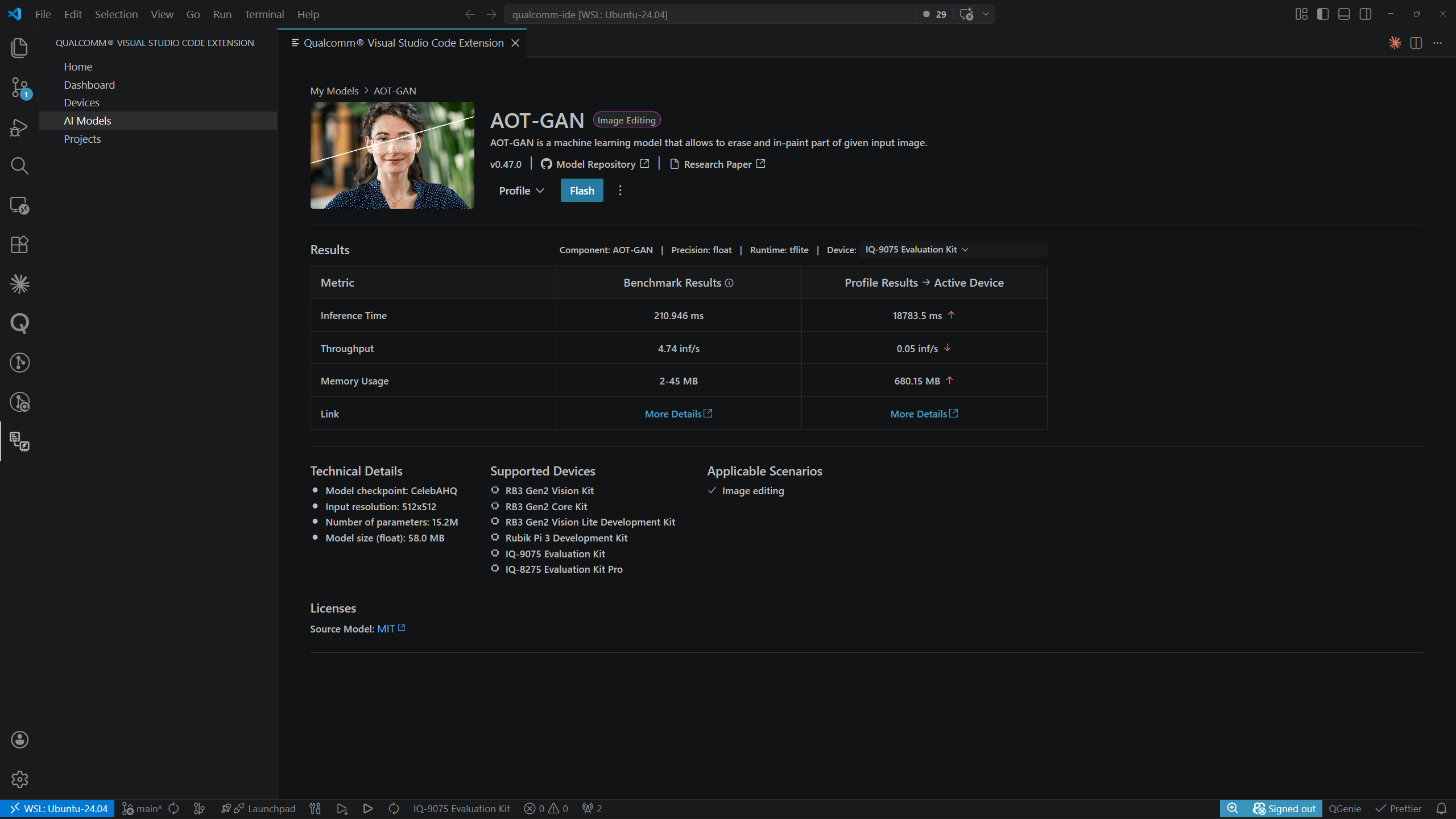
My Models > <Model Name>
 The detail page reached from MY MODELS shows Benchmark Results alongside profiling results columns:
 The detail page includes:
- Model name, task badge, and description
- Version, Model Repository link, and Research Paper link
- Download button
- Results table with a Device selector
- Technical Details — model checkpoint, input resolution, parameter count, model size
- Supported Devices — list of compatible dev kits
- Applicable Scenarios — suggested use cases
- Licenses — source model license
Downloading a Model
Starting a Download
Click Download on a catalog card or on the model detail page. In the Download Model dialog, select the desired Precision, Float, and Runtime values, then click Start Download.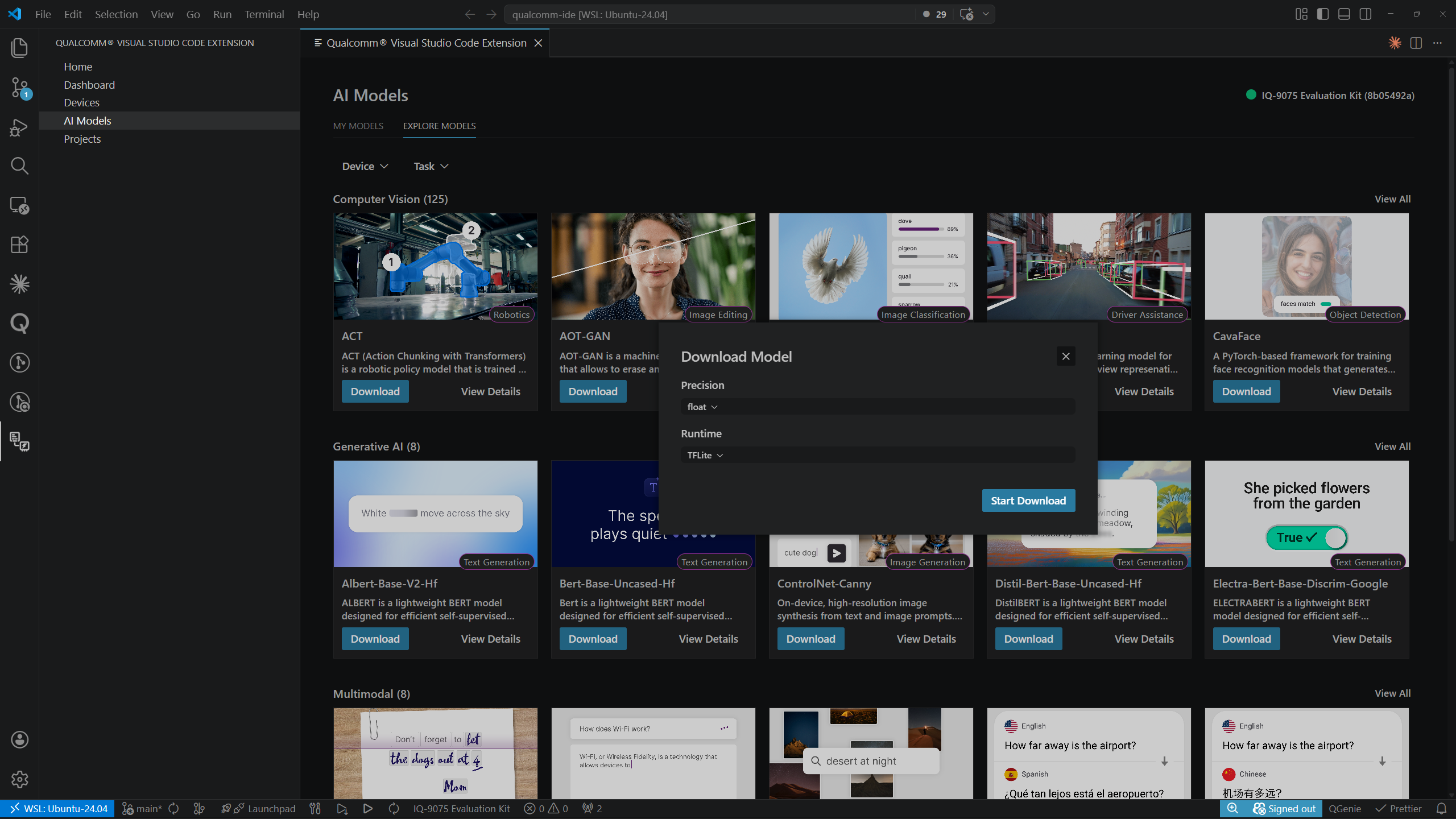
Download Progress
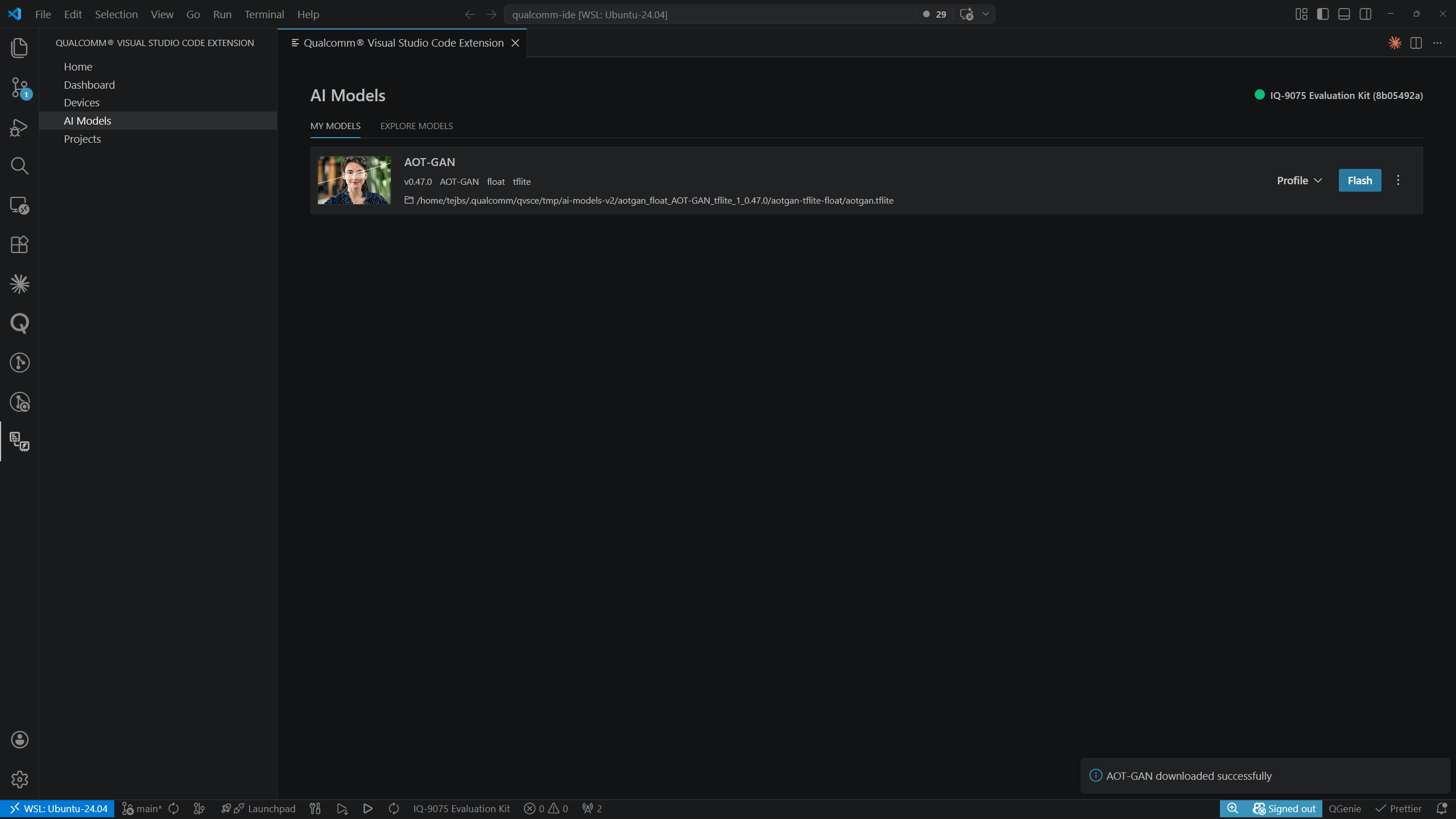
While downloading, the model appears in MY MODELS with a Downloading… label and a progress bar: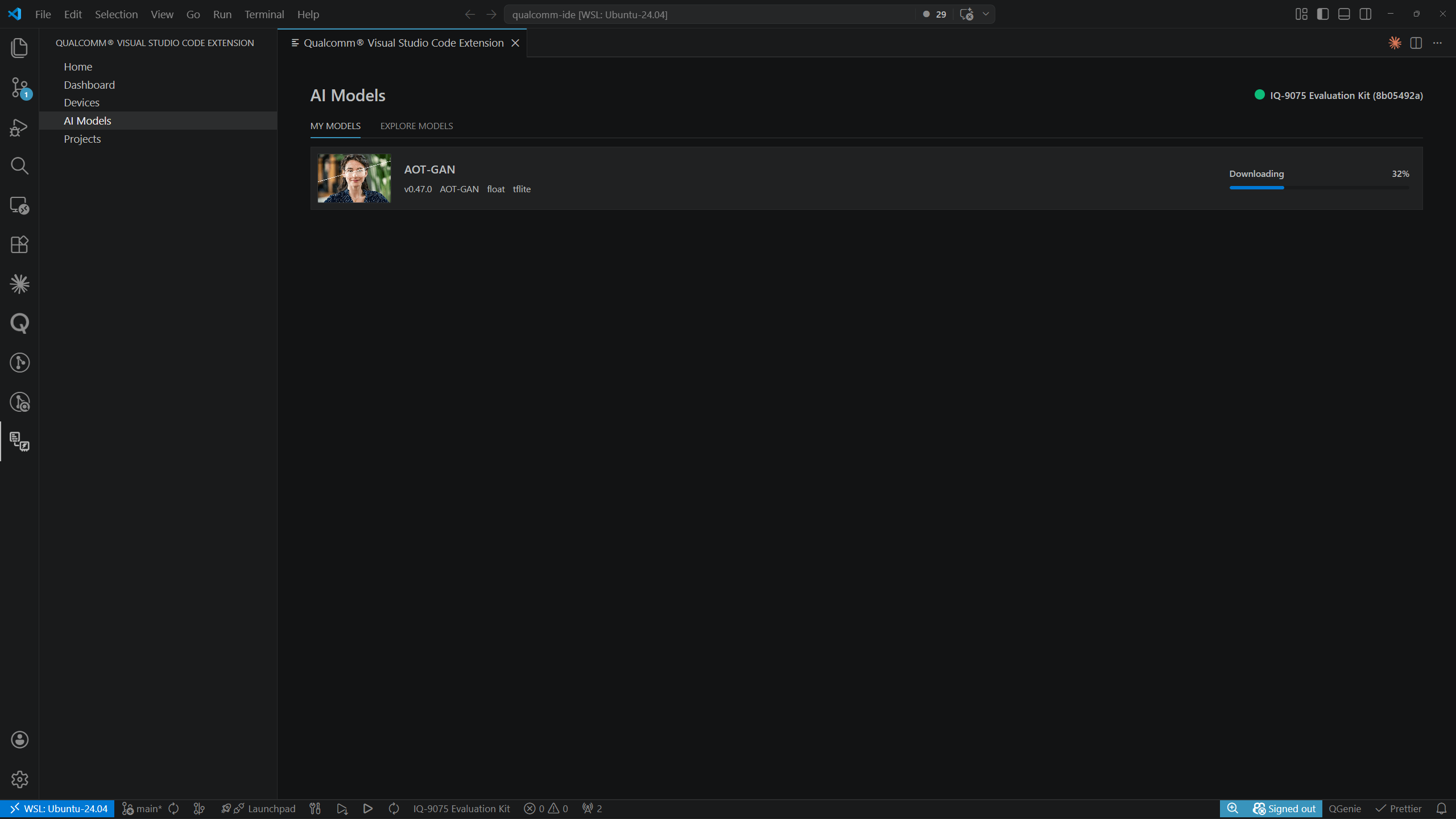 When the download completes, a toast notification confirms: “<Model> downloaded successfully.” The model row updates to show its local file path and the Profile and Flash action buttons.
Profiling a Model
Each model row in MY MODELS has a Profile split-button. Click the dropdown arrow (▾) to choose from four options: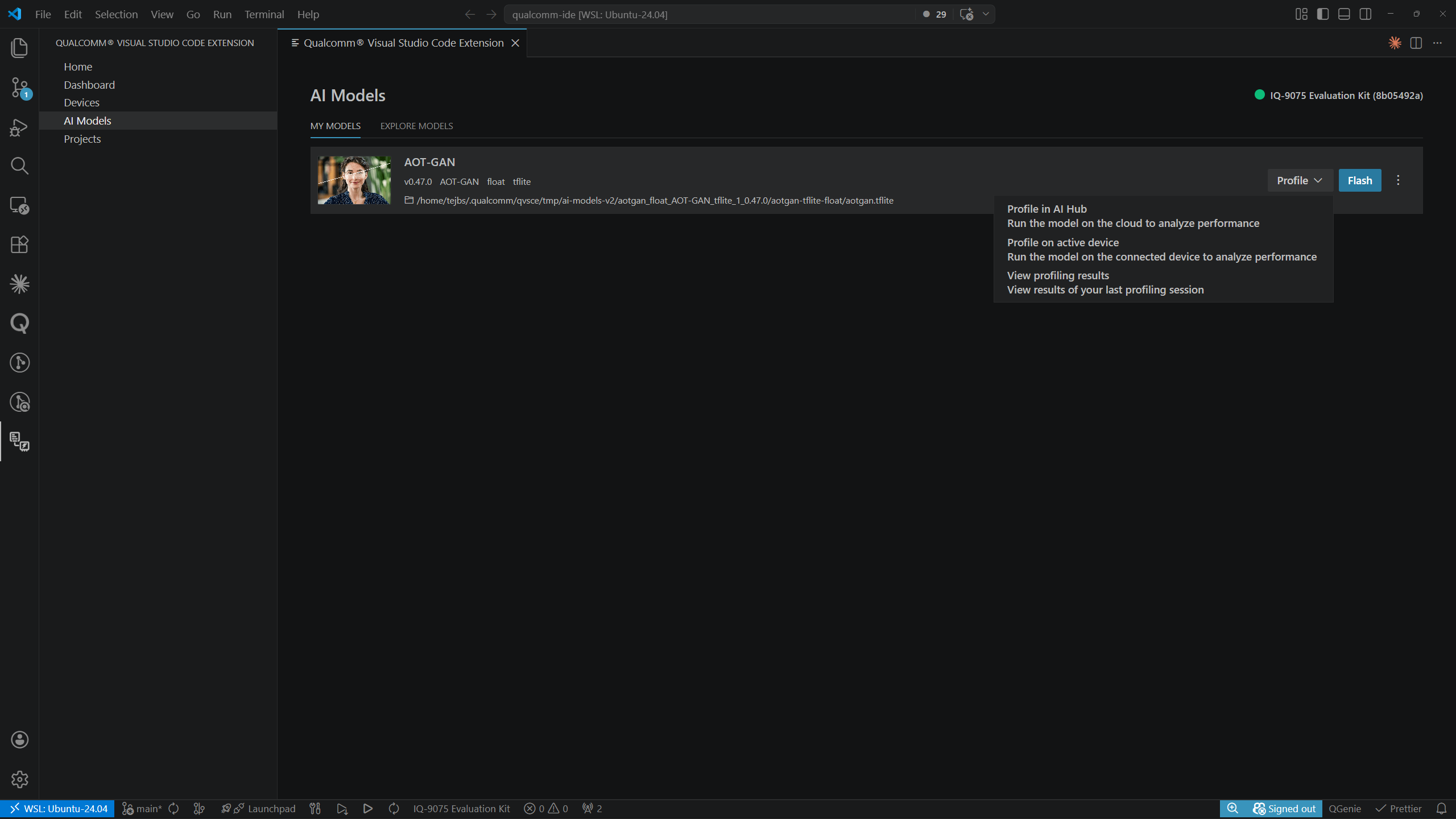
Profile on Active Device
Selecting Profile on active device starts local profiling.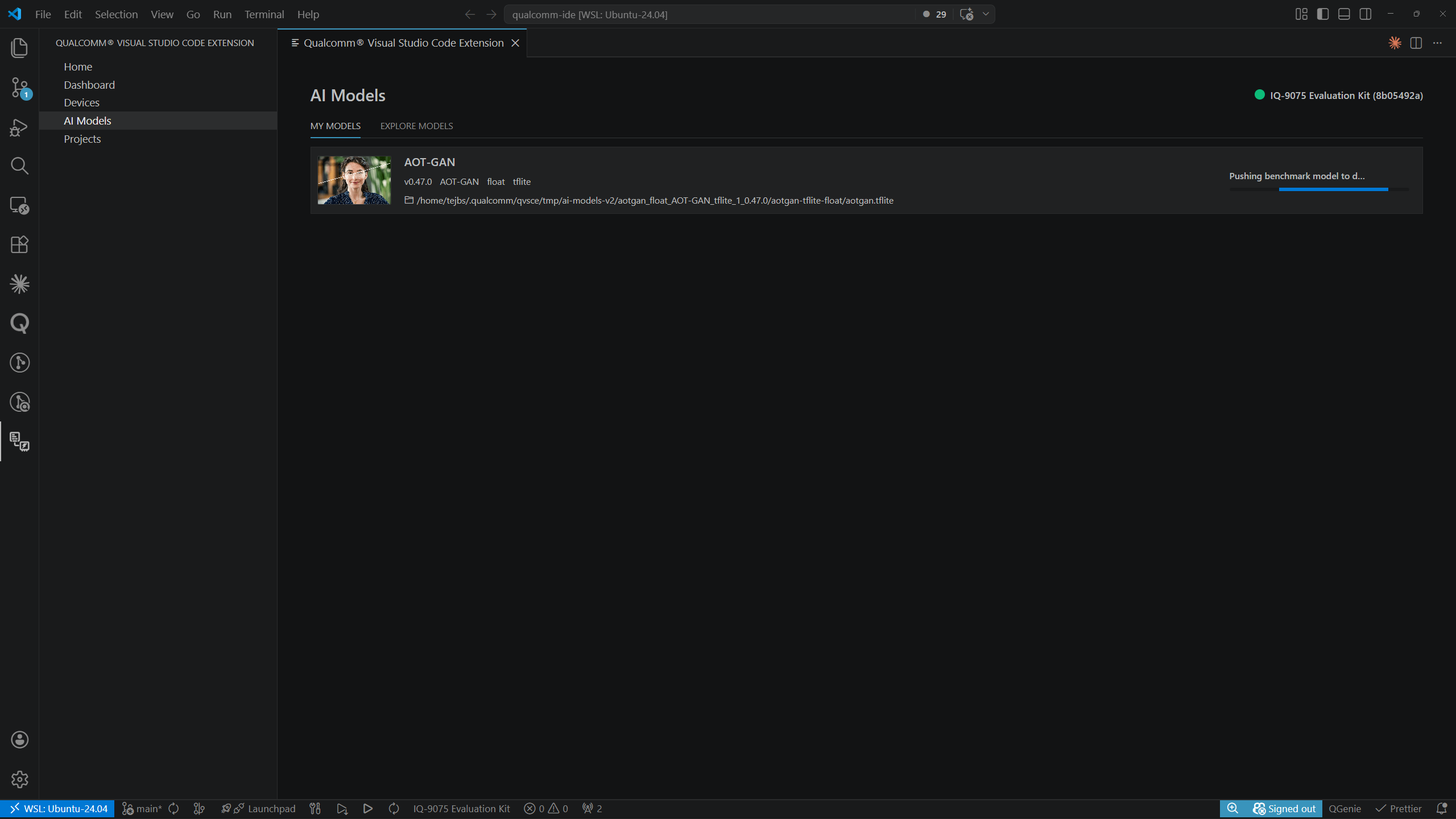
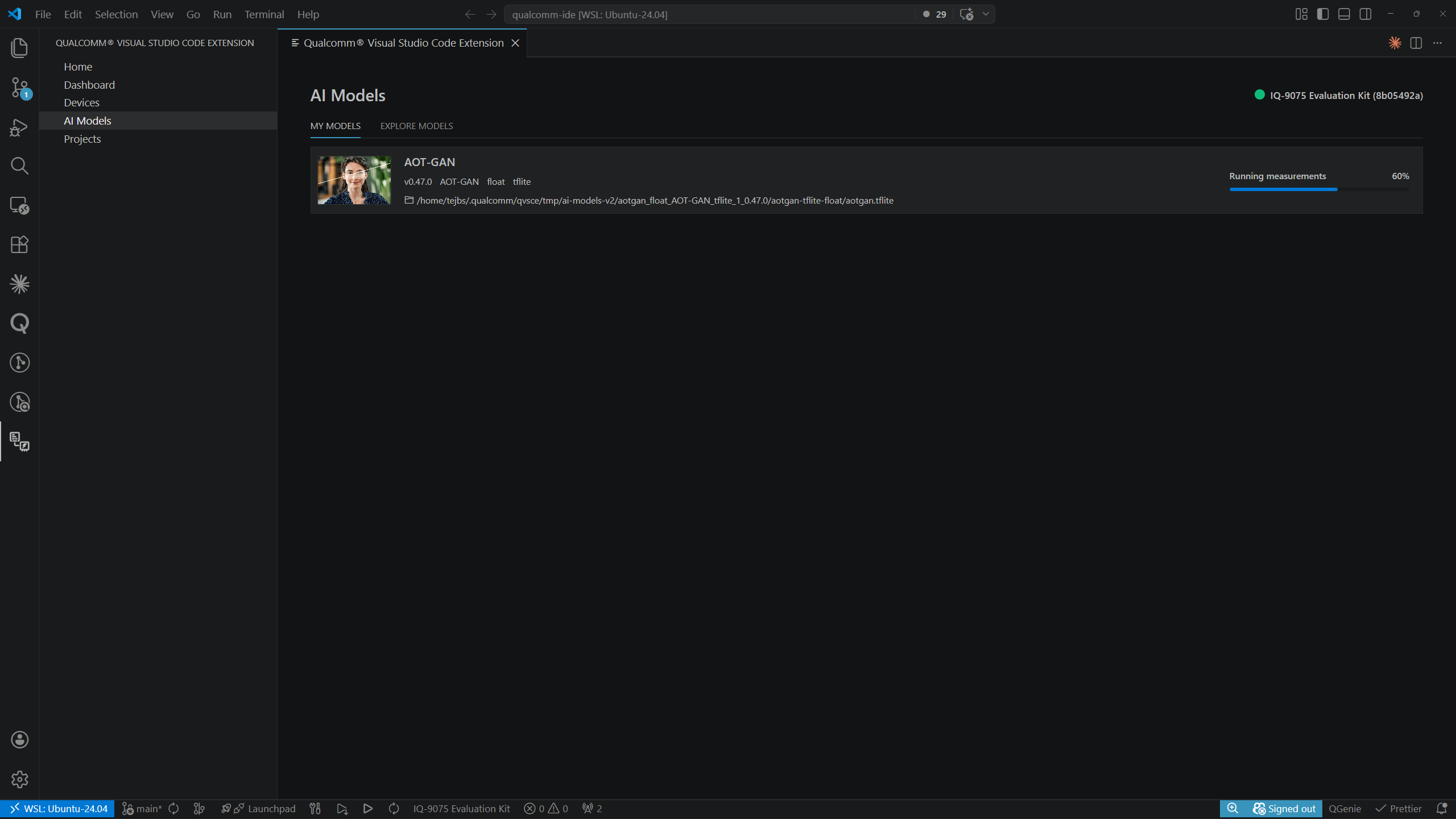 When complete, a toast notification confirms: “AOT-GAN profiled locally on IQ-8075 Evaluation Kit.”
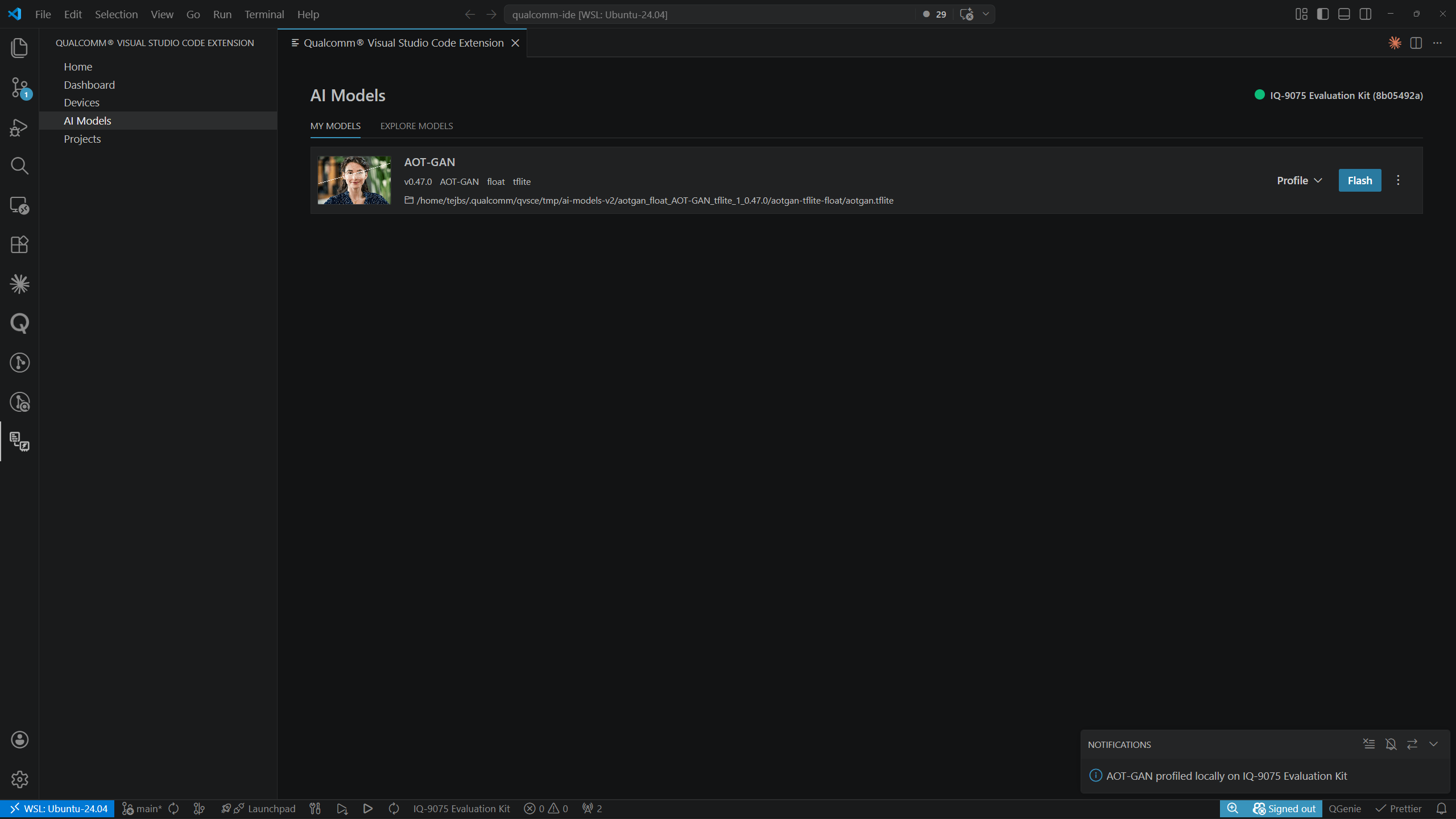
An active device must be set before using Profile on active device. See
Devices for setup instructions.
Profile in AI Hub
AI Hub Token
The first time you profile a model in AI Hub, the extension prompts you to enter your AI Hub token: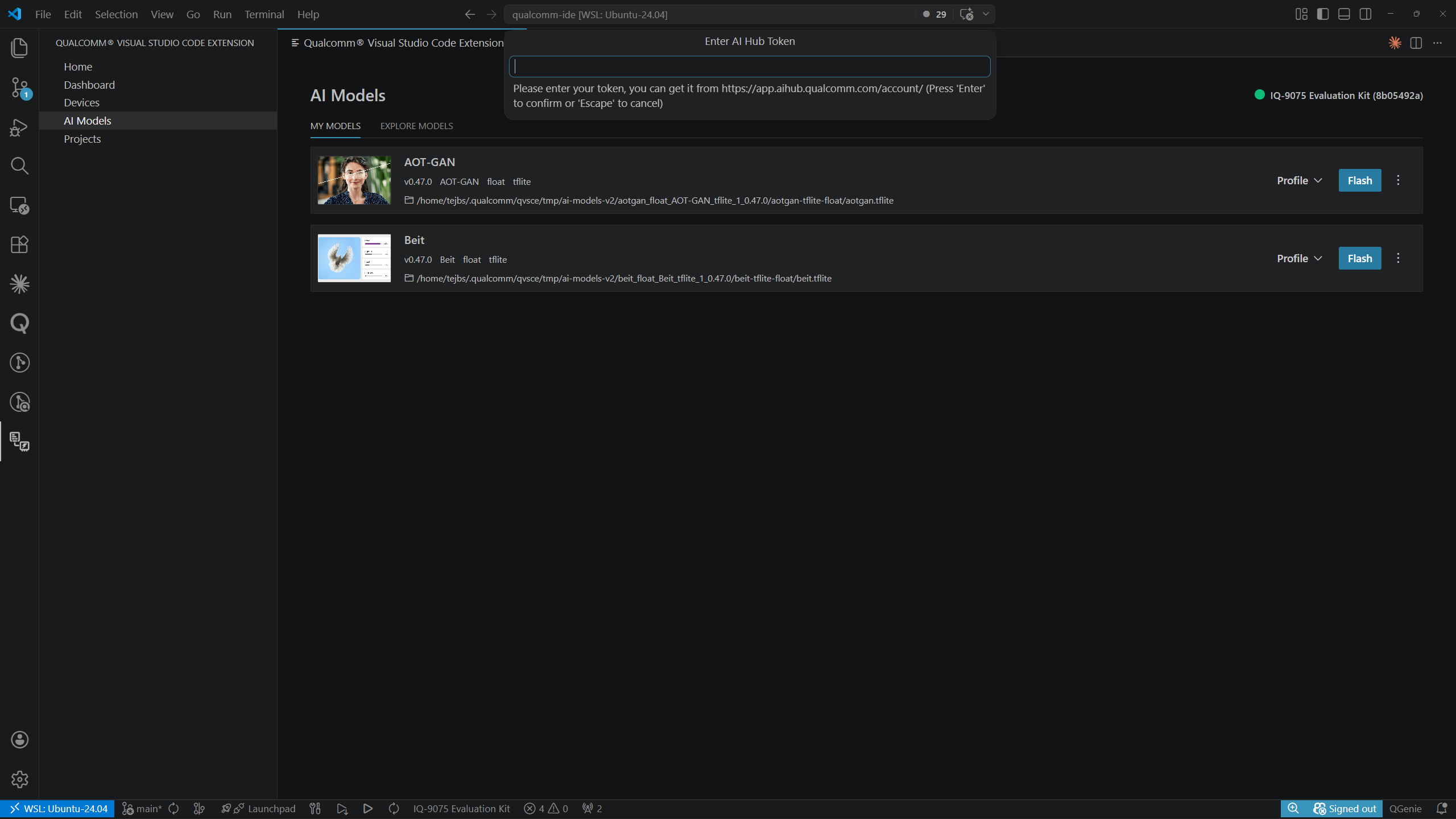 Paste your token from aihub.qualcomm.com/account and press Enter to confirm or Escape to cancel.
Selecting Profile in AI Hub opens a side panel to configure the cloud profile job. Select the Device Type from the dropdown, then click Start Profile.
Paste your token from aihub.qualcomm.com/account and press Enter to confirm or Escape to cancel.
Selecting Profile in AI Hub opens a side panel to configure the cloud profile job. Select the Device Type from the dropdown, then click Start Profile.
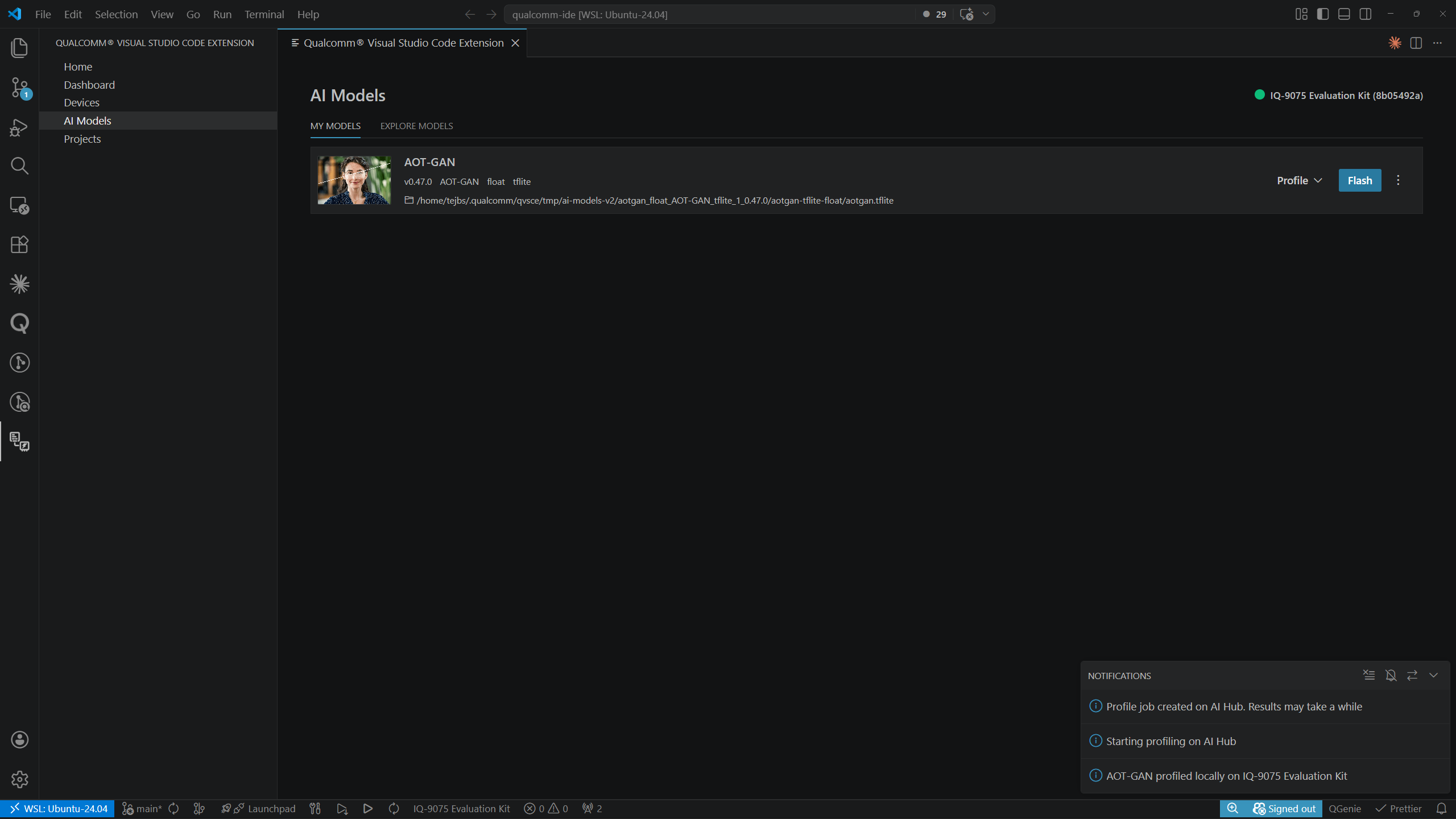
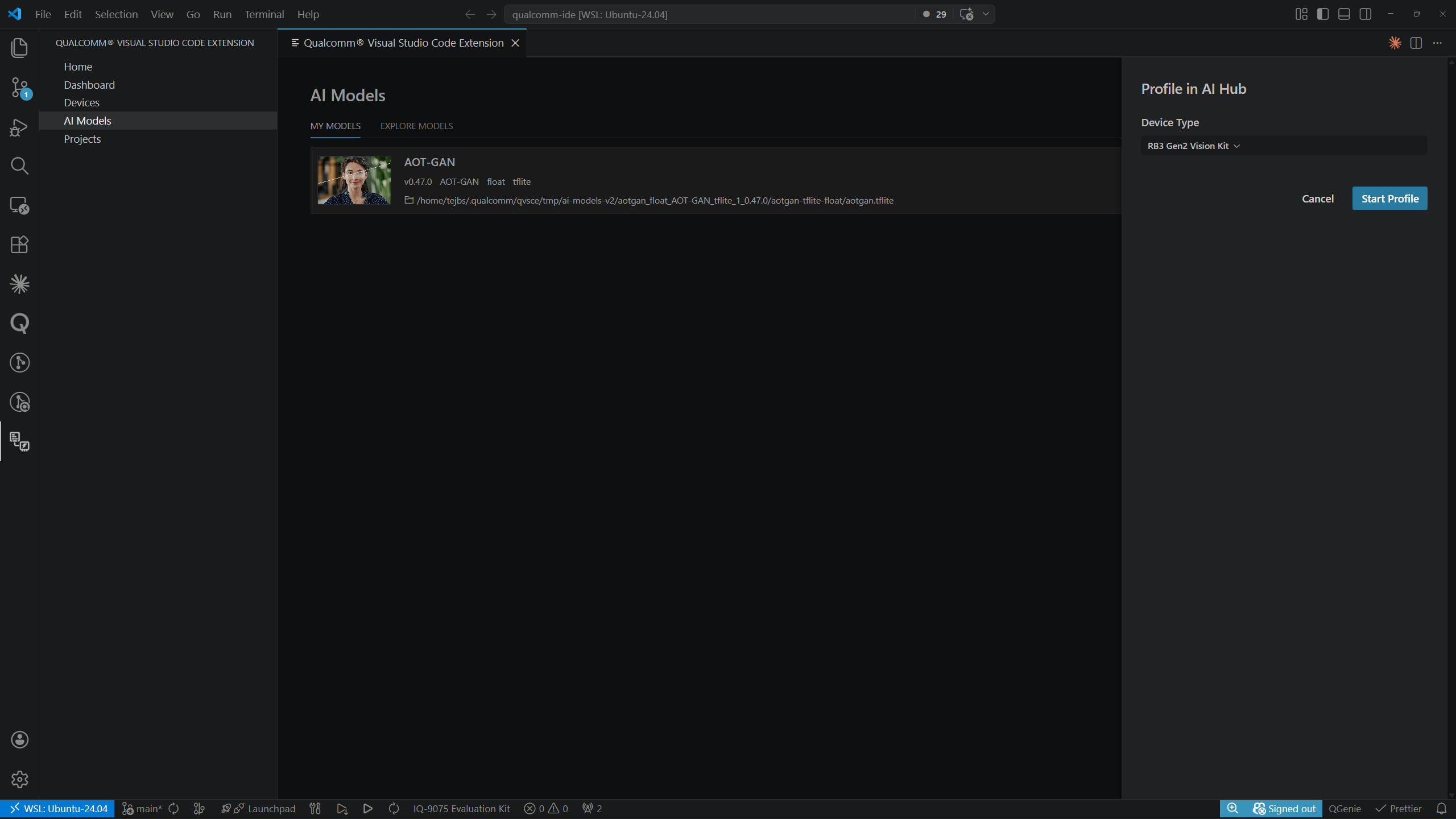 A notification panel confirms the job was created: “Profile job created on AI Hub. Results may take a while” and “Starting profiling on AI Hub.”
Viewing Profiling Results
Select View profiling results to open the results page from the model detail view. The breadcrumb showsMy Models > <Model Name>.
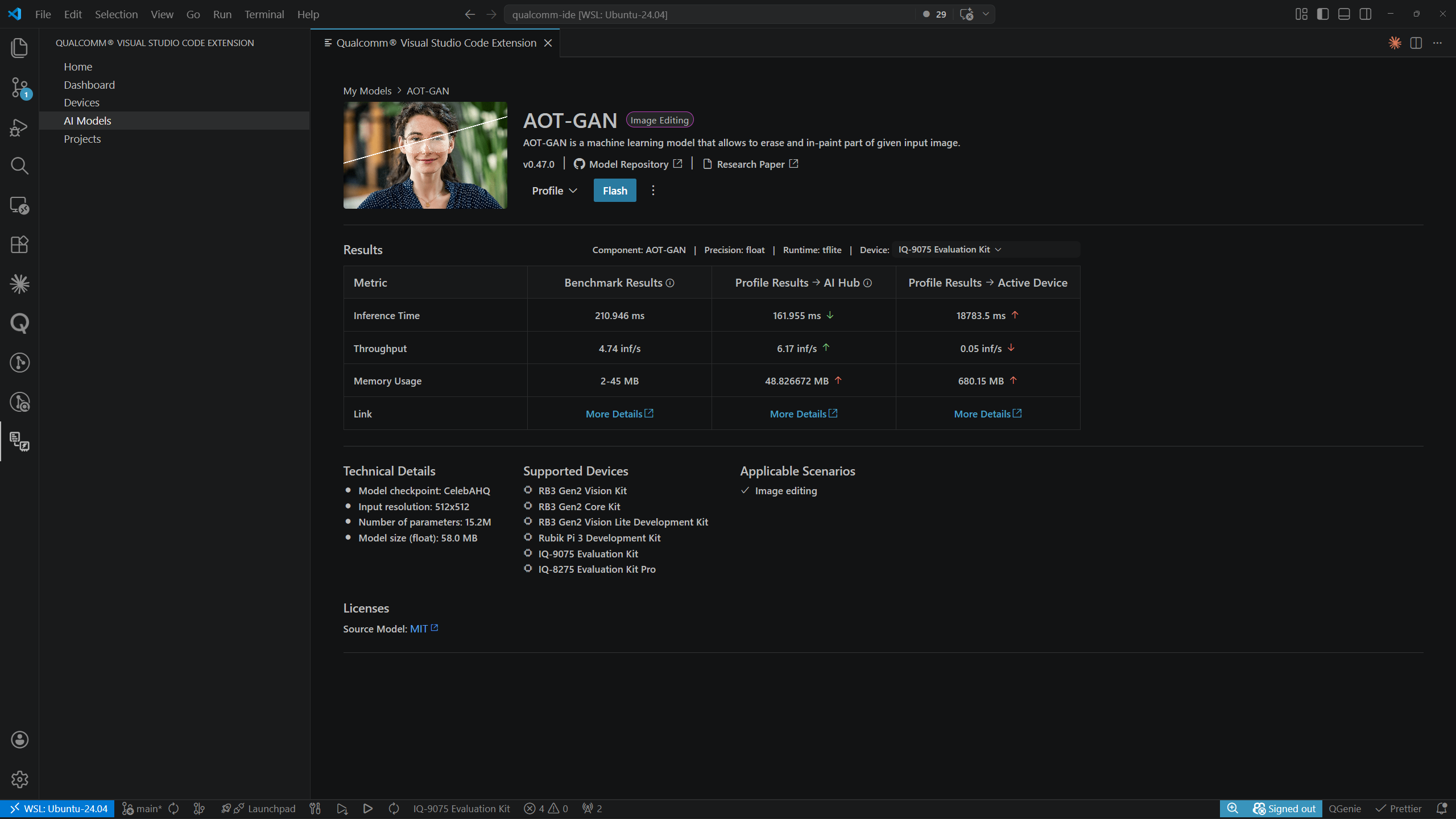 The results table header shows the Component, Precision, Runtime, and Device used for profiling. Columns show results from all available sources:
Each value in the Profile Results columns has a colored arrow indicating performance relative to the benchmark:
- Red — worse than benchmark
- Green — better than benchmark
Flashing a Model to the Device
Click Flash on a model row in MY MODELS to push the model to the active device.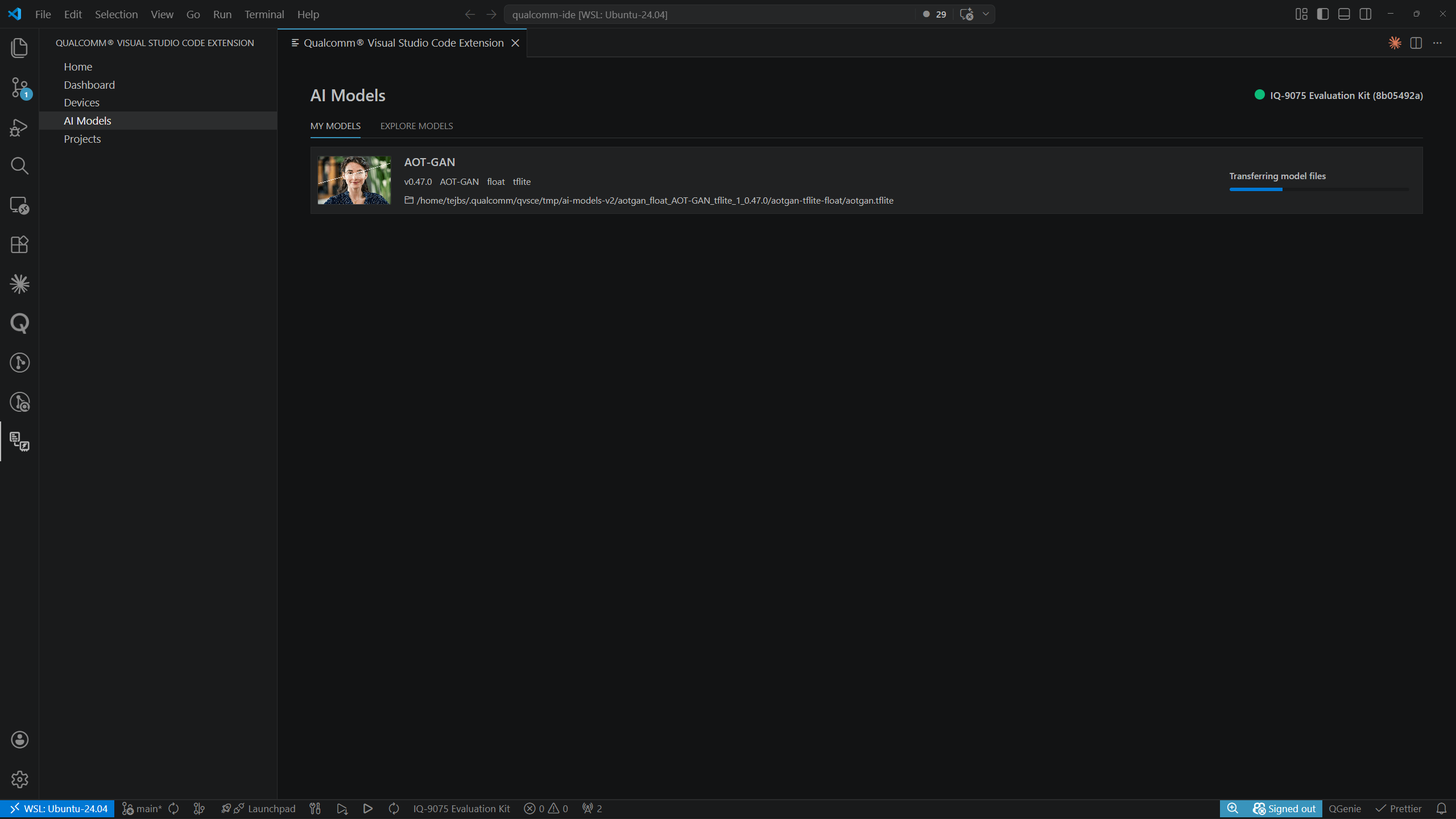
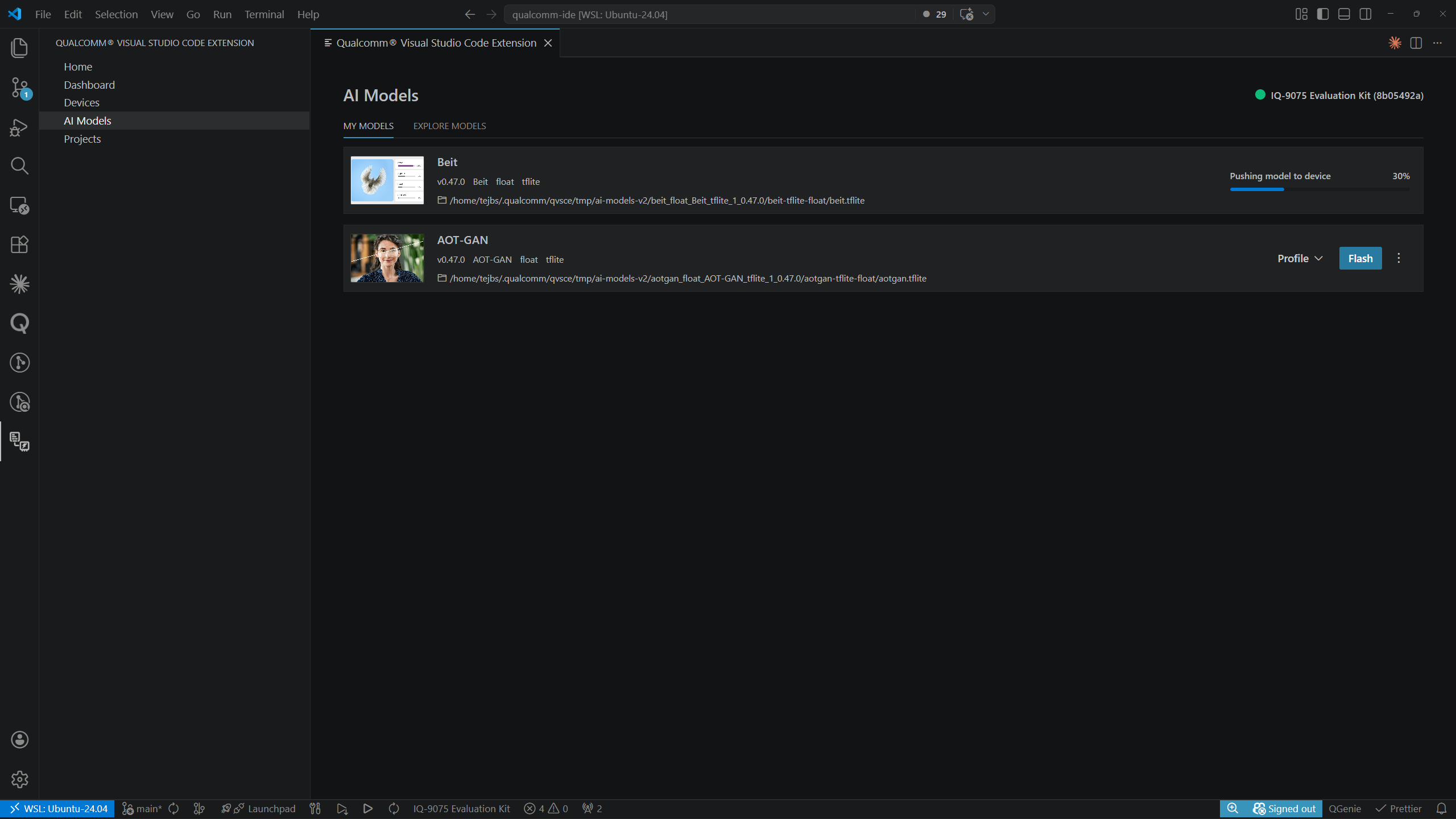 When complete, a toast confirms: “AOT-GAN model pushed to IQ-8075 Evaluation Kit successfully.”
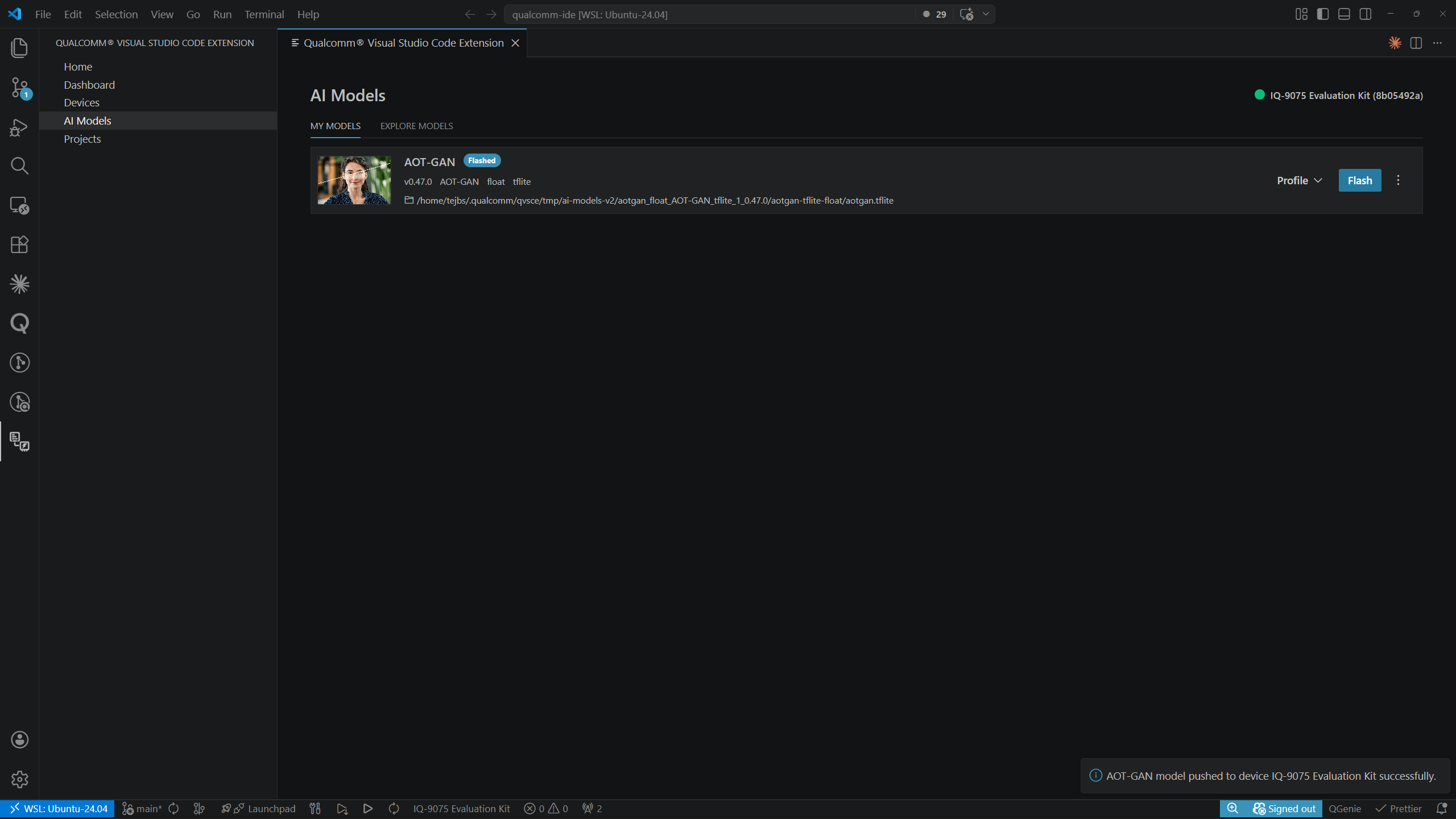
An active device must be set before flashing. The active device is shown in
the top-right corner of the AI Models page. See
Devices for setup instructions.
Removing a Model
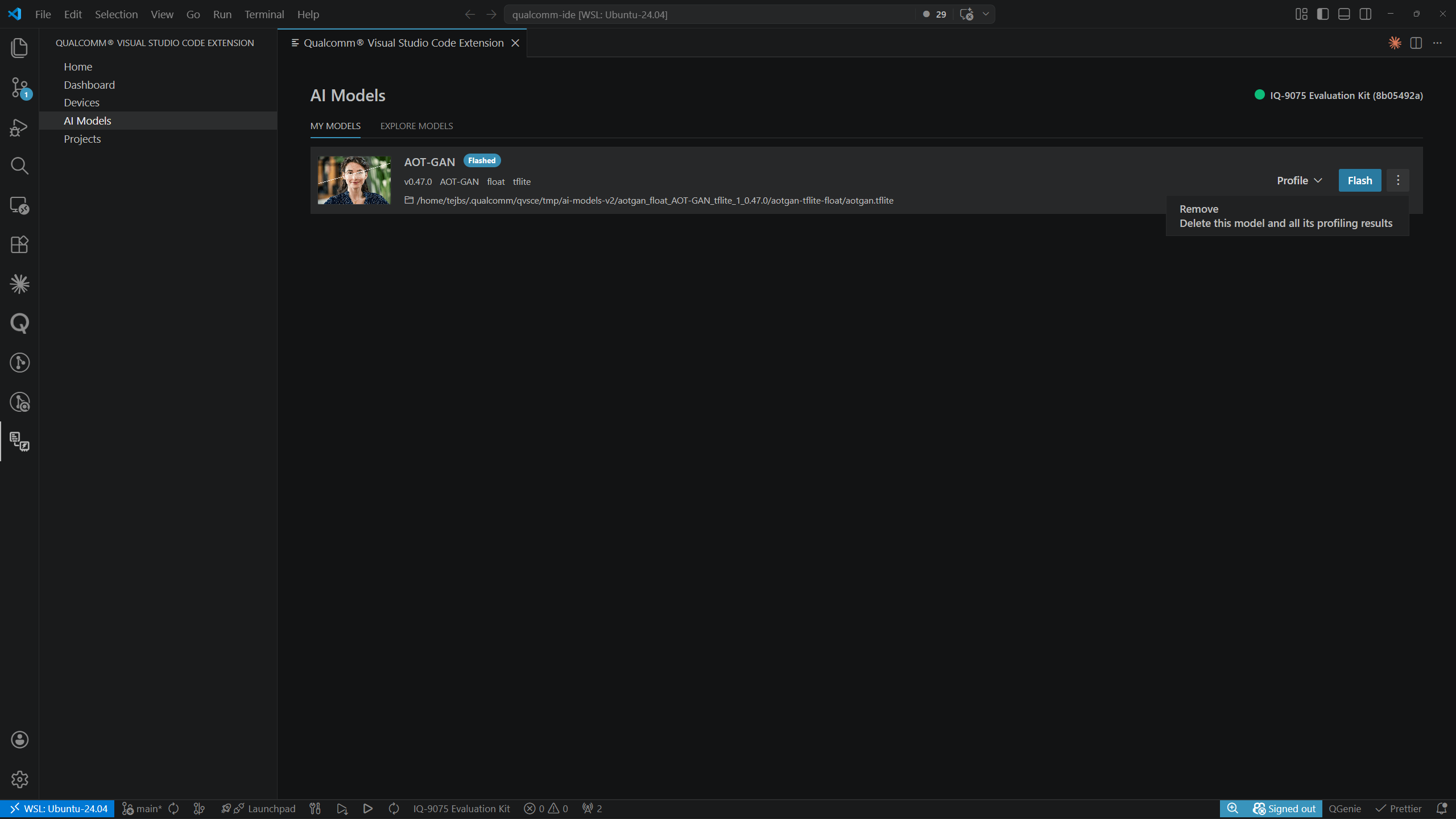
Click the ⋮ overflow menu on the right side of a model row in MY MODELS and select Remove to delete the model and all its profiling results from the host.