

Connecting a Device
Devices connect to the extension over SSH — a network-based connection supported on both Qualcomm Linux and Ubuntu. Add any device by IP address, which is useful for headless setups or devices on the same network.Available Devices
When a device is plugged into the host, it appears in the Available Devices section along with metadata such as dev kit type, serial number, connection status, and mode (USB, WiFi, etc.).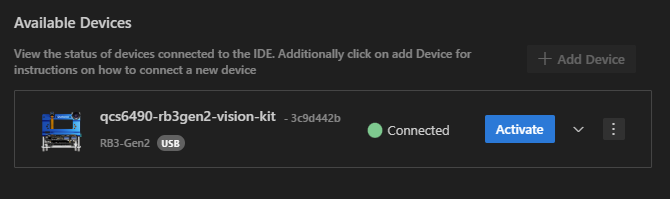
Activating a Device
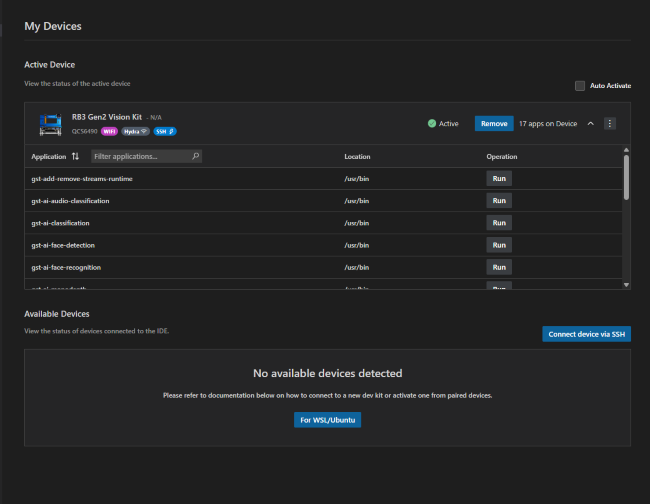
- Open the Dashboard → Devices section.
- Locate your device in the Available Devices list.
- Click Activate.
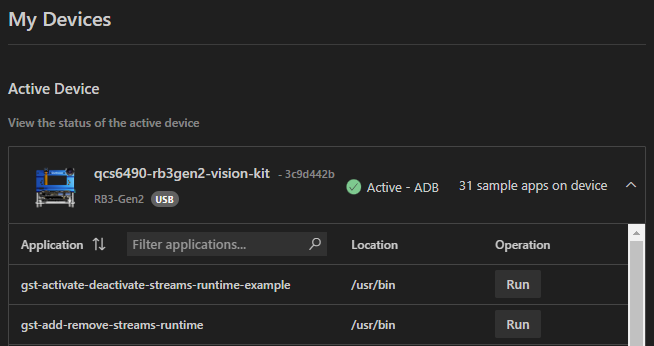
Only one device can be active at a time. Switching the active device
automatically retargets all build and deploy operations.
Device Connectivity — WiFi
To connect a device to WiFi, open the connectivity options menu from the active device pane. The extension lists available WiFi networks sorted by signal strength.
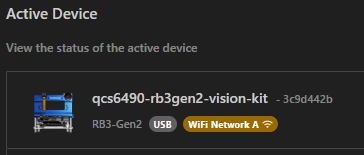
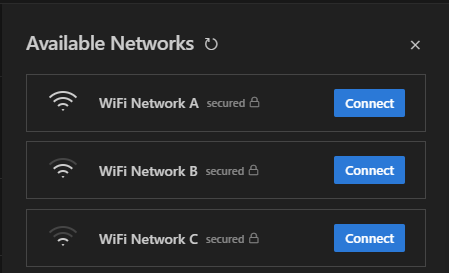 Select a network and enter the credentials. Once connected, the connectivity status appears next to the device.
Adding a Device by IP Address (SSH)
- In the Devices section, click Add Device.
- Enter the device IP address.
- Select SSH as the connection method.
- Click Connect.
SSH Setup
SSH connections are supported for both Ubuntu and Qualcomm Linux devices. You will need:- Target device powered on and accessible on the network
- SSH client installed on the host
- Both machines on the same network
Device Setup
Get the device’s IP address and username via a serial/UART console:Extension Configuration
Navigate to the Devices page and click the Connect device via SSH button to open the dialog.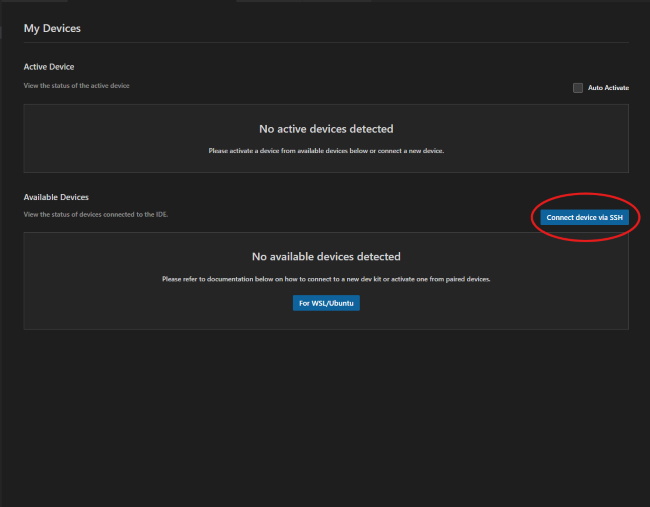 There are two tabs:
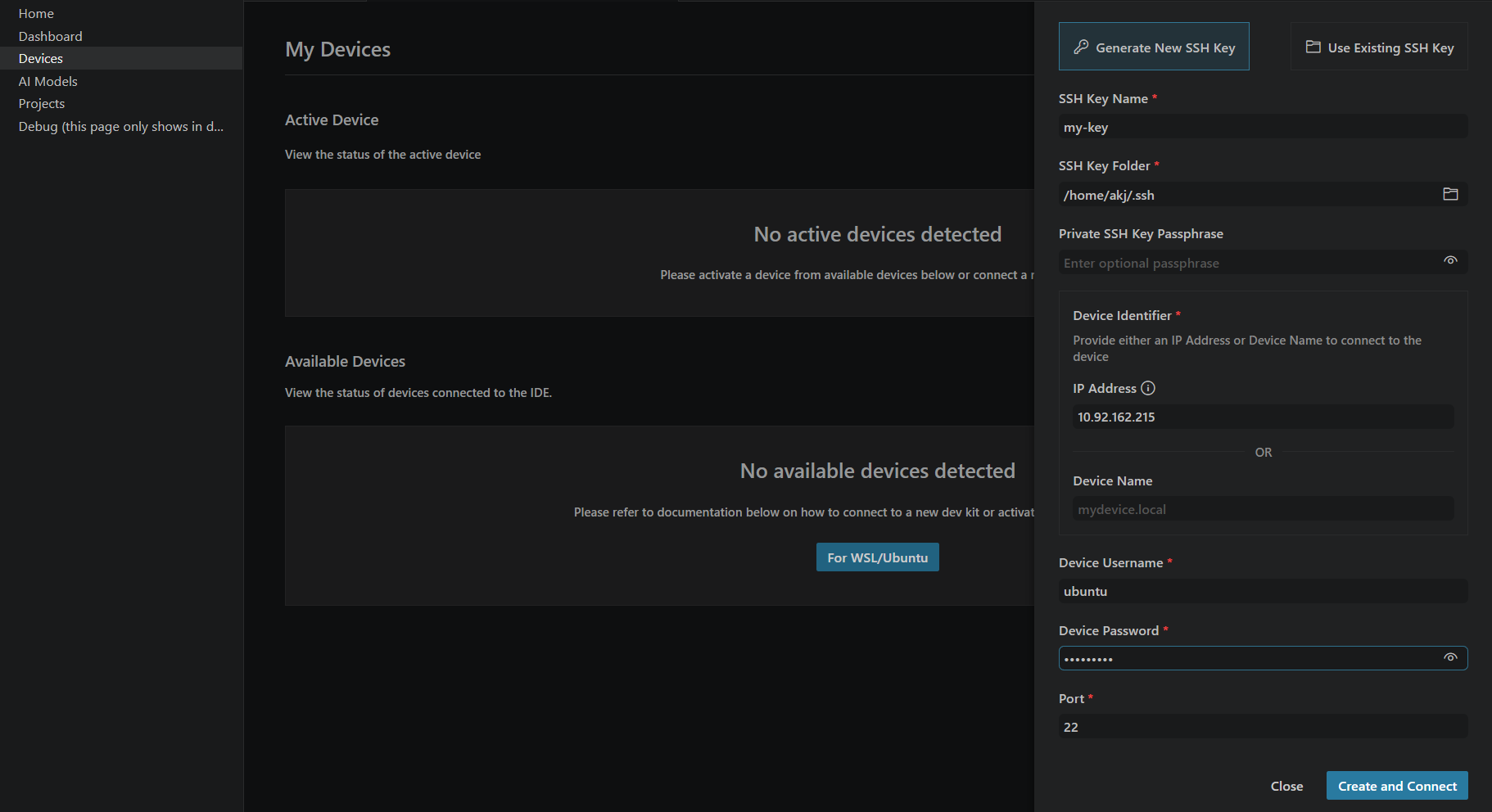 Generate New SSH Key — creates a new key pair on the host:
- SSH Key Name — name for the generated key file
- SSH Key Folder — directory to save the key (defaults to
~/.ssh) - Private SSH Key Passphrase — optional passphrase
- Device Identifier — enter either an IP Address (e.g.
10.92.162.215) or Device Name (e.g.mydevice.local) - Device Username — username on the device (e.g.
ubuntu) - Device Password — device password (used to copy the public key)
- Port —
22(default)
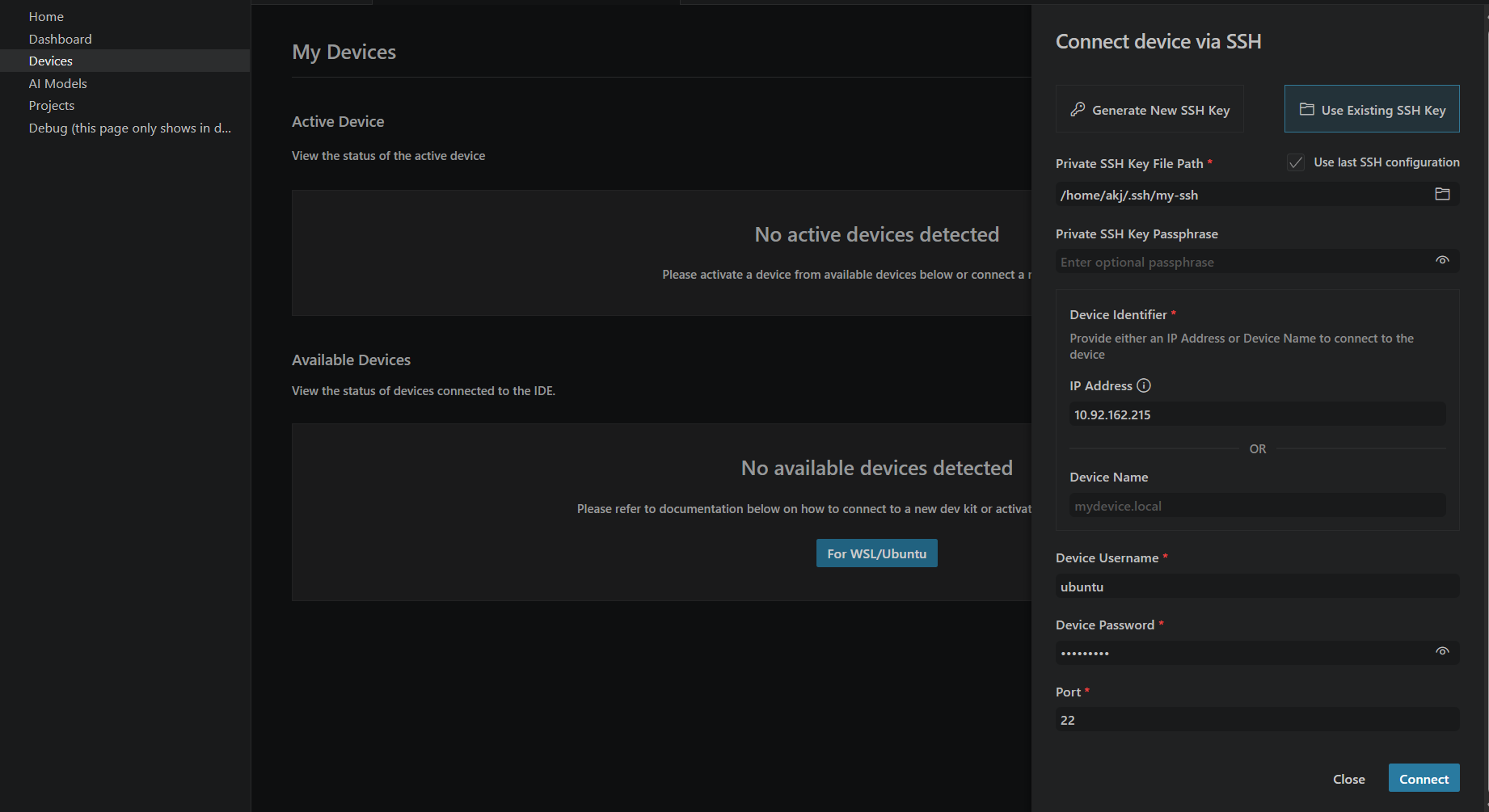 Use Existing SSH Key — connects with a key already on the host:
- Private SSH Key File Path — path to your existing private key (e.g.
~/.ssh/my-ssh) - Private SSH Key Passphrase — optional passphrase
- Device Identifier — IP Address or Device Name
- Device Username — username on the device
- Device Password — device password
- Port —
22(default)
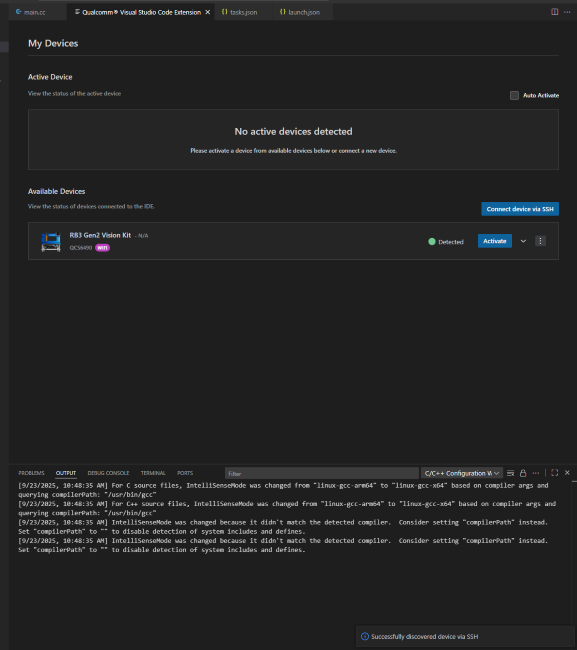 Activate the device to set it as the active target:
Flashing Device Software
1
Navigate to Downloads
Go to Dashboard → Downloads → Device Software tab.
2
Select the image
Choose the firmware image that matches your dev kit and OS.
3
Click Flash
Click the Flash button next to the image.
4
Verify EDL mode (if flash fails)
If flashing fails, verify the device is in EDL mode:Look for:
Ubuntu Device Setup
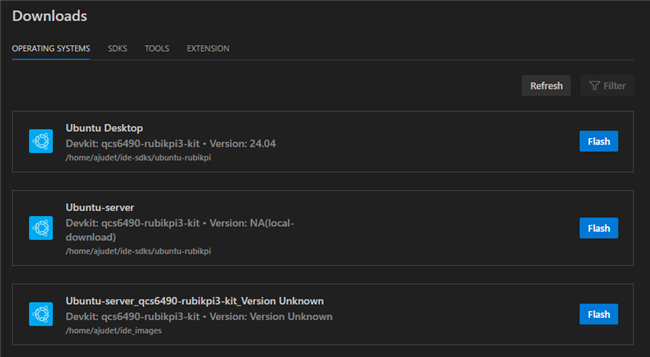
For Rubik Pi and IQ-9075 EVK devices with Ubuntu OS, follow these steps after flashing:- From the Dashboard, navigate to the Operating Systems tab and click Flash to begin flashing the OS image. A dialog will direct you to EDL mode instructions.
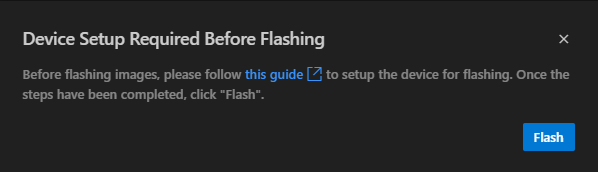
- Once the device enters EDL mode, it appears in the Available Devices section. Activate it, then go back to Dashboard and click Flash.
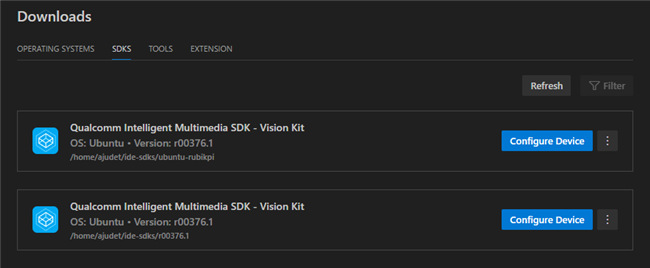
- After flashing completes and the device shows as Active, click the SDKs tab in the Downloads section to configure the device with all required packages (approximately 15–20 minutes).
UFS Provisioning
If you encounter UFS-related issues, consult the provisioning guide for your specific hardware: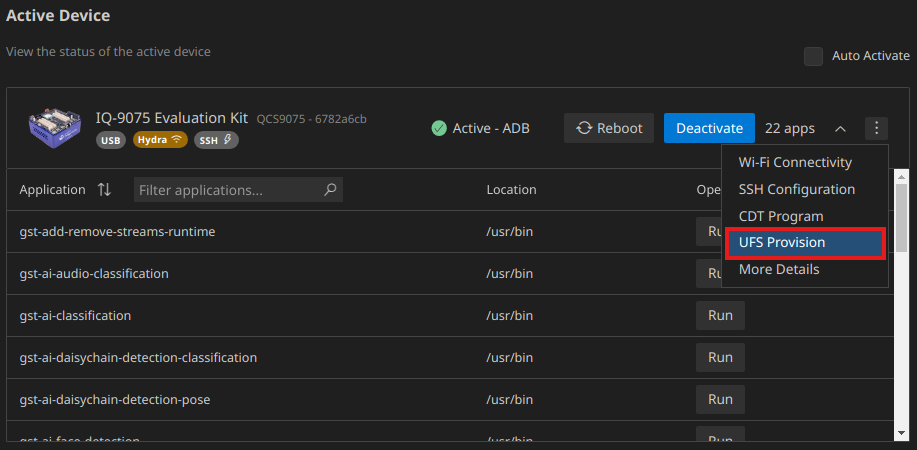
CDT Configuration
Custom Device Tree (CDT) configuration may be required for some hardware setups: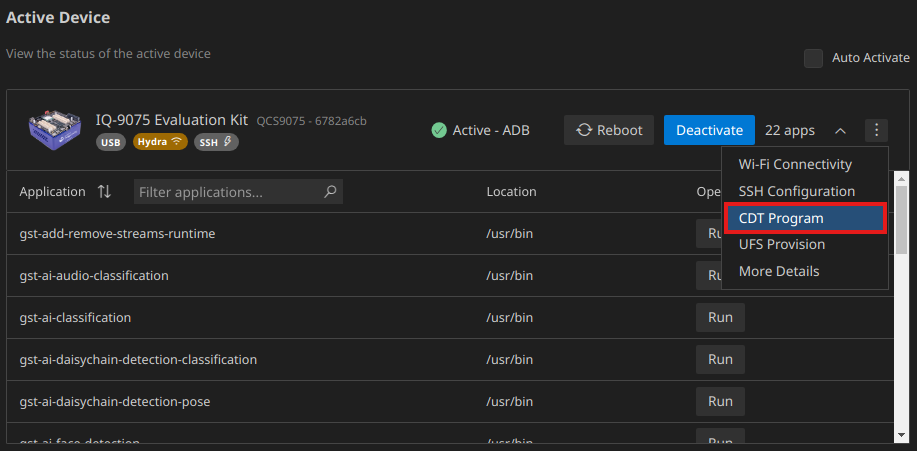
Change Overlay Configuration
The Change Overlay Configuration feature lets you switch the software overlay stack on your active device between Qualcomm Open Source and Qualcomm Proprietary implementations for individual hardware subsystems. This is useful when evaluating open-source drivers, testing proprietary optimized stacks, or reproducing issues specific to one software path.Supported only on devices running Qualcomm Linux 2.0. Operates on the
currently active device only. Ensure the correct device is set as active
before applying changes. Applying a new configuration replaces the device’s
active overlay setup and requires a restart.
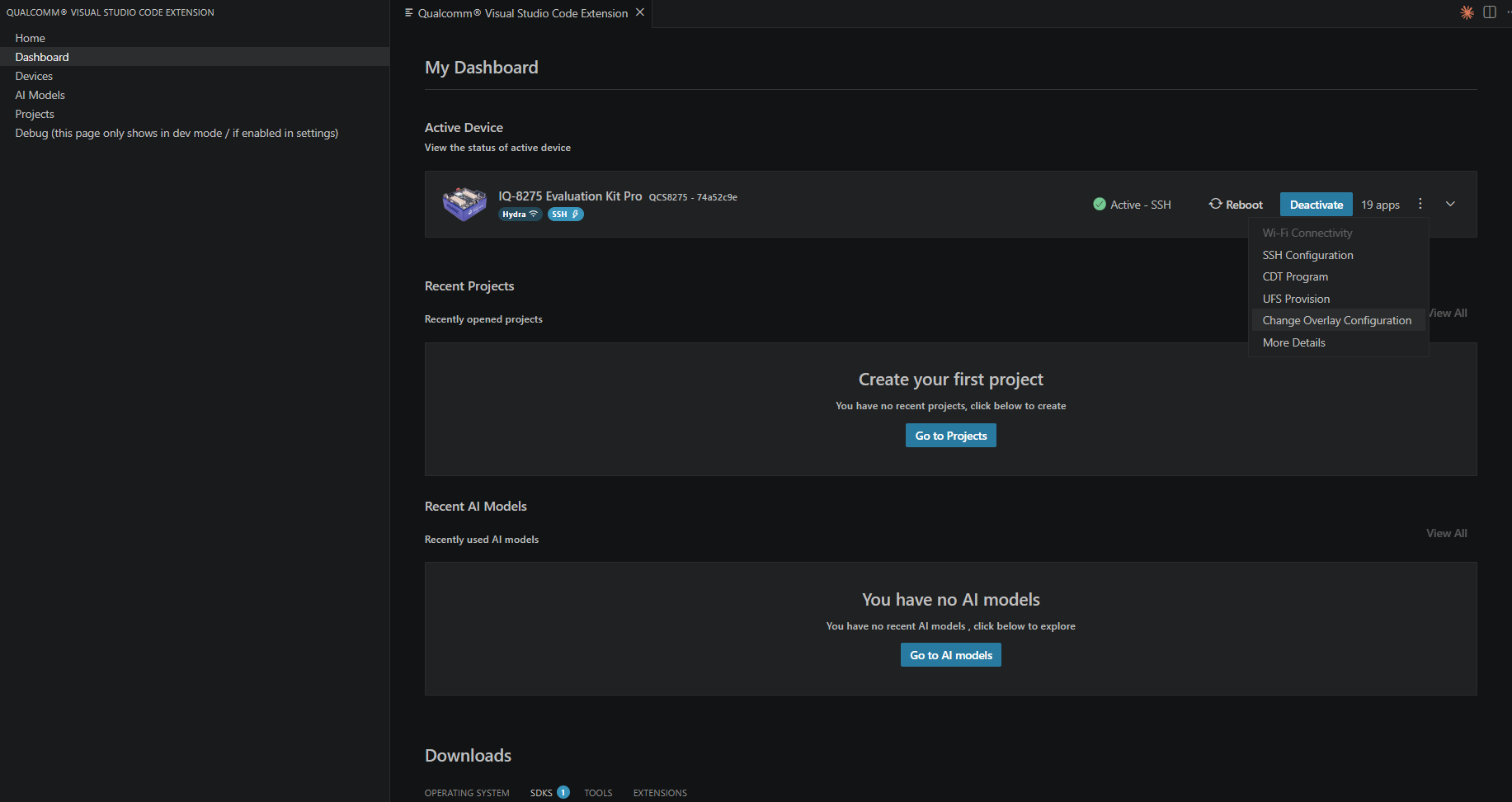
Accessing the Feature
1
Open the Dashboard
Locate the Active Device section.
2
Open the overflow menu
Click the ⋮ (More options) button on the active device card.
3
Select the feature
Choose Change Overlay Configuration from the dropdown.
The Configuration Dialog
Each row lets you pick between the Qualcomm Open Source and Qualcomm Proprietary implementation of a subsystem. A green dot marks the overlay currently active on the device; selecting a different option labels the previous one (active) and enables Apply Configuration.- Default state
- Pending change
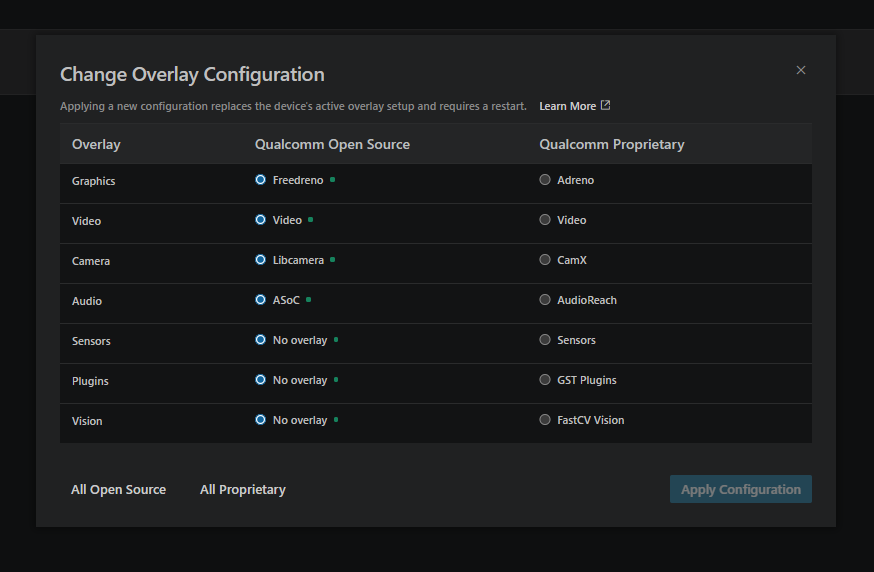
Every overlay set to its open-source variant — no pending changes
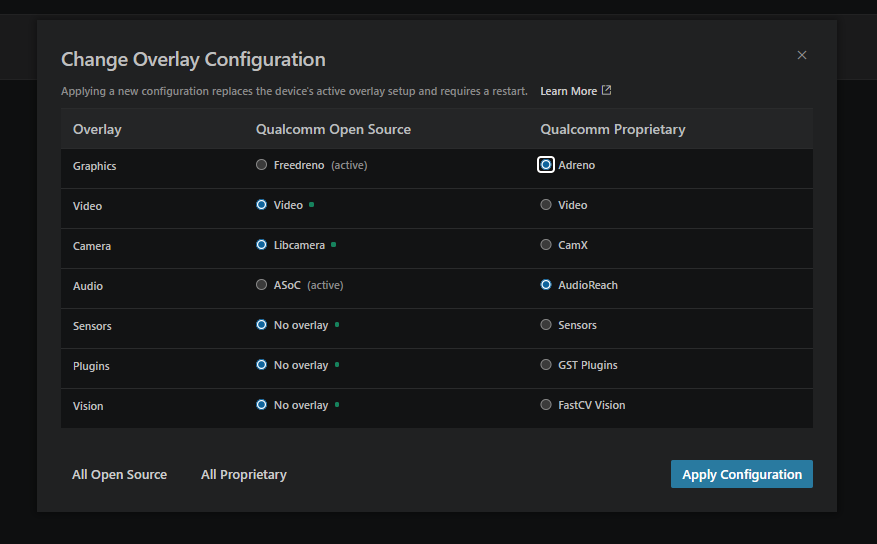
Graphics
Graphics
Freedreno (open-source Mesa/DRM) vs. Adreno (Qualcomm proprietary
GPU driver)
Video
Video
Open-source vs. Qualcomm proprietary video stack
Camera
Camera
Libcamera (open-source) vs. CamX (Qualcomm proprietary pipeline)
Audio
Audio
ASoC (Linux ALSA/ASoC) vs. AudioReach (Qualcomm proprietary audio)
Sensors
Sensors
No overlay (no open-source option) vs. Sensors (Qualcomm
proprietary)
Plugins
Plugins
No overlay (no open-source option) vs. GST Plugins (Qualcomm
proprietary GStreamer plugins)
Vision
Vision
No overlay (no open-source option) vs. FastCV Vision (Qualcomm
proprietary computer vision)
All Open Source
Sets every configurable overlay to its open-source variant
All Proprietary
Sets every configurable overlay to its Qualcomm proprietary variant
Applying the Configuration
After making your selections, click Apply Configuration in the bottom-right corner. The dialog closes and the extension begins applying the overlays to the device. The active device card immediately shows a progress bar: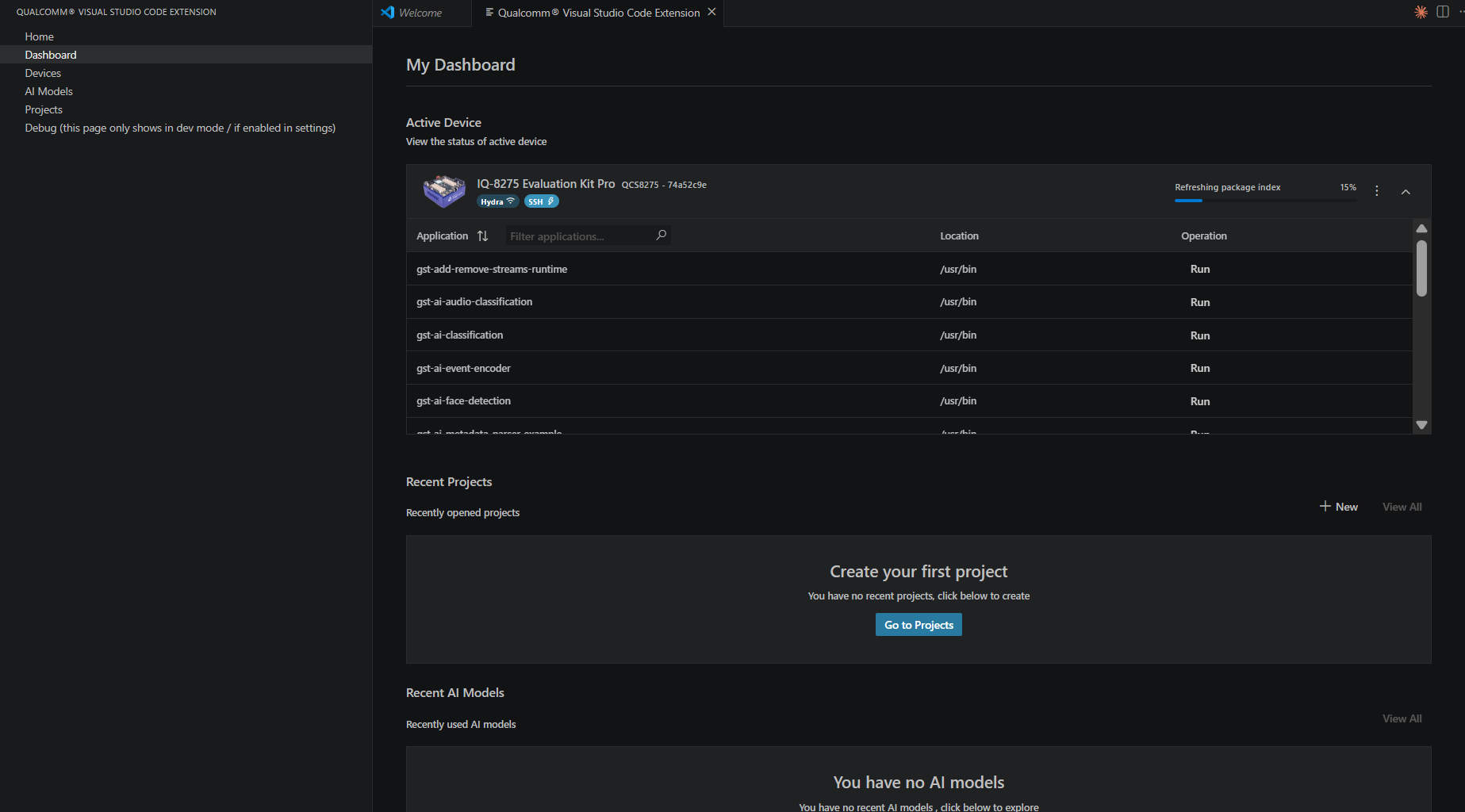 Depending on the number of overlays changed and network conditions, this may take several minutes.
Post-Apply Status
Success: The device card shows Overlay configuration applied successful in green and returns to Active – SSH status. A notification confirms: Overlay configuration applied successfully.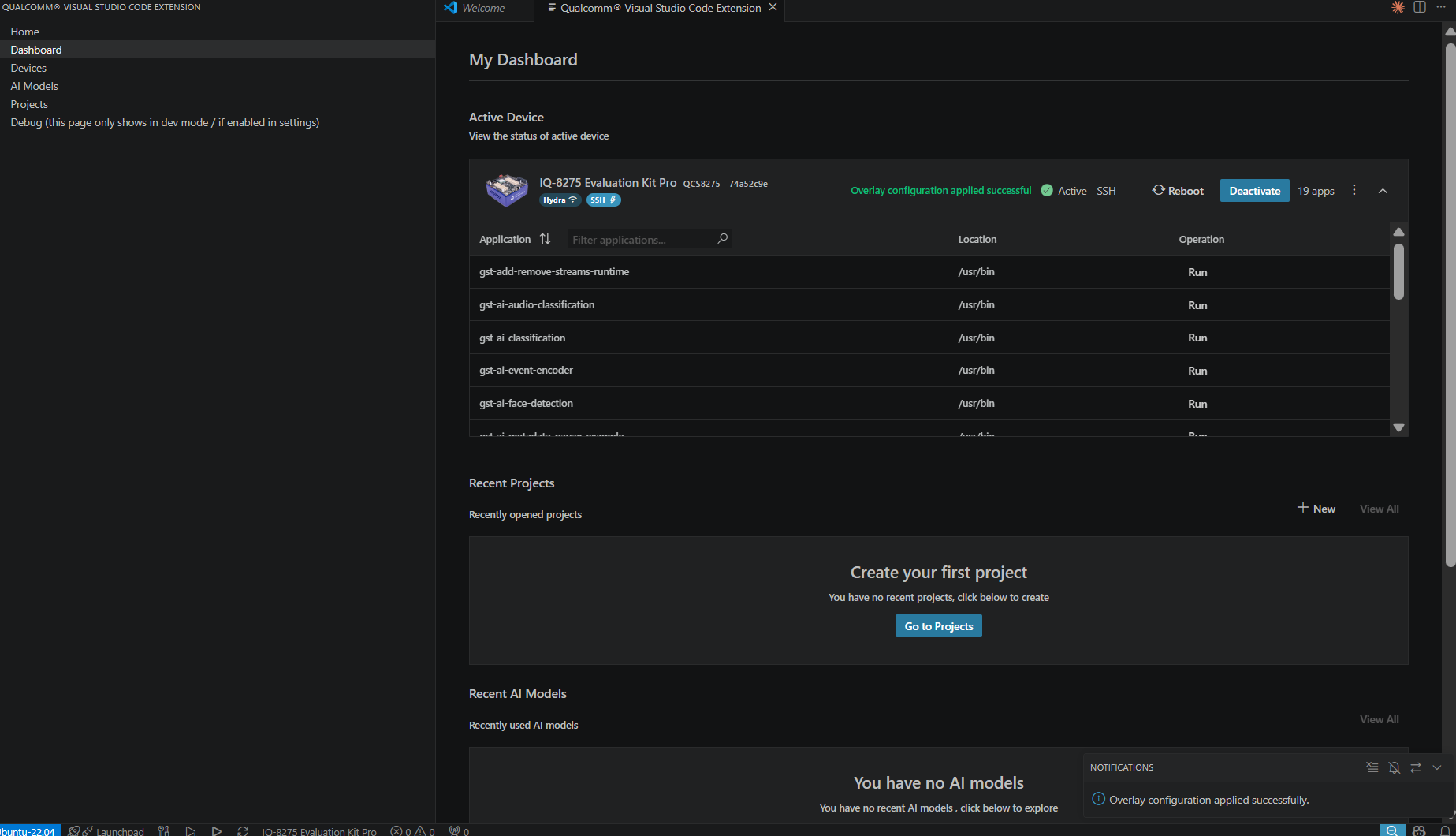 Failed application: If the overlay could not be verified after installation, the device card shows Overlay apply failed in red:
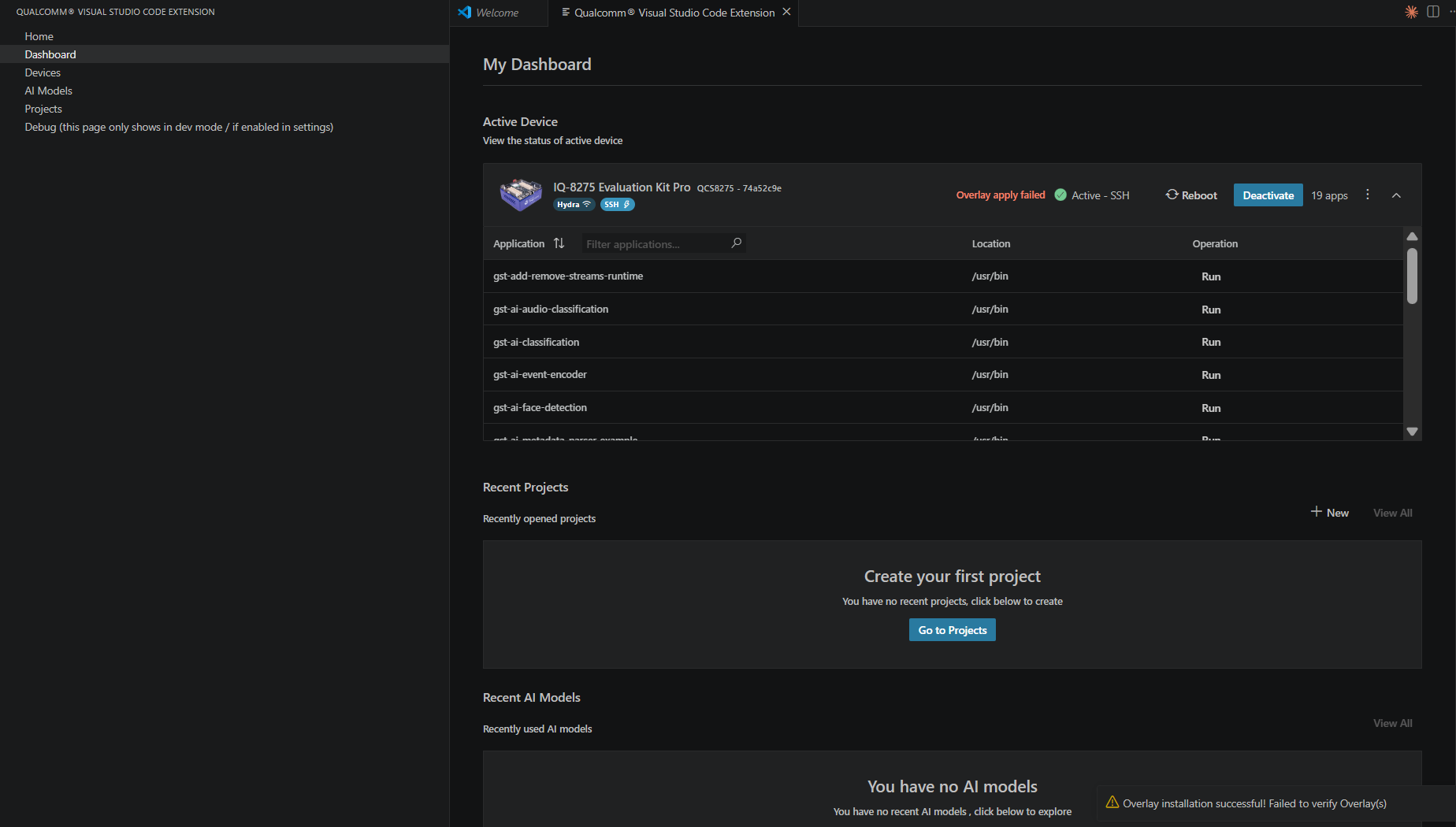 A notification toast provides additional detail: Overlay installation successful! Failed to verify Overlay(s).