

Status Bar Actions
The VS Code Status Bar at the bottom of the window contains action buttons added by the extension: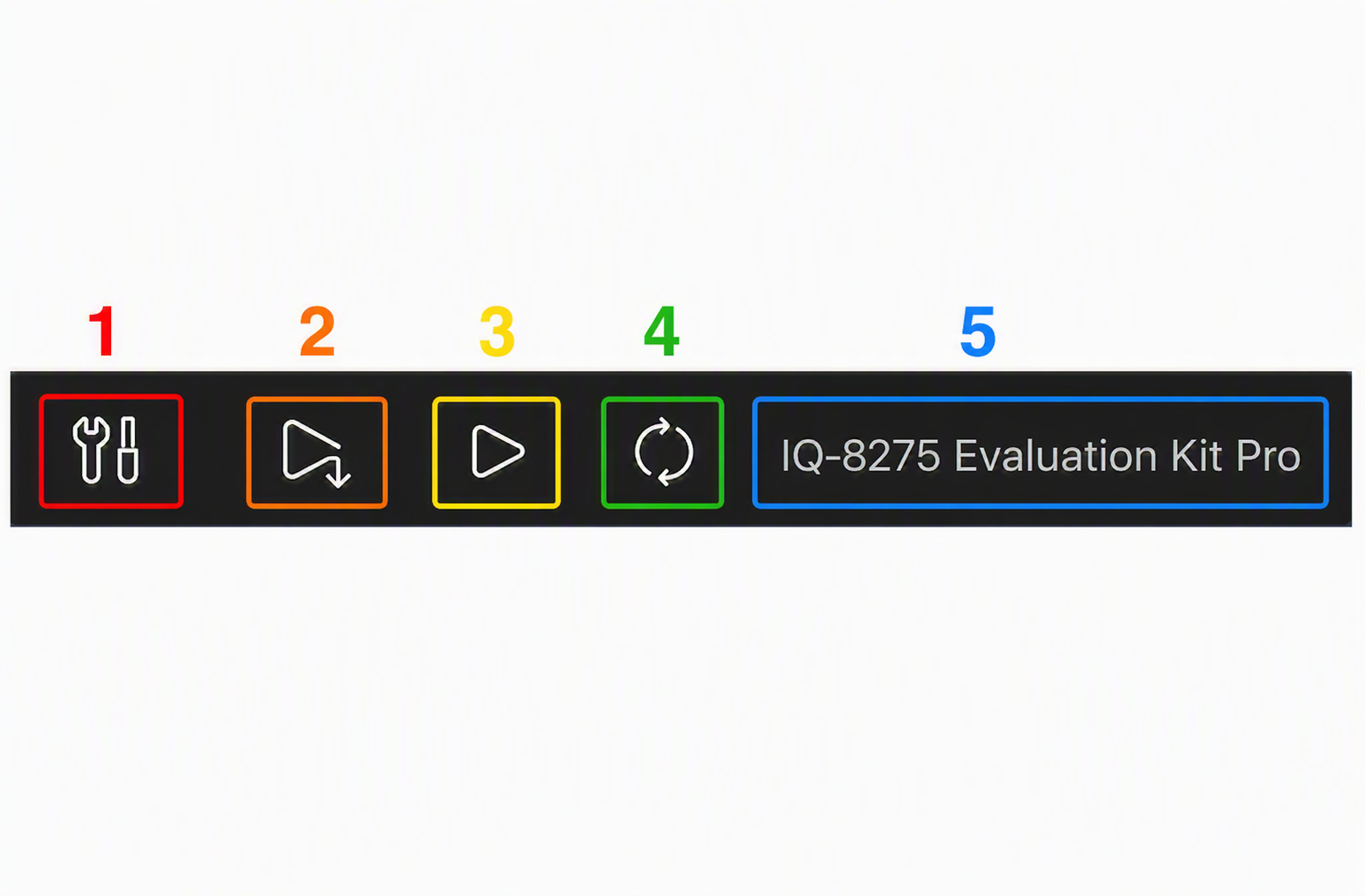
Build
Click Build (or run theBuild task via Ctrl+Shift+B). The extension uses the SDK toolchain configured by the workspace and compiles the project.
Deploy
Click Deploy. The extension compiles the project (same as Build) and then pushes the binary over SSH.Run
Click Run to execute the deployed binary on the active device. The extension launches the binary over SSH and streams its output to the integrated terminal.Debug
1
Set a breakpoint
Click in the gutter next to a source line to set a breakpoint.
2
Start the debug session
Click Debug in the Status Bar or press
F5.3
Inspect state
The debug panel provides access to: - Variables pane — local and global
variable values - Watch pane — custom expressions - Call Stack —
full call chain from the breakpoint - Registers — hardware register
contents - Disassembly — mixed source + assembly view - Memory — raw
memory inspection
The debug configuration is auto-generated in
.vscode/launch.json. Edit this
file to change the remote target address, binary path, or GDB/LLDB arguments.Troubleshooting builds
IntelliSense showing wrong errors
IntelliSense showing wrong errors
The
.vscode/c_cpp_properties.json file may be stale. Run QVSCE: Regenerate Workspace from the Command Palette (Ctrl+Shift+P) to regenerate it.Binary not found on device after deploy
Binary not found on device after deploy
Verify the active device is correctly set in Dashboard → Devices. Check that SSH connectivity is working:
Debug session fails to attach
Debug session fails to attach
Ensure the binary was compiled with debug symbols (
-g flag). Verify that gdbserver is installed on the device — run which gdbserver over SSH to confirm.