Overview
The Projects section lists all project templates bundled with the installed SDK. These templates are equivalent to the sample applications pre-installed on the device — a great starting point for new applications.Importing a Project
1
Open the Projects section
Navigate to Dashboard → Projects or click Projects in the extension side-bar. Click Create New Project to open the project creation dialog.Fill in the required fields: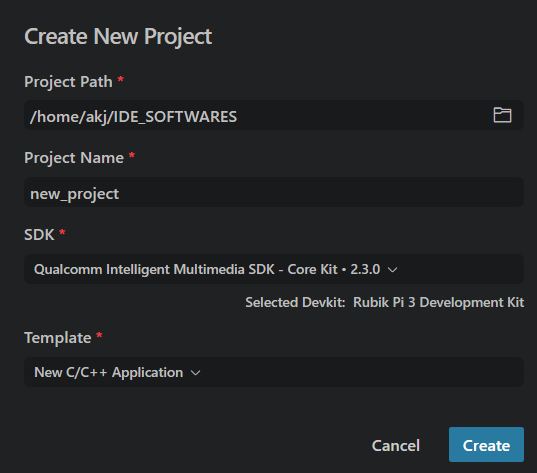
- Project Path — directory where the project will be created
- Project Name — name for the new project folder
- SDK — select the Qualcomm SDK and devkit to target
- Template — choose a starting template (e.g. New C/C++ Application)
2
Browse the template list
The extension displays all templates available for your active SDK. Each card shows the project name, description, and source language.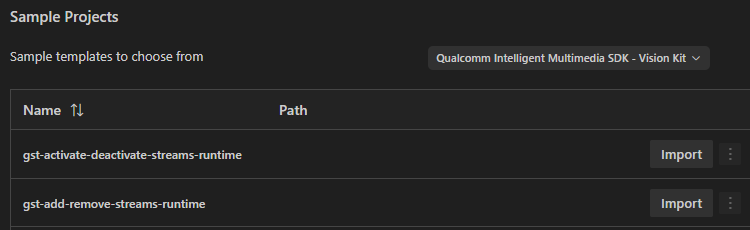
3
Import the template
Click Import on the template you want. The project is cloned to disk.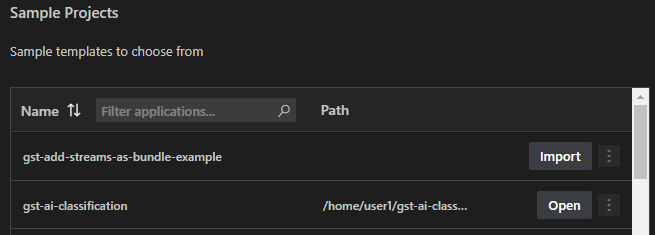
When VS Code opens the folder you will see two dialogs: “Do you trust the authors?” and “Reset workspace configuration?” — accept both.
IntelliSense — auto-configured workspace
When a project is opened, the extension automatically generates a.vscode/ folder and opens the workspace:
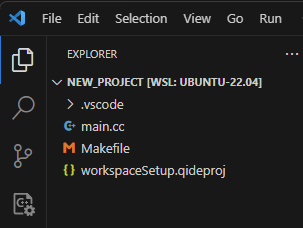 The generated files include:
c_cpp_properties.json— points IntelliSense at the SDK headerstasks.json— build tasks wired to the SDK toolchainlaunch.json— debug configuration for the active device
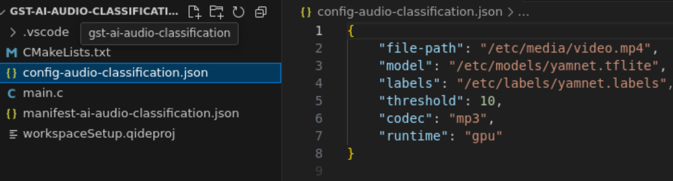
Recent projects
Previously opened projects are accessible from the grid in the Projects section.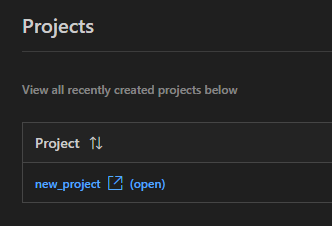
Modifying and experimenting
Once the project is open you have full access to the source code. Make any changes, then use the Status Bar actions to rebuild and deploy.Additional binary dependencies
Some sample applications pull large binary assets (model weights, test vectors, media files) from the cloud at build or run time. This is driven by manifest files shipped alongside the project. The extension handles the downloads automatically when you build or run the app.Resetting a project
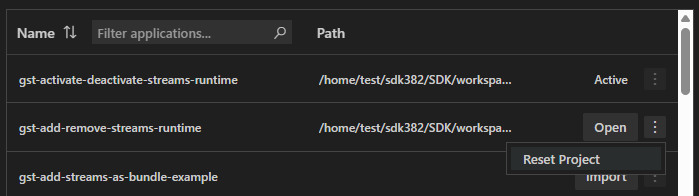
If you want to revert all changes and start fresh:- Right-click the project in the Projects section.
- Choose Reset Project.