This guide is for the host machine setup path. If you’re running VS Code
directly on your dev kit, see Run the Extension
On-Device instead — the kit is already flashed
and configured, so this wizard doesn’t apply.
Prerequisites
Complete the setup steps before starting this guide:Install Visual Studio Code
Set up VS Code on Ubuntu or Windows with WSL.
Install the Extension
Download the
.vsix from Qualcomm Software Center and install it in VS
Code.Configure udev Rules
Allow USB access for EDL on Linux hosts.
USB Forwarding (WSL)
Forward the device from Windows into WSL using usbipd.
Before continuing, confirm the Qualcomm extension icon is visible in the VS
Code Activity Bar and the Home page loads with a Get Started button.
Step 1 — Run the Getting Started Wizard
Click Get Started on the Home page to launch the setup wizard.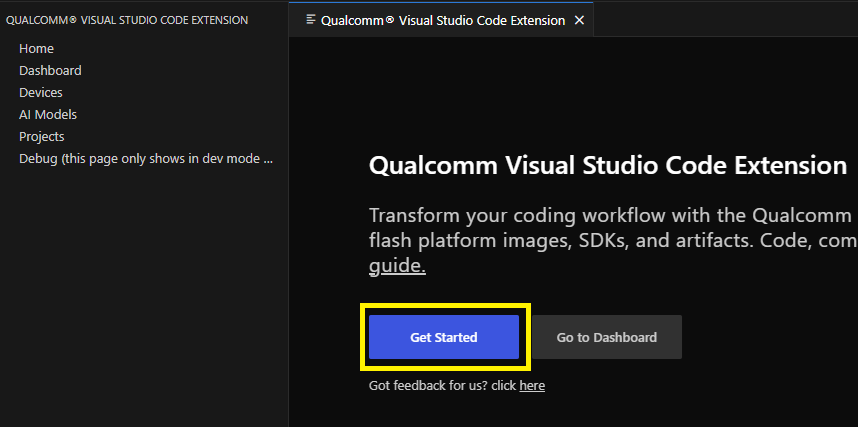 The wizard configures your host and dev kit in 5 steps:
Step 1 — Dev Kit
Step 1 — Dev Kit
Select the development kit you want to target. If a device is already connected via USB, the extension detects and pre-selects it. You can also select a kit that is not yet physically connected.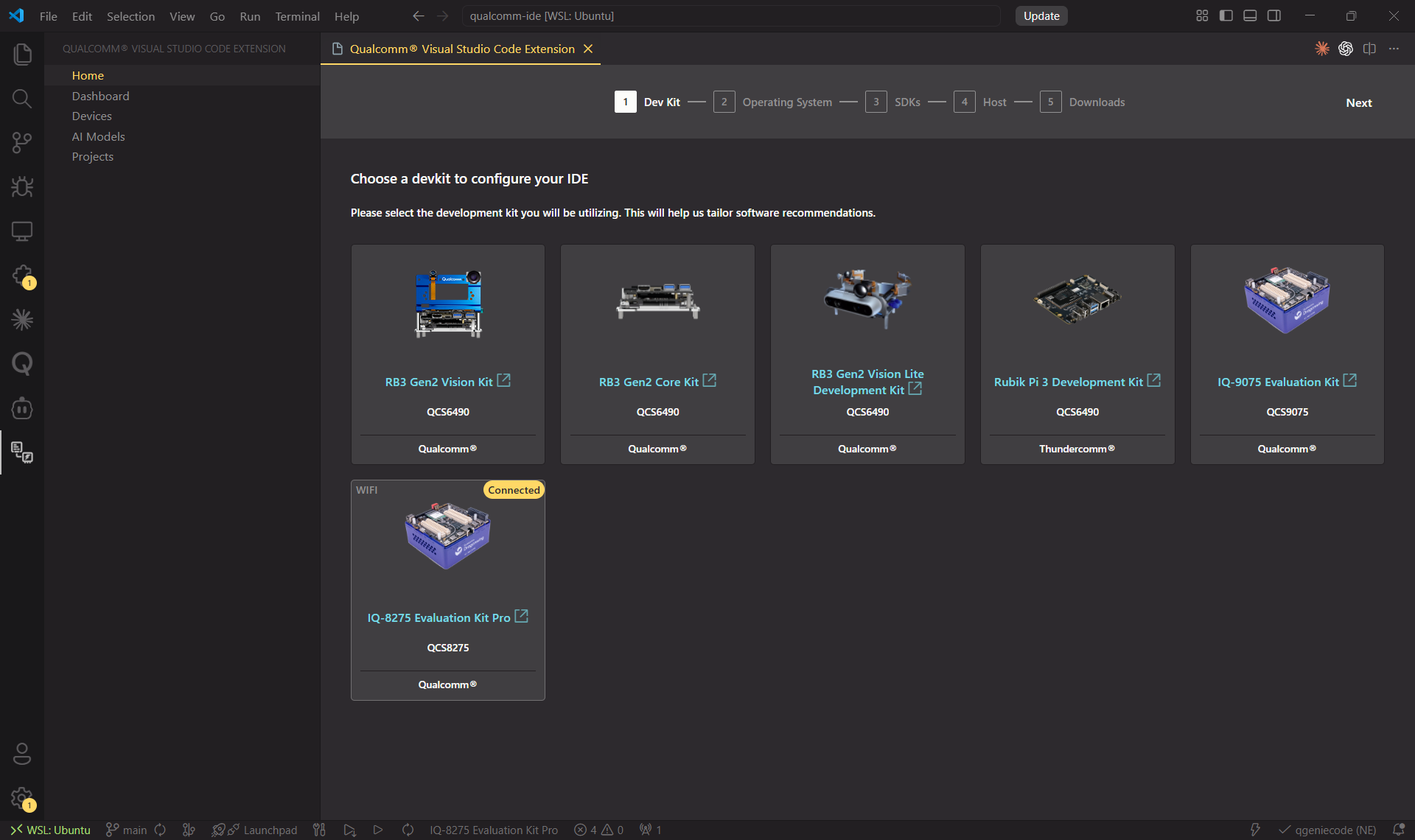
Step 2 — Operating System
Step 2 — Operating System
Choose the target OS for the selected dev kit. Select the Variant and Version using the inline dropdowns. The selected device is shown in the top-right corner.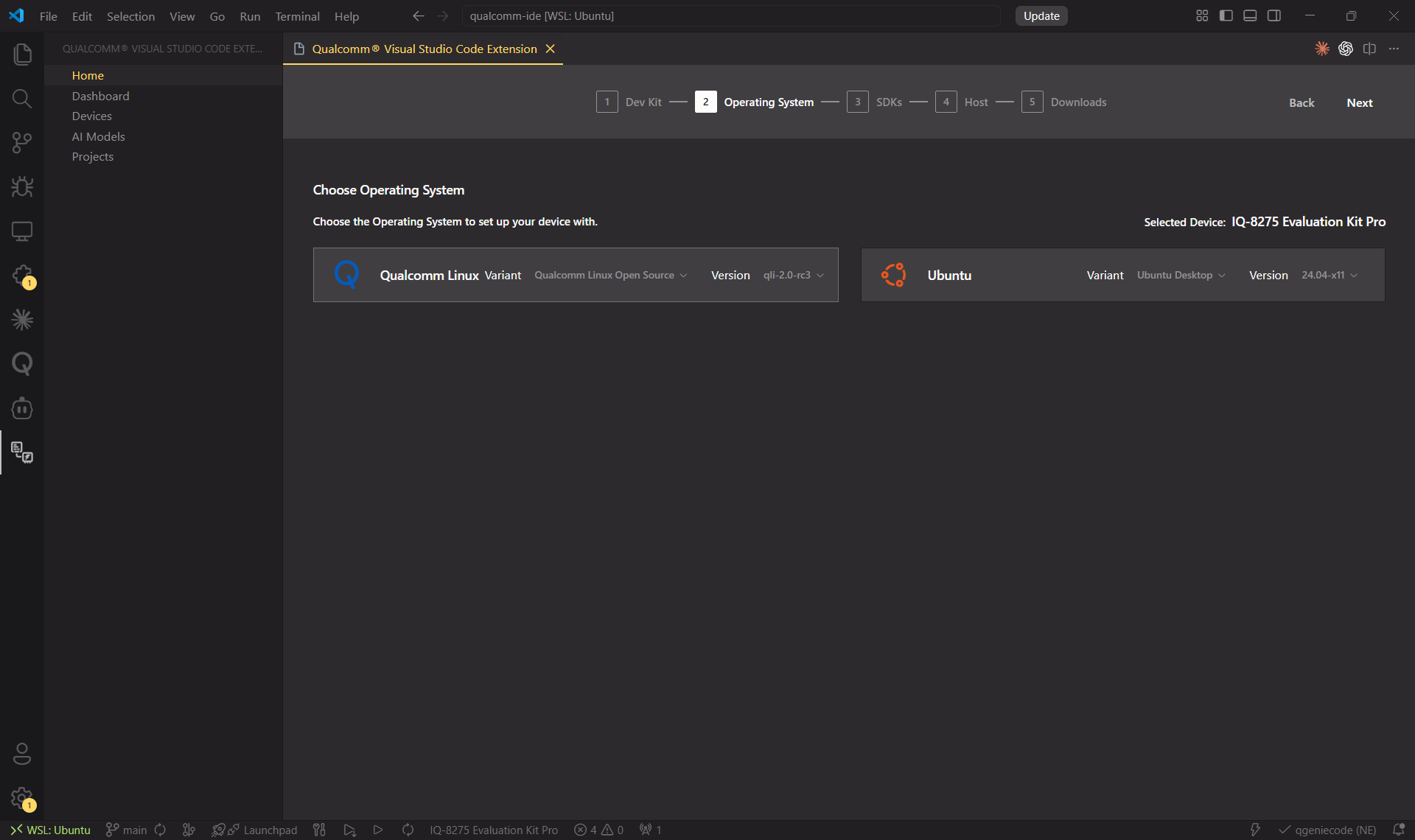
Step 3 — SDKs
Step 3 — SDKs
The wizard lists SDKs available for the selected dev kit and OS. Select the version using the inline dropdown. The latest version for your host architecture (x86_64 or arm64) is pre-selected.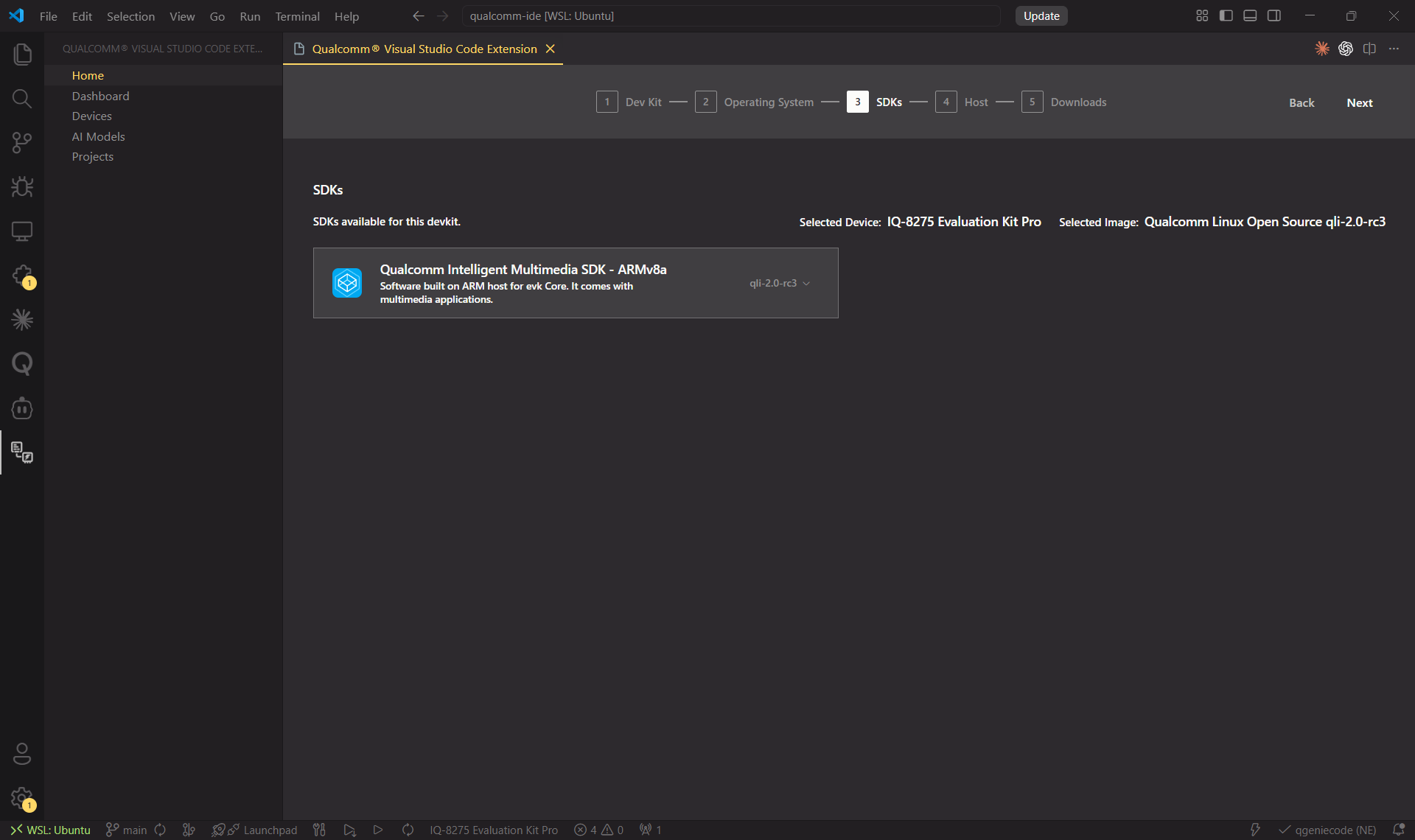
To change the SDK version after initial setup, go to Dashboard → Downloads → SDK tab.
Step 4 — Host Tools
Step 4 — Host Tools
Select the development tools to install on your host machine: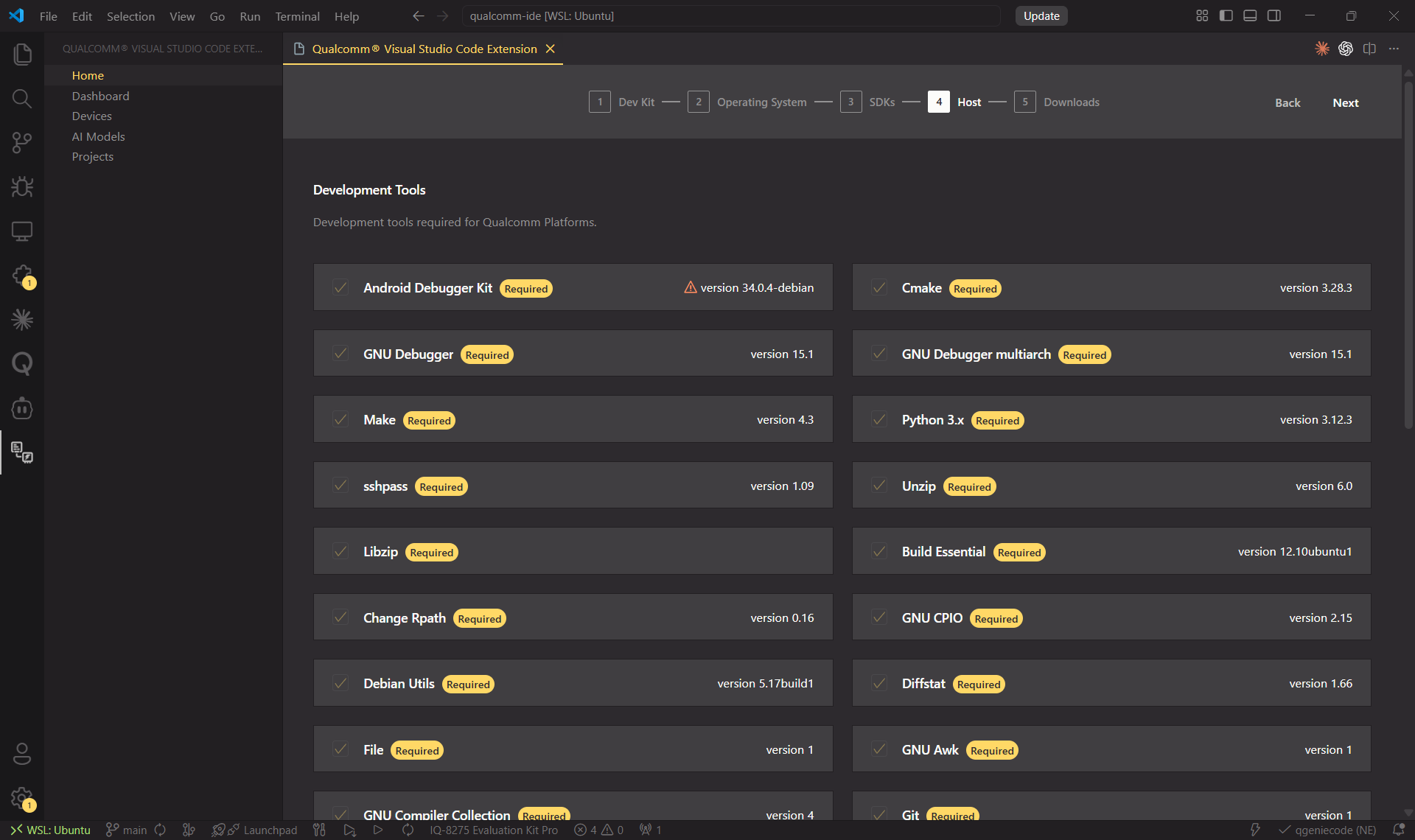
Host Software
GCC toolchain and debugger.
VS Code Extensions
C/C++ IntelliSense, CMake Tools, and others that enhance the editor.
Step 5 — Downloads
Step 5 — Downloads
Click Download & Install to fetch and install everything from the previous steps. Progress is shown across four sections: Operating System, SDK, Tools, and Extensions.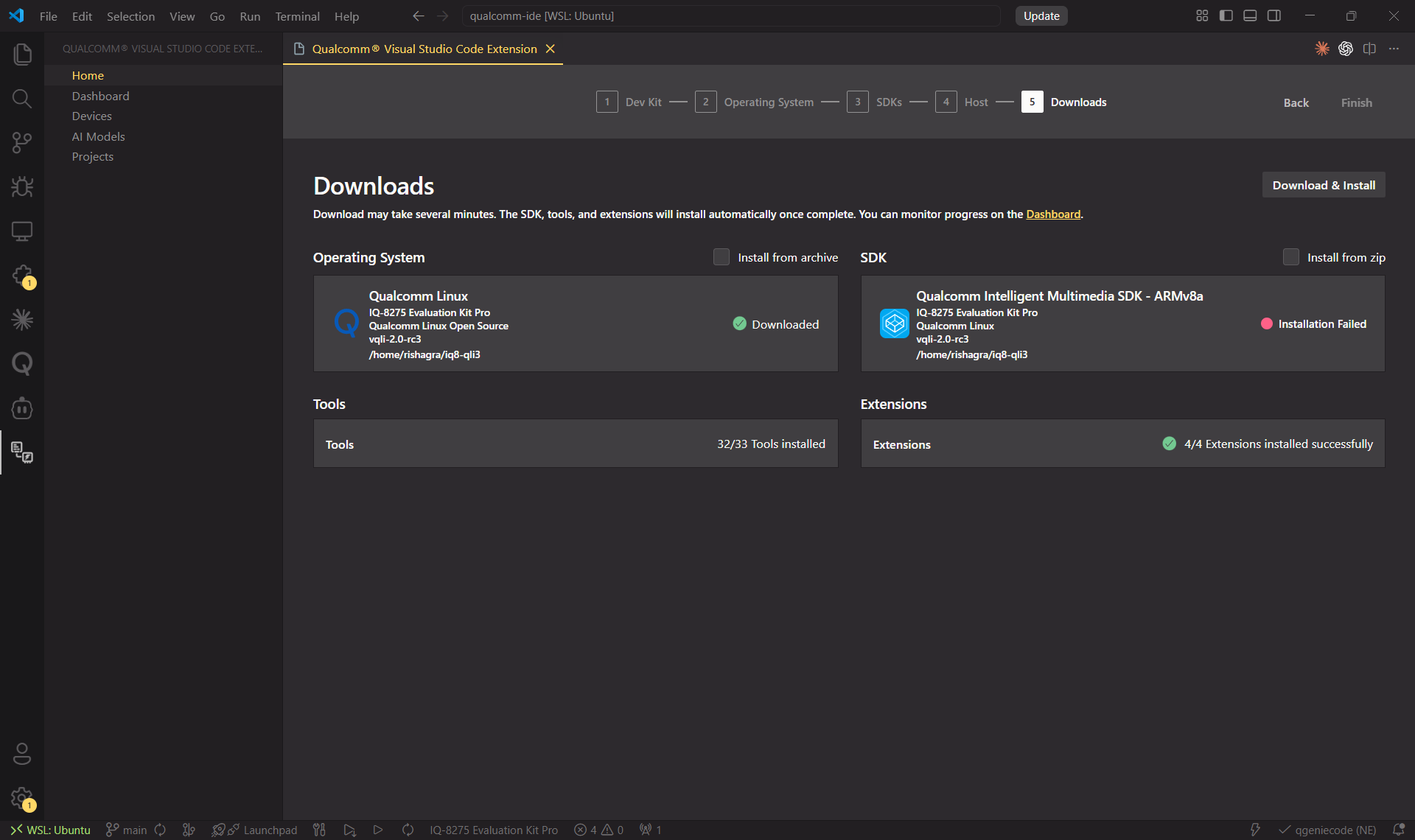 After installation, all software appears in Dashboard → Downloads:
After installation, all software appears in Dashboard → Downloads:Step 2 — Activate Your Device
Navigate to the Device section and click Activate next to your connected device. This sets it as the Active Device for builds and flashing.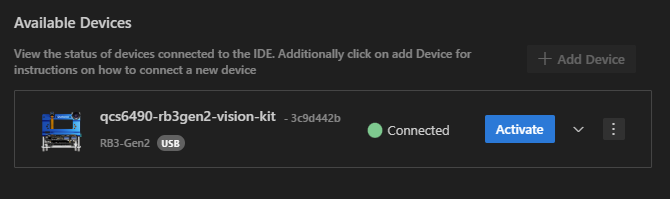
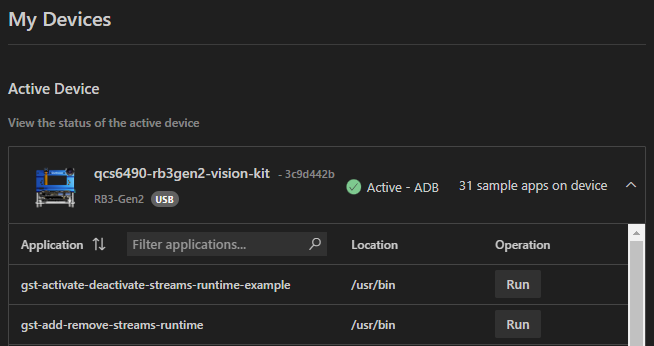
For devices running Ubuntu OS, see the Ubuntu Device
Setup section.
Step 3 — Flash Device Software
Open Dashboard → Downloads → Operating System tab and click Flash & Setup Device next to the image for your dev kit.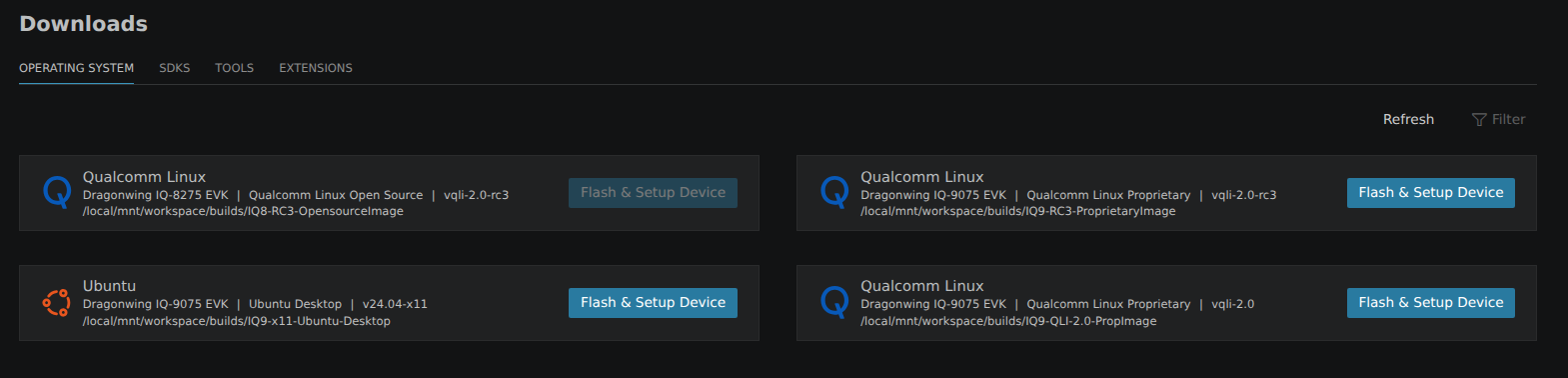
Step 4 — Develop Your Application
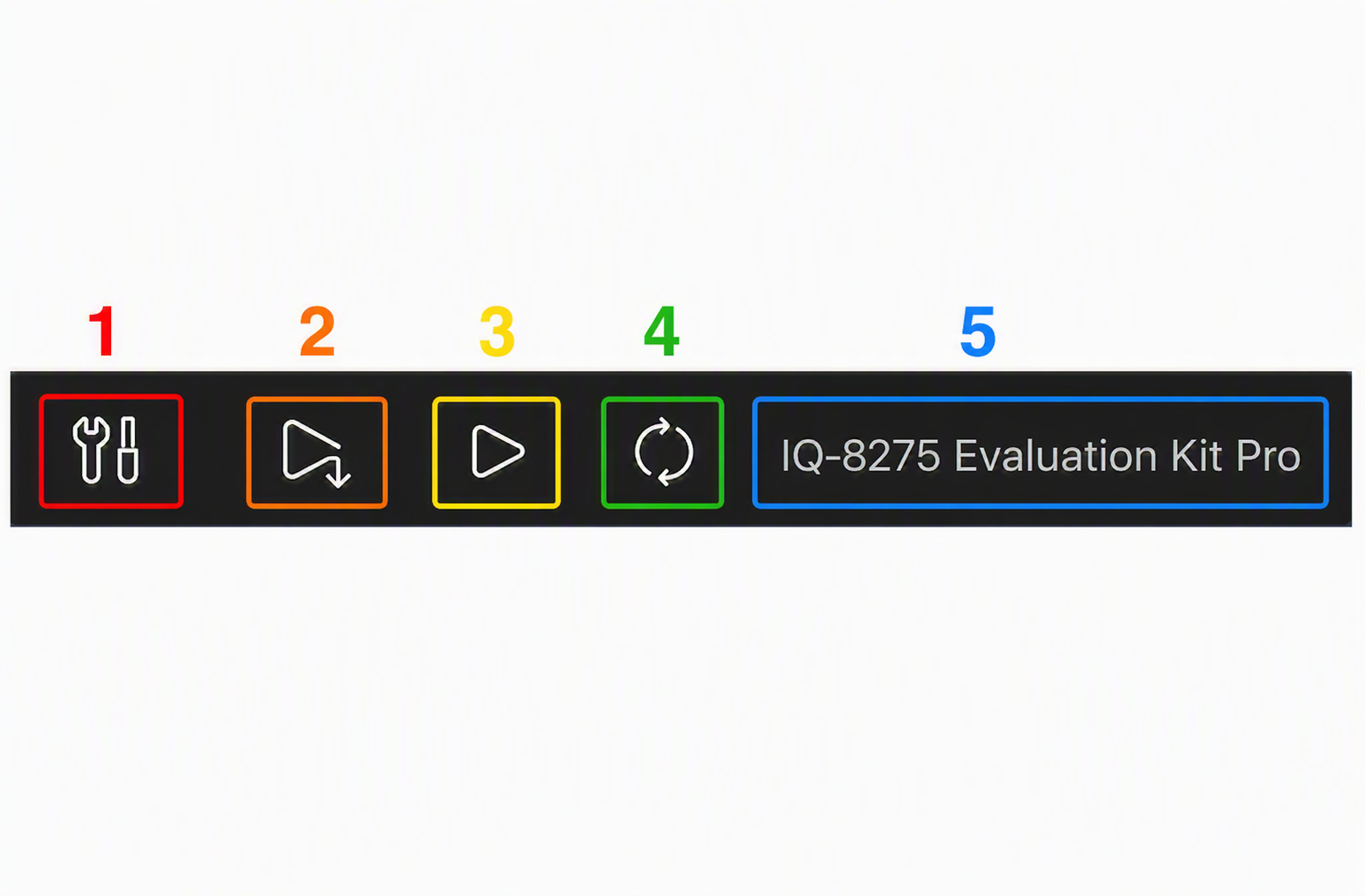
Navigate to Projects to browse sample projects or import templates from the SDK. IntelliSense is configured automatically when a project is open.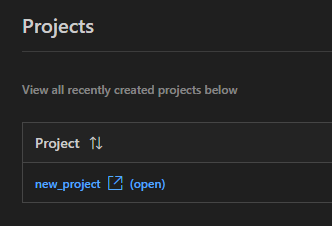 Use the Status Bar buttons to build, deploy, run, and select your target device:
Build
Cross-compile the application for the active device.
Deploy
Build and push the binary to the active device.
Run
Execute the deployed binary on the device.
Refresh Device
Re-scan for connected devices.
Select a Connected Device
Choose which connected device to target.